Instagram Video Download Without Watermark: Why the Mark Appears and How to Save the Original File
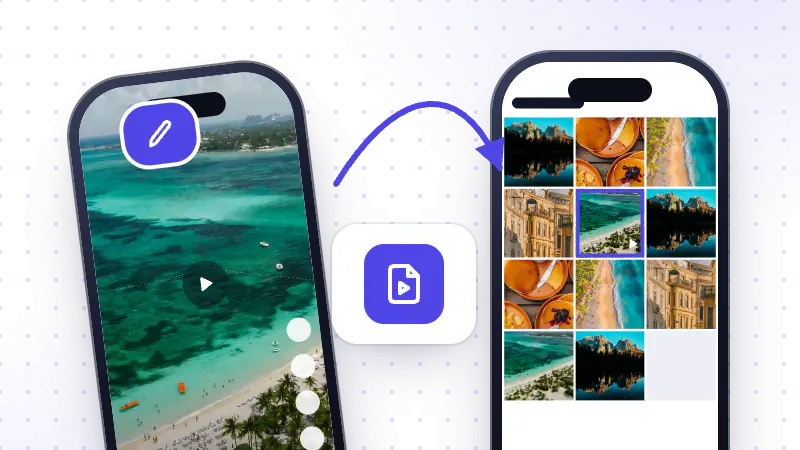
Instagram adds its watermark and the creator's username only to copies made with the in-app Download button. A link-based copy of a public Reel is the file Instagram plays in the feed, with no extra mark from VideoSaver.
Short answer
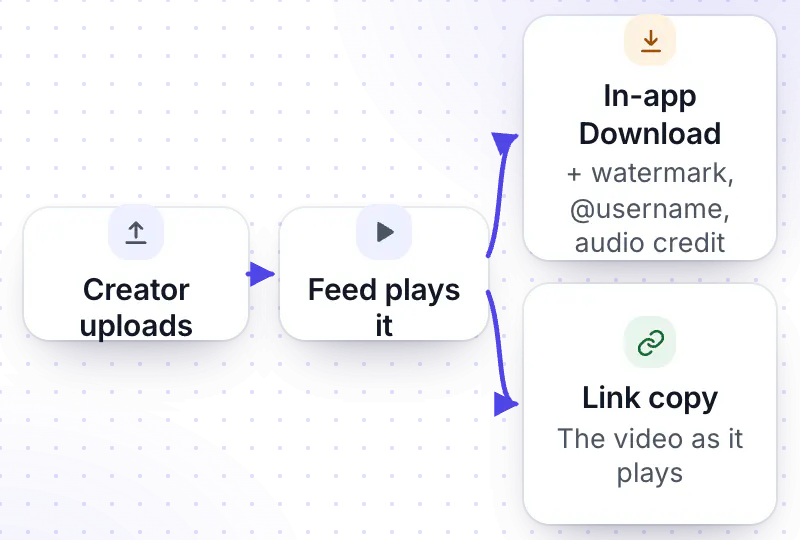
An Instagram video download without watermark is possible because Instagram adds the mark only to the copy made by its own Download button. The Instagram Help Center says that downloaded Reels include an Instagram watermark, the creator's username and audio attribution, while the same Reel plays in the feed without any stamp. A link-based copy of a public Reel is the file Instagram serves for playback, and VideoSaver adds no watermark of its own.
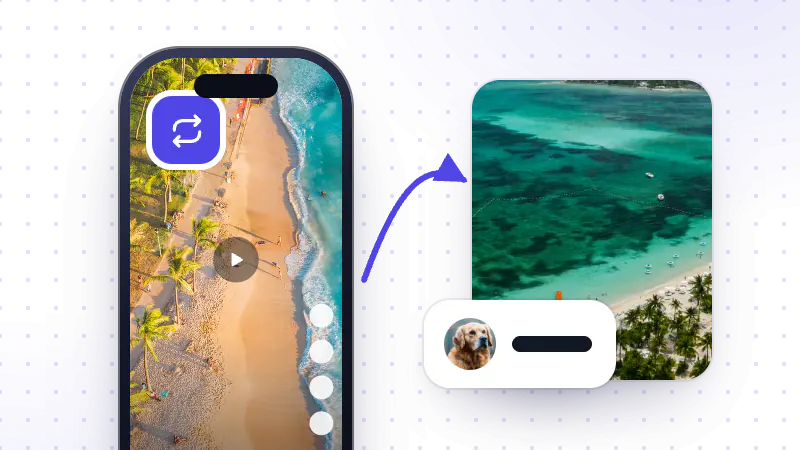
The watermark is a visible overlay that Instagram places on the copy, not a hidden code inside the original upload. Instagram introduced the Download button for public Reels worldwide, and Adam Mosseri, the head of Instagram, said at launch that downloaded Reels carry the Instagram watermark with the account's username.
What the Download button adds to the copy
The in-app Download button produces a file with three additions, according to the Instagram Help Center:
- the Instagram watermark in the frame,
- the creator's username,
- audio attribution for the sound.
Licensed music behaves differently from original sound. Engadget reported that Instagram strips the audio from downloaded Reels that use licensed music, so a stamped copy can also be a silent one.
The button itself depends on the creator. On a public account, anyone on Instagram can download a Reel unless the creator changes the download setting. On a private account, nobody can download Reels at all.
What stays the same: the video the feed plays
The Reel in the feed has no stamp, because the watermark belongs to the download step. That playback file is what a link-based tool receives for a public Reel. VideoSaver passes this file to you as it is: no compression, no upscaling and no mark added by VideoSaver.
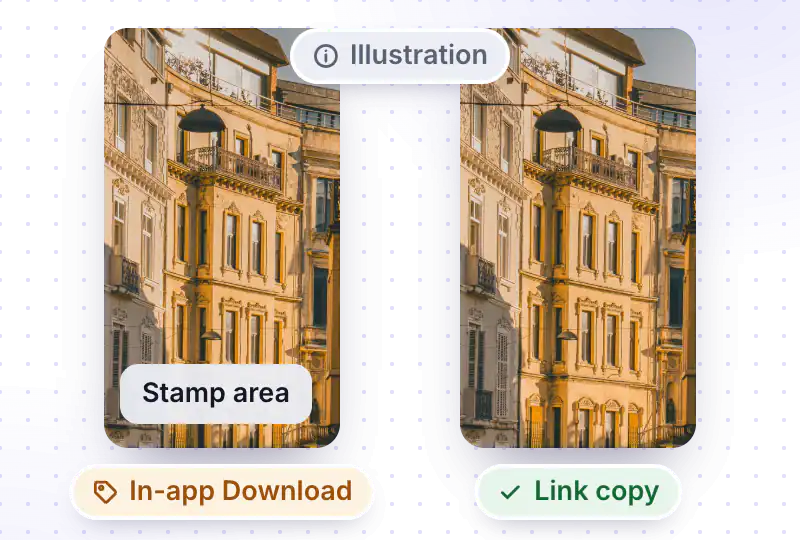
Three methods give three different files. The right choice depends on what you need in the frame and on what the creator allowed.
| Method | Instagram watermark | Username stamp | Licensed music | Other elements in the frame |
|---|---|---|---|---|
| In-app Download button | Yes | Yes | Often removed | None |
| Screen recording | No | No | Whatever plays on screen | Notifications, captions and buttons that were on screen |
| Link copy of a public Reel | No | No | As Instagram serves it | None |
A screen recording avoids the stamp but records everything else on the screen, from a message banner to the playback buttons. A screen recorder also encodes the display a second time, so the file reflects the screen rather than the source upload.
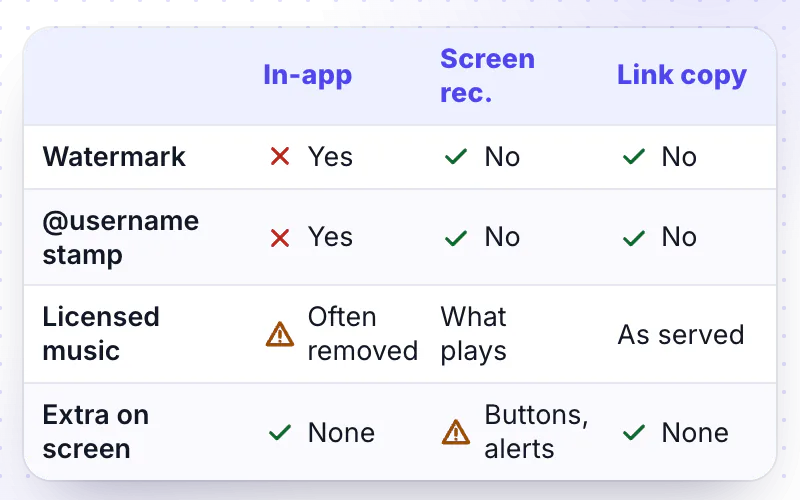
The in-app button is the only method that writes the creator's name into the file. That stamp is useful when you send a Reel to a friend, because it keeps the credit visible. For an offline archive or for your own content, a clean original file is the better choice, and an Instagram reel downloader without watermark gives you exactly that file.
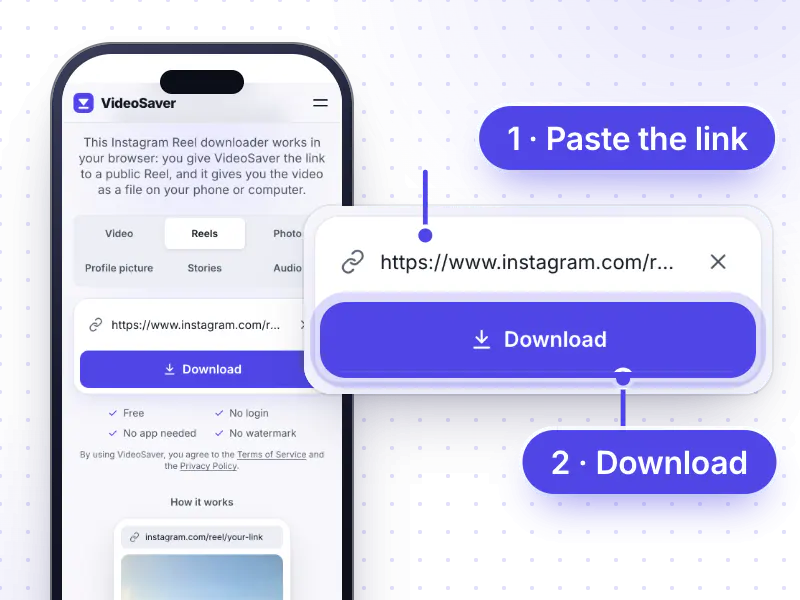
The method below shows how to download Instagram Reels without watermark from any public account, on a mobile device or on a computer. VideoSaver works without a login, so you do not need an Instagram account for this step.
On iPhone and Android
- Open the Reel you want in the Instagram app and tap the Share icon (the paper plane).
- Tap Copy link.
- Open VideoSaver Reels in your browser and tap Paste, or touch and hold the field "Paste an Instagram link".
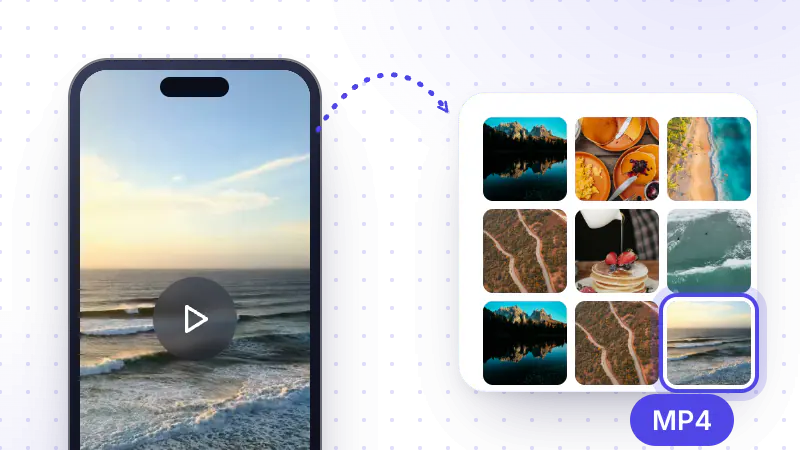
- Press Download and save the MP4 from the result card.
The file goes to the browser's downloads first. The guide on saving Reels to your camera roll shows how to move it to Photos on iPhone or to the Gallery on Android.
On a computer
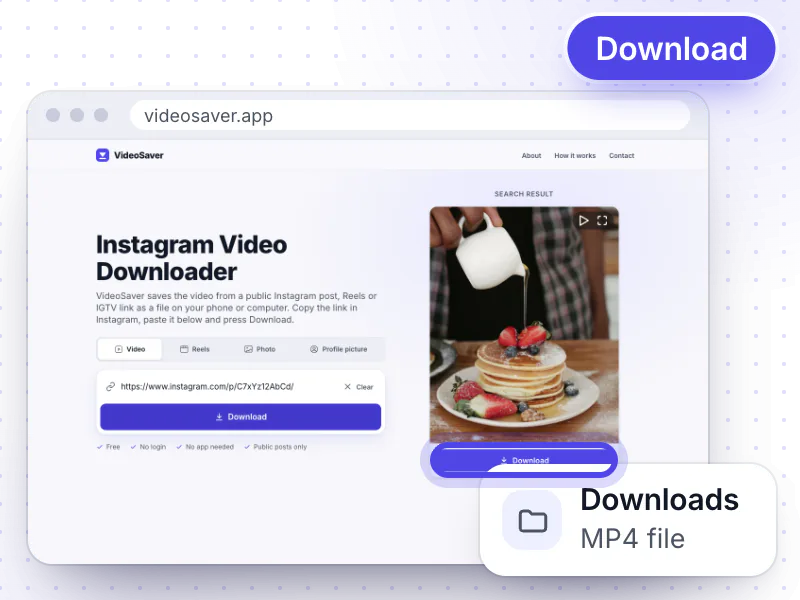
Copy the address of the Reel from the browser bar, paste it into the field on VideoSaver and press Download. The MP4 lands in your downloads folder. The video quality is the quality Instagram serves for that Reel, for example 720p, and no tool can add detail that the upload never had.
Note
If the account is private, the form says "This account is private or the post was removed. We can only save public posts." VideoSaver never signs in to Instagram, so a private Reel stays private.
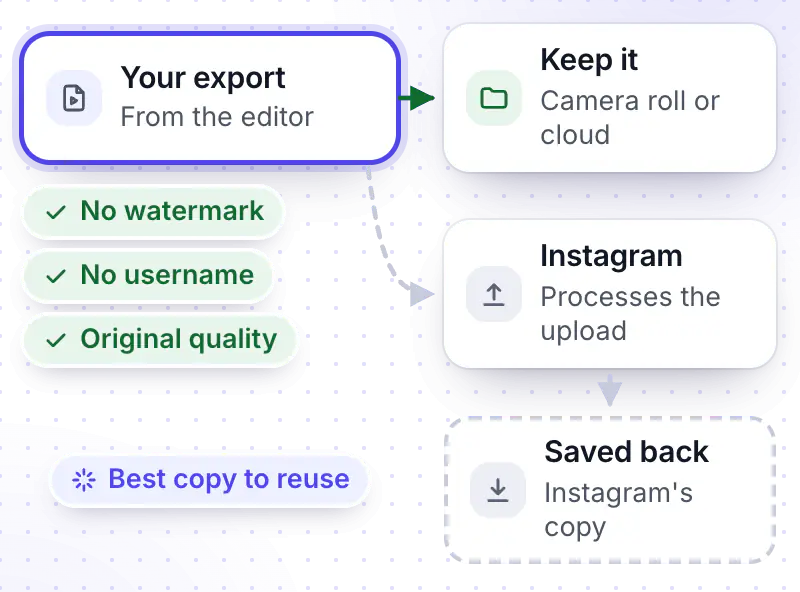
Creators who move Instagram Reels to other platforms get the cleanest copy from their own device or video editor. The export from your editing software has no watermark, no username and no change in quality from Instagram's processing. Keep that file in the camera roll or a cloud folder, and you never need to download your own Reel back.
When the export is gone, the guide on downloading your own Instagram Reels walks through drafts, the archive and the data download that Instagram offers to account owners.
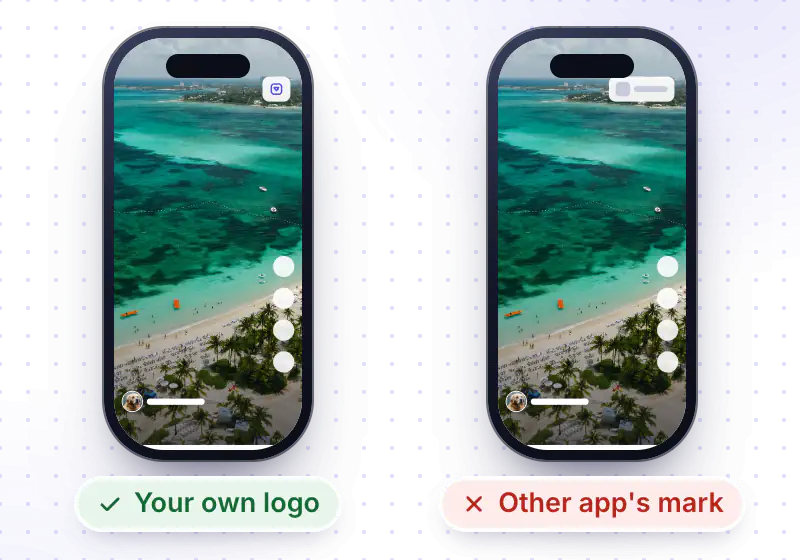
Instagram has said in public that it shows recycled content less often. The Instagram Creators account explained that Reels with logos or watermarks from other apps are less satisfying to viewers, so Instagram makes them less discoverable in places like the Reels tab, as Tubefilter reported. The same rule exists on the other side of the move: another app will see Instagram's stamp as a sign of recycled content.
Your own branding is a separate case. Adam Mosseri said that a Reel with the creator's own logo is "good to go", and that Instagram tries not to recommend Reels with logos from other apps.
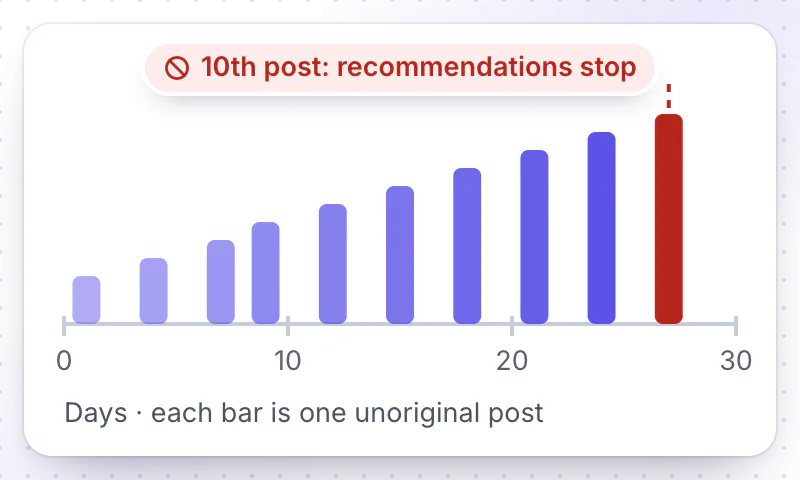
Instagram also ranks original creators above accounts that repost. Engadget reported that Instagram replaces a reposted Reel with the original clip in recommendations when it detects identical content, labels the original creator, and stops recommending Reels from accounts that posted unoriginal content 10 or more times over 30 days.
Third-party sites that promise Instagram Reels without the watermark differ a lot, and some carry real security risks. Four checks separate a safe tool from a risky one:
- No password request. A tool that saves public Instagram Reels never needs your Instagram login. A site that asks for it can take over the account.
- No app or extension to install. A web page is enough to save the reel. An APK file or a browser extension from an unknown source can read far more than one video.
- No promise of private content. A private account is visible only to its approved followers, so a site that claims otherwise is lying about something.
- Clear pages about privacy and copyright. A service that publishes its privacy policy, terms and DMCA contact is accountable for what it does with your link.
VideoSaver passes all four: no login, no app, public content only, and the privacy policy explains what happens to the link you paste.
"No watermark" on VideoSaver has a narrow meaning: VideoSaver adds no watermark, logo or caption of its own to the file. The phrase has three limits.
- The creator's own marks stay. A logo, a caption or text that the creator placed inside the video is part of the picture, and VideoSaver does not touch it.
- VideoSaver never removes marks. This guide does not explain watermark removal, and blurring or cropping out another creator's logo is not a fair way to reuse their work.
- Only public content opens. Reels from private accounts stay out of reach, even if you follow the account.
Any Instagram video downloader no watermark claim should mean exactly this, and nothing more. The same clean file is available for regular video posts through the Instagram video downloader.
A saved file is a copy for your own viewing. Watching a Reel offline, keeping a tutorial for later or archiving your own work are personal uses. Posting someone else's Reel on another account, for commercial purposes or in a compilation is a new publication, and that needs the creator's permission under copyright law.
Credit is not permission. A caption that tags the creator still uses their work without consent. Fair use in the United States covers narrow cases like commentary or criticism, and it is decided case by case, so it is not a safe default for a repost.
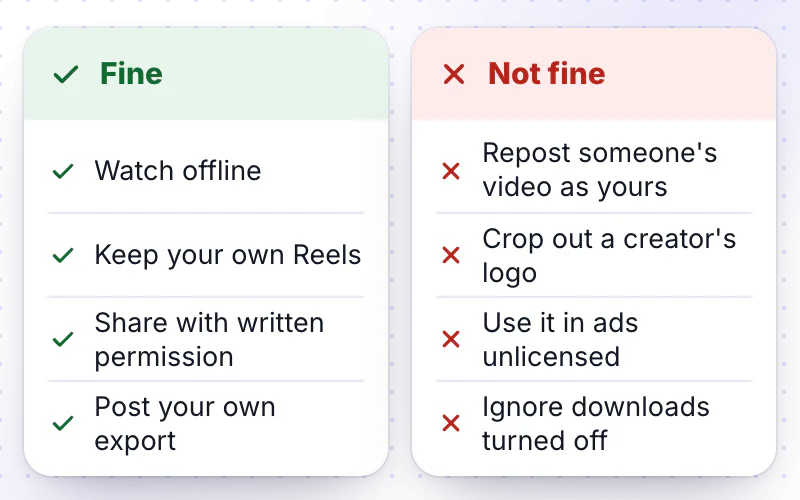
A creator who turned off downloads has already stated a preference. Respect it and ask in a direct message, then keep the written reply. The guide on how to repost a Reel the right way includes a short permission request you can copy. Creators who find their work reposted without consent can use the DMCA page to report a file.
Frequently asked questions
Short answers to the questions readers ask most about this topic.
Does Instagram add a watermark to every downloaded Reel?
Instagram adds its watermark, the creator's username and audio attribution to every Reel saved with the in-app Download button, according to the Instagram Help Center. The Reel that plays in the feed shows no stamp. The button appears only on public Reels whose creator has not turned downloads off.
Does VideoSaver remove watermarks?
No. VideoSaver never edits a video and never removes a mark. It saves the file that Instagram serves for a public Reel and adds no watermark, logo or caption of its own. A logo or text that the creator placed in the video stays in the file, exactly as the creator published it.
Why is there no Download option on some Reels?
The Download option is missing when the account is private or when the creator switched off downloads for that Reel or for the whole account. The Instagram Help Center describes both cases. A missing button is a clear signal from the creator, so ask them for the file before you save or share it.
Will a downloaded Reel keep its music?
Not always. Reels saved with the in-app Download button lose licensed music, as Adam Mosseri explained when downloads launched worldwide, while original audio stays. If the sound is what you need, the guide on Instagram audio not working covers silent files and how to save the audio track as an M4A file.
Can I repost a Reel I saved without a watermark?
Only with the creator's permission. A clean file does not change who owns the video, and credit in the caption is not permission. Instagram also says it may replace reposts with the original in recommendations. Ask the creator in a direct message and keep their written yes.
Sources
Facts about Instagram features in this article come from these pages.
- Instagram Help Center: who can download your reels and what downloaded reels include help.instagram.com
- Engadget: Instagram makes public Reels downloadable for everyone (Adam Mosseri on the watermark and licensed music) engadget.com
- Tubefilter: Instagram will make Reels with a TikTok watermark less discoverable tubefilter.com
- Social Media Today: Instagram clarifies that including your own logo on a Reel is OK socialmediatoday.com
- Engadget: Instagram's algorithm overhaul will reward original content and penalize aggregators engadget.com