How to Save Instagram Reels to Your Camera Roll (iPhone and Android)
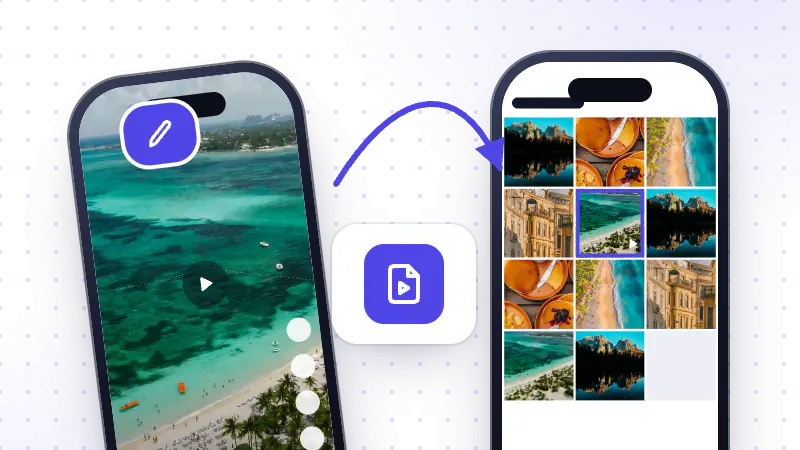
Three ways put an Instagram Reel in your camera roll: the in-app Download, a screen recording and a link downloader. Each one keeps a different part of the Reel.
Short answer
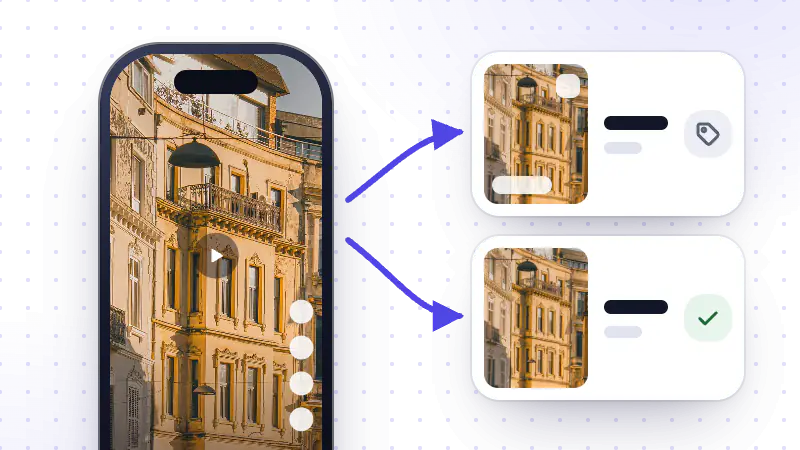
You can save an Instagram Reel to your camera roll in three ways: the Download option inside Instagram, a screen recording, or a link downloader such as VideoSaver. The in-app Download is the quickest, but it adds an Instagram watermark and removes licensed music. A screen recording captures whatever plays, and a link downloader saves the public Reel as an MP4 file.
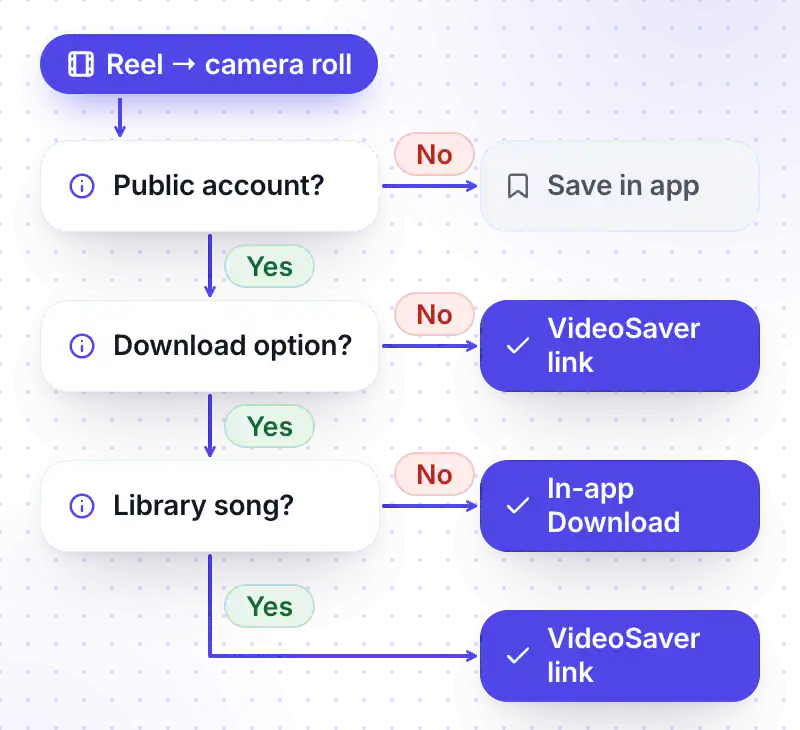
The right method depends on two facts about the Reel: whether the creator allows downloads and whether the Reel uses a song from Instagram's music library. The table compares the three methods on the points that change the result.
| Instagram Download | Screen recording | VideoSaver link | |
|---|---|---|---|
| Works when | The creator allows downloads | The Reel plays on your screen | The account is public |
| Instagram watermark | Added, with the username | Not added, the app interface may be in frame | Not added |
| Library music | Removed from the file | Recorded if sound recording is on | Saves the MP4 Instagram serves for playback |
| Picture | Instagram's own export | Your screen, encoded again | The MP4 Instagram serves, not compressed by VideoSaver |
| Instagram account | Needed | Needed to watch | Not needed |
| Private accounts | No | Only Reels you can already watch | No |
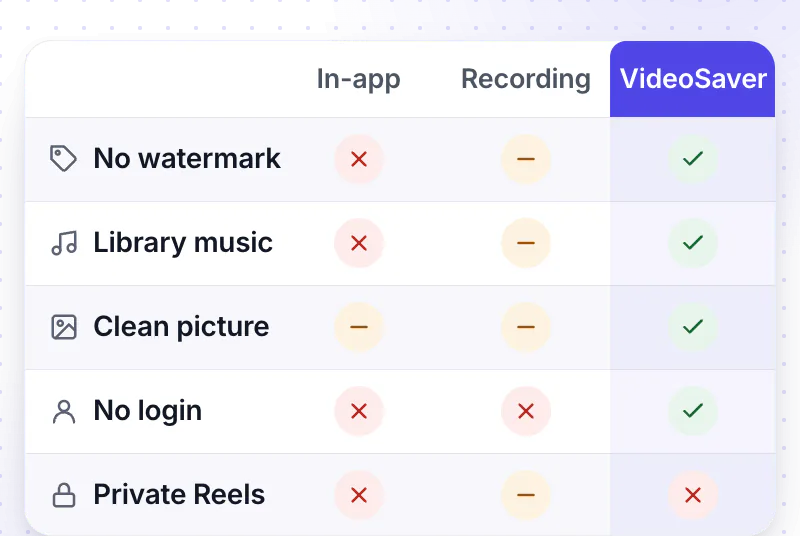
For a quick personal copy of a Reel that allows downloads and has no licensed song, the in-app button is enough. For a clean file of a public Reel, the link method keeps the picture without overlays. Screen recording is the fallback for everything else you can watch.
Instagram's Download option is the shortest answer to how to save an Instagram Reel to camera roll. It saves the Reel from the phone app straight to your device. The option appears only on Reels whose creators allow it, and Instagram's Help Center notes that it isn't available on computers.
- Open the Reel in the Instagram app on your iPhone or Android phone.
- Tap the Share icon and look for Download among the options.
- Wait for the save to finish, then open Photos or your gallery to find the copy.
What the downloaded copy contains
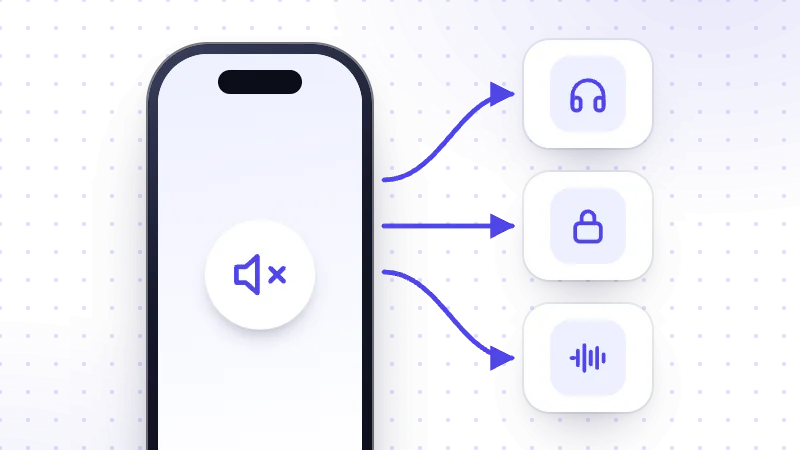
Instagram's Help Center describes the downloaded copy precisely. Downloaded Reels include an Instagram watermark, the creator's username and audio attribution. Reels that use licensed audio or original audio from another creator lose all of their audio in the download. A Reel with only the creator's own sound downloads with that sound.
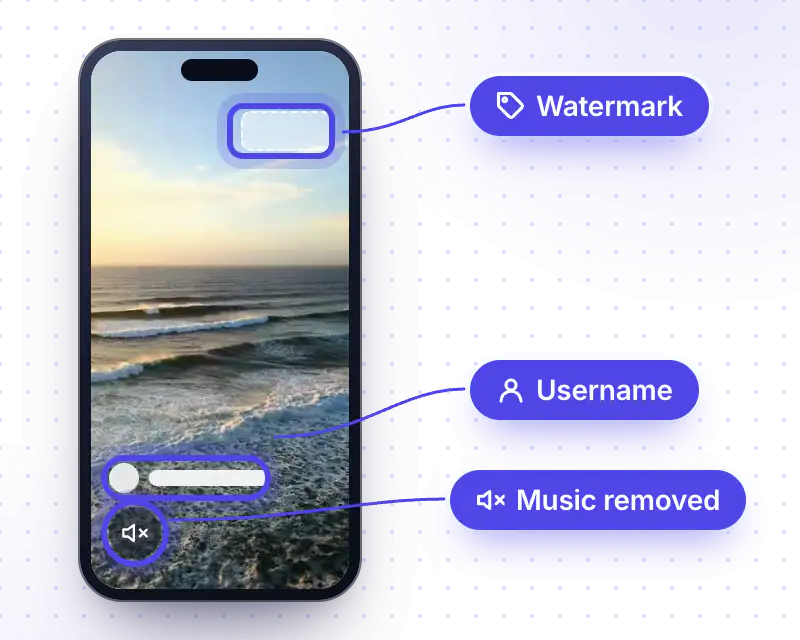
The same page sets a usage rule: downloaded Reels aren't allowed to be used for commercial purposes. Instagram also notes that it can't control what people do with Reels after they download them, so the rule rests on you.
Note
A silent download is expected behavior, not a bug. If the Reel plays a song from the music library, Instagram strips that song from the saved file by design.
Why the Download option is missing
The Download option disappears for reasons set by the creator's privacy settings, not by your phone. Instagram's Help Center lists these cases:
- Downloads turned off. A creator can switch downloads off for all Reels or for a single Reel.
- Private account. No one can download Reels from a private account until it becomes public.
- Creator under 18. Downloads start switched off for public accounts of users under 18.
- Older Reels. Reels shared before downloads became available stay locked until the creator changes the download settings.
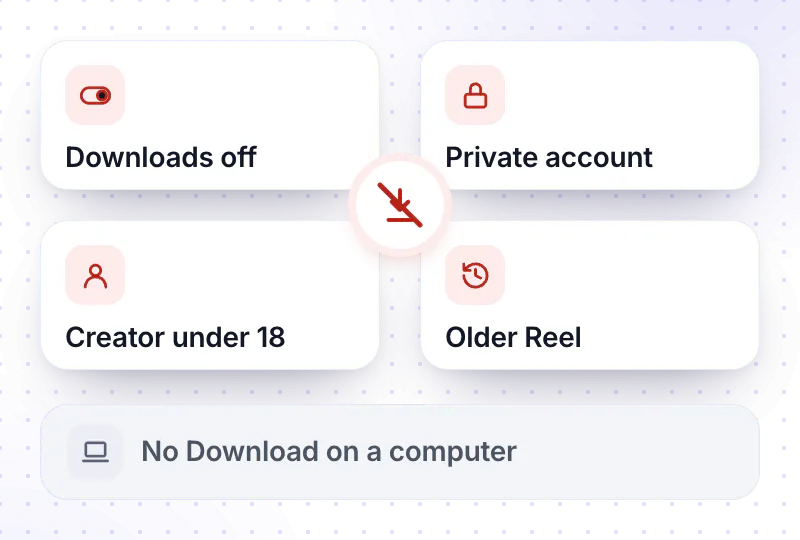
A Reel without the Download option still has a share link, and that link is what a downloader reads when the account is public.
Your own Reels have a direct path. Instagram's Help Center page on how to manage Reels says to open your Reel and tap Download. A draft can go to the camera roll before you post it: on the editing screen, swipe left to right and tap Save. Instagram's drafts page adds one warning: downloading your Reel won't save any music you added from the Instagram music library.
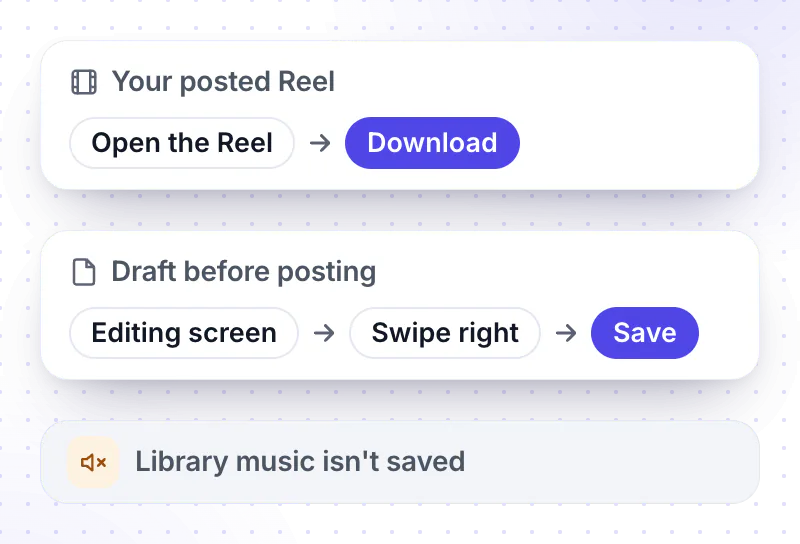
Creators who want the full file with music, or every Reel at once, have more options, covered in the guide to downloading your own Instagram Reels.
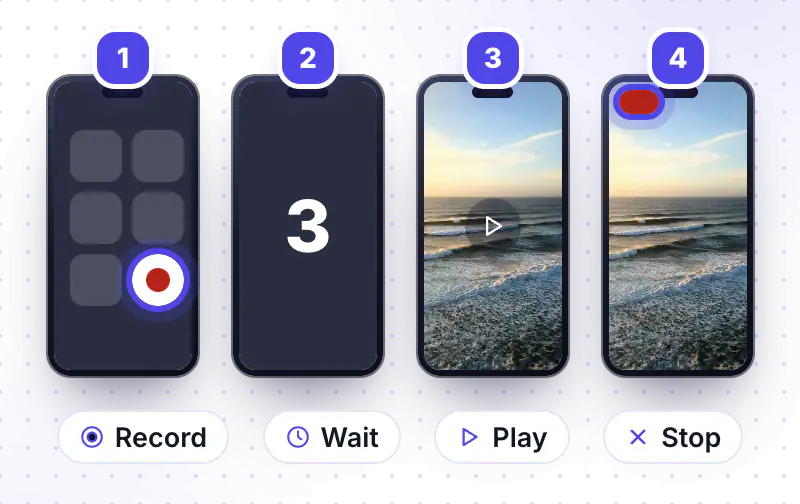
Screen recording is how to save a Reel from Instagram to camera roll when nothing else works. It saves anything you can play, including Reels with downloads turned off. The recording is a new video of your screen, so its picture depends on your display and its sound depends on your recording settings.
Screen record a Reel on iPhone
Apple's support page gives these steps:
- Open Control Center by swiping down from the upper-right corner.
- Tap the Record button and wait for the three-second countdown.
- Switch to Instagram and play the Reel from the start.
- Tap the red indicator at the top of the screen, then tap Stop.
The recording goes to the Photos app, so it's already in your camera roll. Press and hold the Record button first if you want to change the Microphone setting.
Screen record a Reel on Android
Google's Android Help describes a similar flow:
- Swipe down twice from the top of the screen.
- Tap Screen record. If it's missing, tap Edit and drag it into Quick Settings.
- Choose what to record, including whether to record audio, and tap Start.
- Pull down the notification shade and tap the screen recorder notification to stop.
The video appears in Photos under Collections → On this device → Movies. Phones with a manufacturer skin may label these steps differently.
Tip
Hide the clutter before you record. Turn on Do Not Disturb so notifications don't land in the frame, and trim the first and last seconds in the Photos editor afterwards.
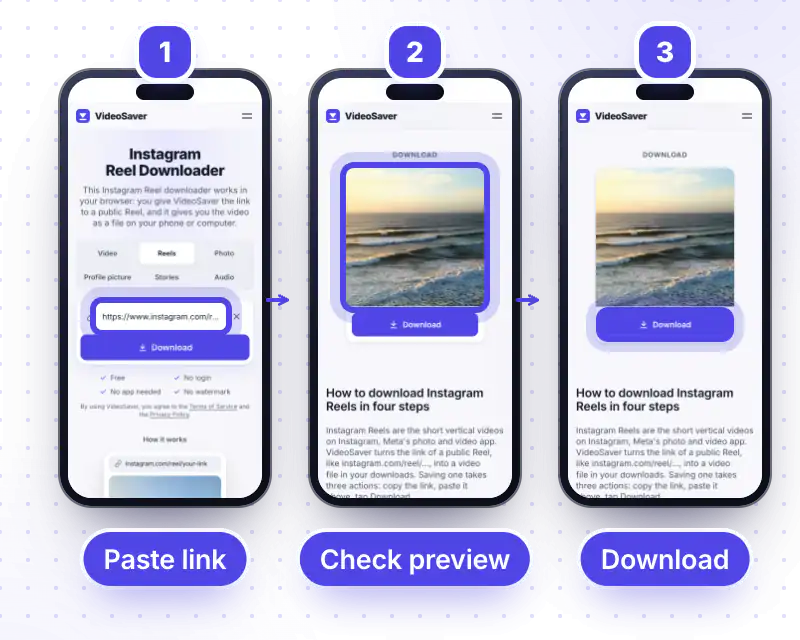
A link downloader is how to download an Instagram Reel to camera roll as a real video file instead of filming your screen. VideoSaver reads the public link, finds the MP4 that Instagram serves for playback and gives it to your browser. VideoSaver doesn't add a watermark, doesn't compress the video and doesn't ask for your Instagram login.
- In Instagram, open the Reel, tap Share and then Copy link.
- Open the Instagram Reels downloader in Safari, Chrome or any other browser.
- Paste the link and check the preview of the Reel.
- Tap Download to save the MP4 file.
What quality to expect
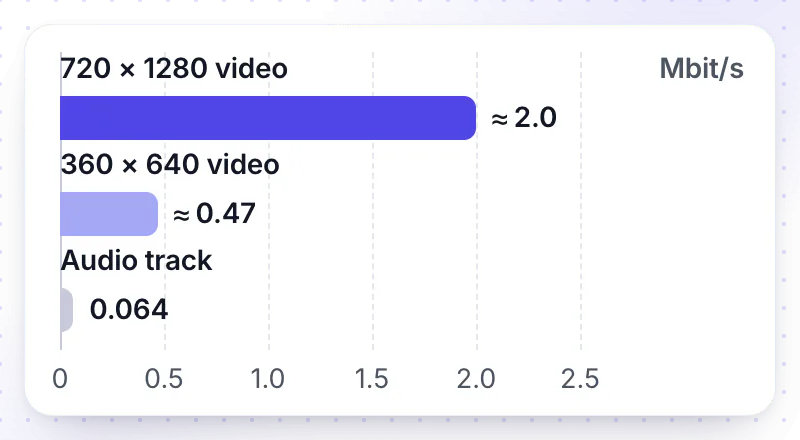
A downloaded Reel can't look better than its upload. Instagram stores several versions of each Reel, and the best one sets the ceiling. On the VideoSaver test stand, one public Reel of 8.4 seconds came with two video versions, 720 × 1280 at about 2.0 Mbit/s and 360 × 640 at about 0.47 Mbit/s, plus a separate HE-AAC audio track at about 64 kbps. VideoSaver takes the best version Instagram offers for that Reel, so another Reel may come in a different resolution.
Save the sound when the video comes out silent
People who want to save Instagram Reels to camera roll with audio often find the in-app copy silent. The sound of a public Reel can also be saved on its own. The Instagram audio downloader saves the Reel's audio track as an M4A file with AAC audio, the codec Instagram uses for sound inside its videos. That file plays on iPhone, Android and in video editors, which helps when an in-app download came out without music.
Save Instagram Reels on a computer
Instagram on a computer has no Download option, but a browser on a laptop works the same way as on a phone. Copy the Reel's link from the address bar on instagram.com, paste it into VideoSaver and save the MP4. The file lands in the computer's Downloads folder, and you can move it to your phone with your usual sync or cable.
The same link method covers regular video posts. To save Instagram video to camera roll from a feed post rather than a Reel, paste the post link into the Instagram video downloader, which reads public video posts the same way.
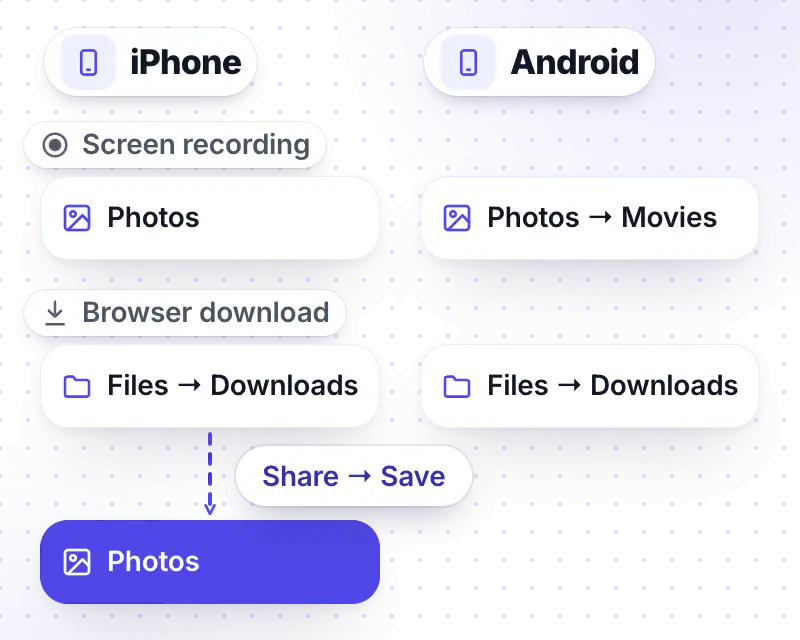
The method decides the folder. Screen recordings go straight to the photo library. Files from a browser go to a Downloads folder first, which is why a downloaded Reel sometimes seems missing from the camera roll.
| Method | iPhone | Android |
|---|---|---|
| Instagram Download | Photos | Gallery or Google Photos |
| Screen recording | Photos → Library | Photos → Collections → On this device → Movies |
| Browser download | Files → Browse → iCloud Drive → Downloads | Files app → Downloads, or Chrome → Downloads |
On iPhone, open the MP4 in the Files app, tap the Share button and save the video to Photos. On Android, most gallery apps pick up the Downloads folder on their own.
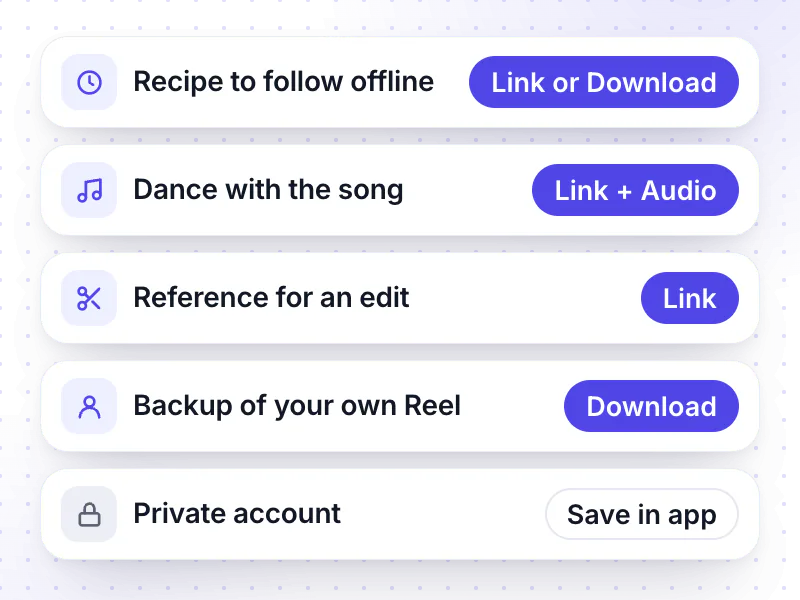
The best method follows from what you plan to do with the Reel. These five situations cover most requests:
- A recipe or workout to follow offline. Use the link method or the in-app Download. Both give a file that plays in airplane mode, and the watermark doesn't matter for personal use.
- A dance or song you want to practice with. Licensed music matters here, so skip the in-app Download. Save the video by link and, if needed, the sound as a separate M4A.
- A reference clip for your own editing. Take the cleanest picture: the link method gives the MP4 without overlays or interface elements.
- Your own Reel as a backup. Use Download on your own Reel, then read the guide to your own Reels for a version with music.
- A Reel from an account you follow privately. No downloader can reach it. Keep it in your Saved collection inside Instagram or ask the creator for the file.
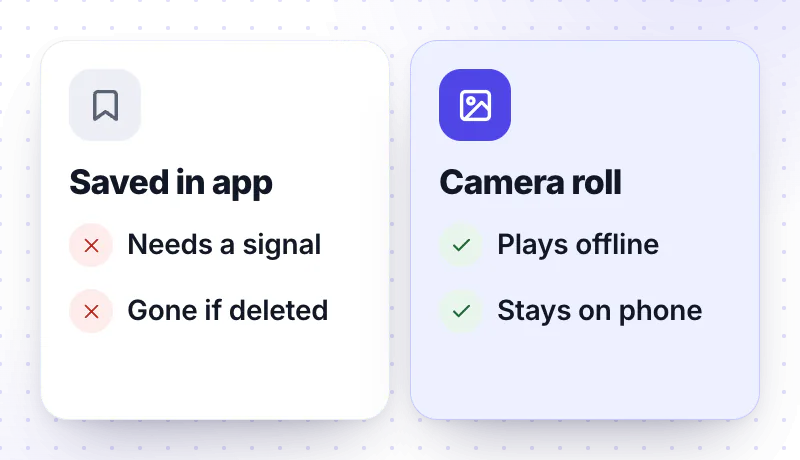
Sometimes a file isn't needed at all. Instagram's Save option keeps a Reel in a private section of your profile: open the Reel, tap Options and then Save, or tap and hold Save to add it to a collection. Instagram's Help Center says only you can see the posts you've saved, and the creator can't tell that you saved theirs.
A saved collection lives online and depends on the Reel staying up. A bookmark points to the creator's post, so when the creator deletes the Reel, the saved item goes with it. A copy in the camera roll stays on your phone.
Most failed saves come down to five causes. Check them in this order:
- No Download option. The creator turned downloads off or the account is private. Use a screen recording or, for a public account, the link method.
- The file saved, but it's silent. The Reel uses licensed music, which Instagram removes from downloads. The guide to fixing Instagram audio that doesn't work covers this case and other sound problems.
- Instagram can't write to your photos. On iPhone, open Settings → Instagram → Photos and allow access. On Android, check the app's storage or media permission.
- The file sits in Downloads. A browser download needs one more step into Photos on iPhone.
- The phone is out of storage. A failed save with no message often means a full device.
Warning
No method can open a private account's Reels for someone who doesn't follow it. Third-party apps and sites that promise private downloads are a scam pattern, and the guide to private Instagram accounts explains why.
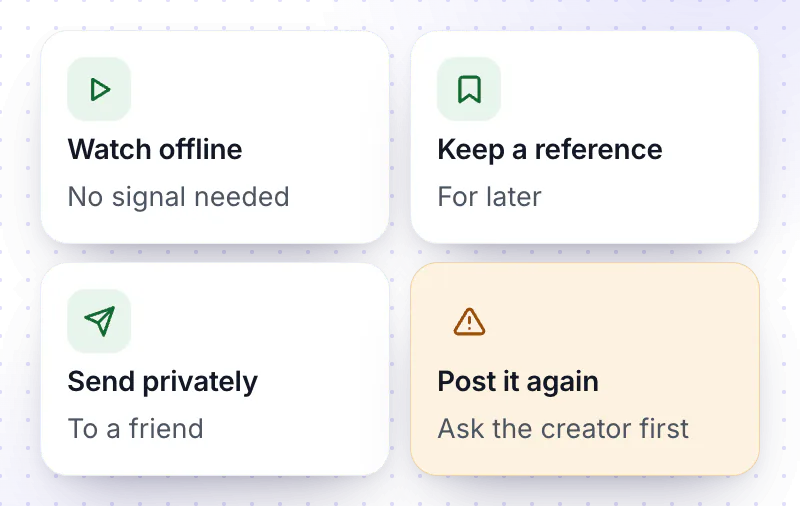
A saved Reel is still the creator's work. Instagram's copyright guidance says a repost can infringe copyright even when you give credit, change the video or found it freely online. Watching a saved Reel offline, keeping a reference for later or sending it to a friend privately stays within personal use. Posting it again calls for the creator's permission first.
Saving doesn't put you on the creator's radar either. VideoSaver needs no login, so the creator gets no notification when you save a public Reel. The guide on whether Instagram notifies people when you save or screenshot covers every other case, from posts to disappearing photos.
To save a regular video post rather than a Reel, the same steps work with the Instagram video downloader, and the guide to Instagram videos without a watermark explains where the watermark comes from.
Frequently asked questions
Short answers to the questions readers ask most about this topic.
Why is there no Download option on some Instagram Reels?
The creator decides. Instagram hides Download when the account is private, when the creator turned downloads off for all Reels or for one Reel, and for public accounts of users under 18, where downloads start switched off. Instagram on a computer has no Download option at all, so open the Reel in the phone app.
Does Instagram's Download keep the music in a Reel?
Not when the Reel uses licensed music or original audio from another creator. Instagram's Help Center says all of that audio is removed from the download. A Reel with only the creator's own sound downloads with its audio. To keep a song as a file, save the Reel's sound with an audio downloader.
Can I save a Reel from a private account to my camera roll?
Not with a downloader. Instagram turns off downloads for private accounts, and VideoSaver reads public Reels only because it never signs in as you. If you follow the account, you can bookmark the Reel with Save inside Instagram or ask the creator to send you the file.
Where does a downloaded Reel go on iPhone?
It depends on the method. A screen recording goes straight to Photos. A file saved from a browser goes to the Downloads folder in the Files app first. Open it there and use the Share menu to save the video to Photos, and it then shows up in your camera roll.
Is it legal to save someone else's Instagram Reel?
Saving a public Reel to watch offline is personal use. Posting it again is a different act: Instagram's Help Center says giving credit doesn't stop a repost from infringing copyright, and downloaded Reels can't be used commercially. Ask the creator for permission before you share their Reel anywhere.
Sources
Facts about Instagram features in this article come from these pages.
- Instagram Help Center: Who can download your Instagram reels help.instagram.com
- Instagram Help Center: Add your own audio or someone else's original audio in your Instagram reel help.instagram.com
- Instagram Help Center: Manage reels on Instagram help.instagram.com
- Instagram Help Center: Save and edit drafts of your reel on Instagram help.instagram.com
- Instagram Help Center: Save posts you see on Instagram help.instagram.com
- Instagram Help Center: Who can see and share your reels on Instagram help.instagram.com
- Instagram Help Center: How to make sure content you post doesn't violate copyright law help.instagram.com
- Apple Support: Take a screen recording on iPhone support.apple.com
- Android Help: Take a screenshot or record your screen on your Android device support.google.com
- Apple Support: Where to find downloads on your iPhone or iPad support.apple.com
- Google Chrome Help: Download a file on Android support.google.com