How to Download Your Own Reel on Instagram: Published Reels, Drafts and Your Full Archive
Your own Reels live in three places: published Reels on your profile, drafts on one phone and the full archive in Accounts Center. Each one needs its own way to download.
Short answer
Knowing how to download your own reel on Instagram starts with one question: is the Reel published, still a draft, or one of dozens you want to keep at once? A published Reel saves from your profile or from its link, a draft saves only from the phone that made it, and a full copy of your Reels comes from Export your information in Accounts Center.
Instagram keeps your own Reels in three different places, and the place decides the method. Mixing them up is why a creator who switches phones finds the published Reels but not the drafts.
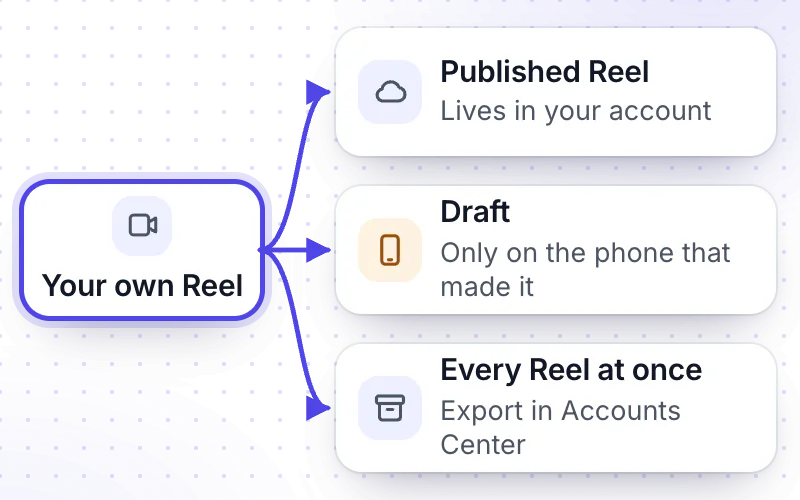
| Your own Reel | Where it lives | How to save it |
|---|---|---|
| Published Reel | Your Instagram account | Download in the app, or paste its link into a downloader |
| Draft | Only the phone where you made it | Save from the edit screen on that phone |
| Every Reel you've posted | Your account data in Accounts Center | Export your information |
A published video survives a lost phone because it sits in your account. An unpublished one doesn't: Instagram's Reels page states that drafts are saved onto your device and can't be opened from another device, even after you log in.
A published video is the easy case. You can save it inside the Instagram app, or paste its link into VideoSaver if your account is public. Both routes give you a file in your gallery for offline viewing, or for when you want to edit the video again, but they can differ in sound and in what appears on the frame. If you also save Reels from other creators, our guide on how to save any Reel to your camera roll covers that side.
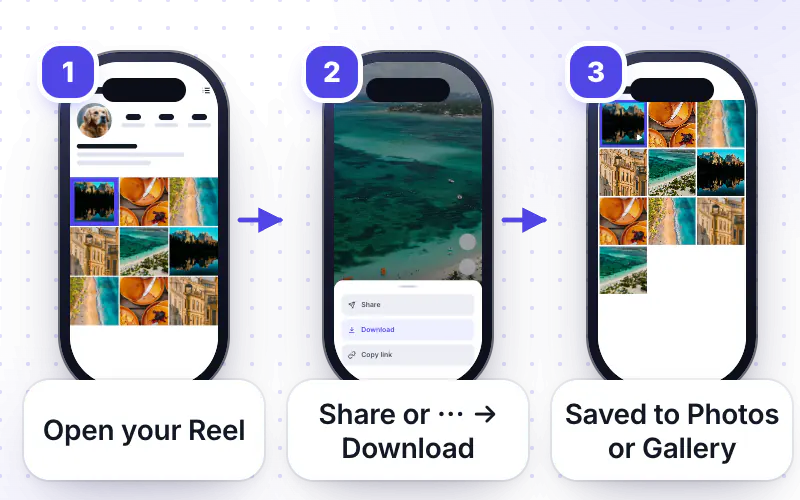
Save it inside the Instagram app
- Open your profile, tap the Reels tab and open the video.
- Tap the share icon (the paper airplane icon) or the three dots, depending on your app version.
- Choose Download or Save to camera roll.
- Give Instagram permission to access photos and videos the first time it asks.
The file lands in Photos on an iPhone and in Gallery on Android. Menu labels change between app versions, so look for a download button with an arrow if the names above don't match yours.
Why the saved file can be silent or watermarked
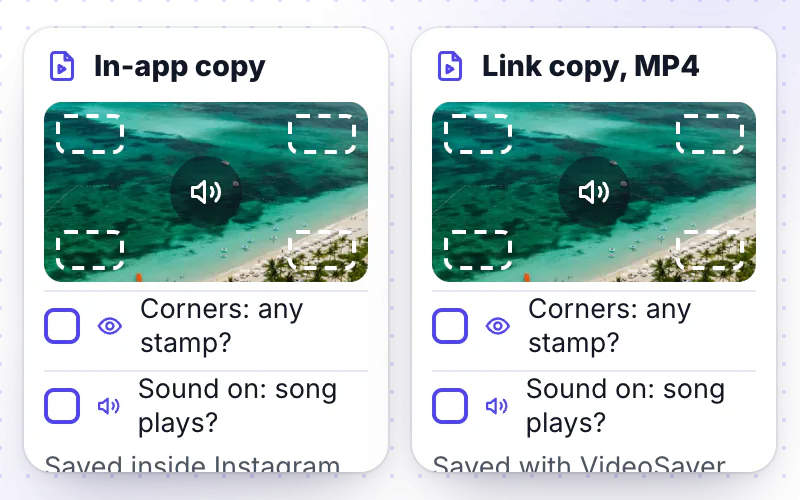
The in-app copy is not always the clean original you edited. Instagram's Reels page warns that downloading your reel won't save any music you added from the Instagram music library. Your voice and other original audio stay in the file, but licensed music from Instagram's library can drop out.
The watermark is less clear-cut. BGR's coverage of Instagram's download feature says downloaded Reels include an Instagram watermark, the username and an audio credit. Several creator guides say the opposite for your own Reel, and one popular guide states both in different paragraphs. Instagram's own pages don't describe the watermark at all, so the reliable check is the file itself. We explain where the mark comes from in our guide on where the watermark comes from.
Tip
Before you delete anything, play the saved file with the sound on and look at the corners of the frame.
Save a public Reel with VideoSaver
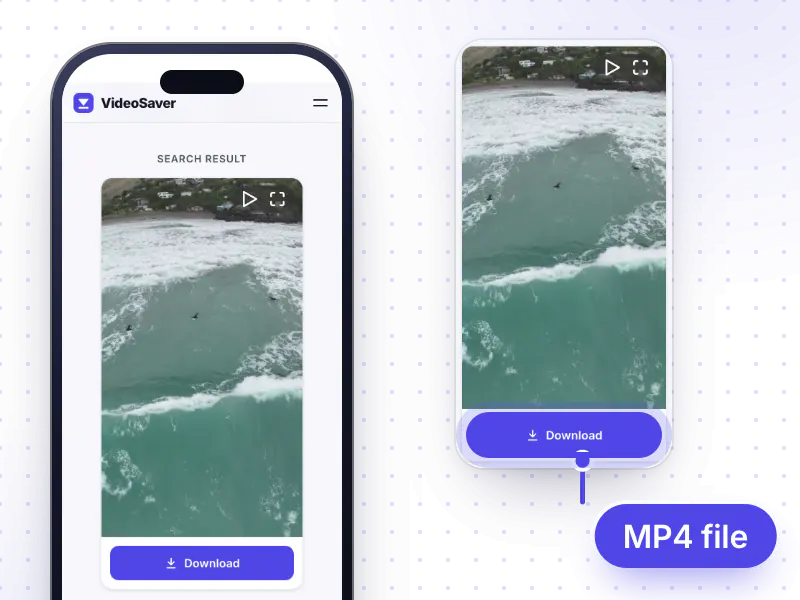
VideoSaver is a free Instagram Reels downloader that works in the browser on a phone or a computer. It reads the link of a public video and gives you an MP4 file in the video quality Instagram serves for that clip. VideoSaver doesn't add a watermark of its own, needs no Instagram login, and the author gets no notification.
- In Instagram, open the video, tap Share and choose Copy link.
- Paste the link into the Instagram Reels downloader.
- Pass the quick check if it appears, then tap Download to save the reel.
VideoSaver reads public accounts only. If your account is private, use the in-app save or the export described below. Skip third party apps that ask for your Instagram password, because a public link is all a downloader needs.
An unpublished video has never left your phone, so only that phone can save it. Here is how to download a reel draft from Instagram before you lose it. Labels can differ slightly between app versions.
Save a draft from the edit screen
- Tap Create (+) and choose Reel, or open the Reels tab on your profile.
- Open the drafts folder and tap the one you want to save.
- Open the edit screen and tap the download icon at the top.
- Wait for the save to finish, then check the file in your gallery.
The edit-screen save keeps a copy without posting anything. The same music rule applies here: music you added from the Instagram music library doesn't come with the download, so the saved copy can play without the song. Add the music again in your video editor or on the platform where you'll post it.
Why a draft stays on one phone
Instagram's Reels page spells out three rules. Unpublished work is saved onto your device, a saved draft can't be opened from another device even when you log in to the same account, and uninstalling the app deletes it. Each one stays until you share or delete it.
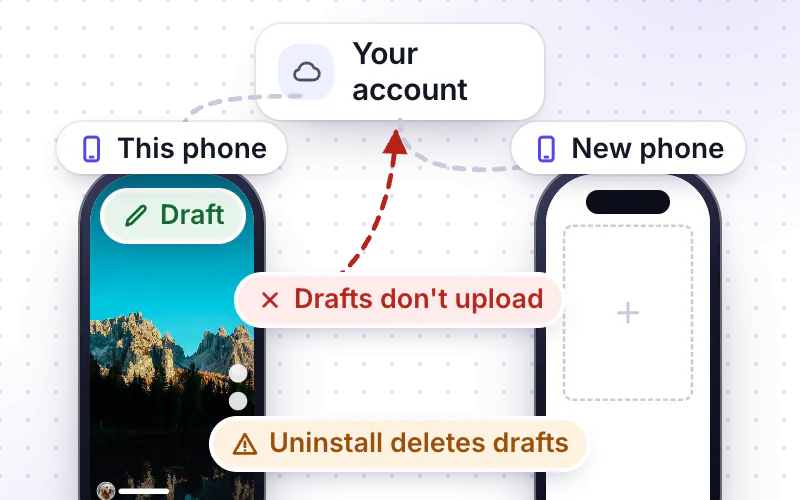
A phone reset, an app reinstall or a switch to a new phone therefore removes every unsaved clip. Instagram has no copy to restore after this accidental loss, because the draft never left the phone.
Why a link-based downloader can't reach drafts
VideoSaver works from a link, and unpublished work has no link until you post it. That makes every link-based downloader, ours included, the wrong tool here. The edit-screen save is the right one. If that button is missing on your phone, publish the video to your account and download it afterwards, or record the screen as a last resort.
Export your information is the Meta tool in Accounts Center that builds a copy of your Instagram data, and it's Instagram's own way to save all your published Reels in one go. It suits creators and social media managers who are leaving a phone, an account or a team and want a full backup. You pick a profile when you create the export, so a manager who runs other accounts creates one export for each. The tool also helps when you want to find a Reel you watched before, because the export covers your activity as well as your posts.
Steps in Accounts Center
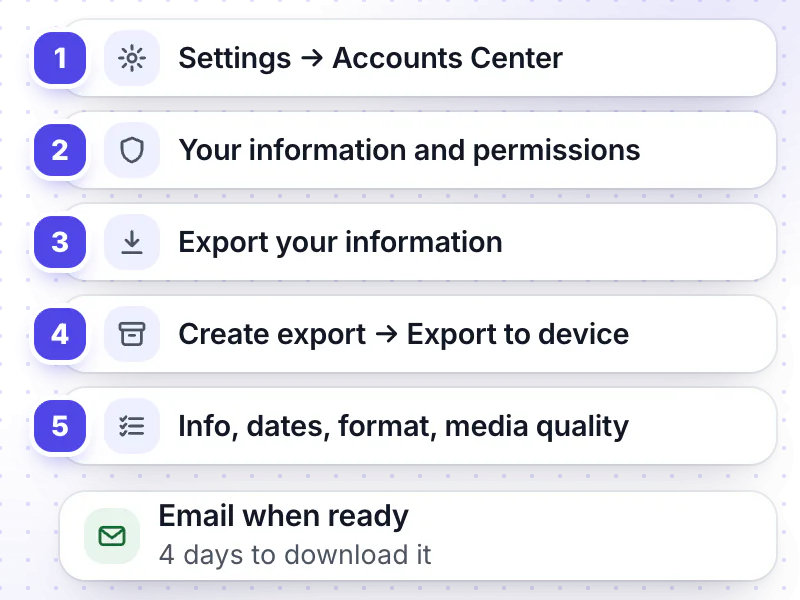
- Open Settings and tap Accounts Center.
- Tap Your information and permissions, then Export your information.
- Tap Create export, pick your Instagram profile and choose Export to device.
- Choose the information to include, the date range, the format, the email for the notice and the media quality.
- Tap Start export.
What to expect from the export
Instagram's Help Center says the export is password-protected and that you have 4 days to download it from Available downloads once it's ready. The export isn't instant: Instagram sends an email when the file is ready, and third-party guides quote different waiting times, so plan a few days ahead of a phone switch.
The export is a backup, not an editing source. Choose high quality media in step 4, open the file once it arrives and confirm that your videos play with the sound you expect before you rely on it.
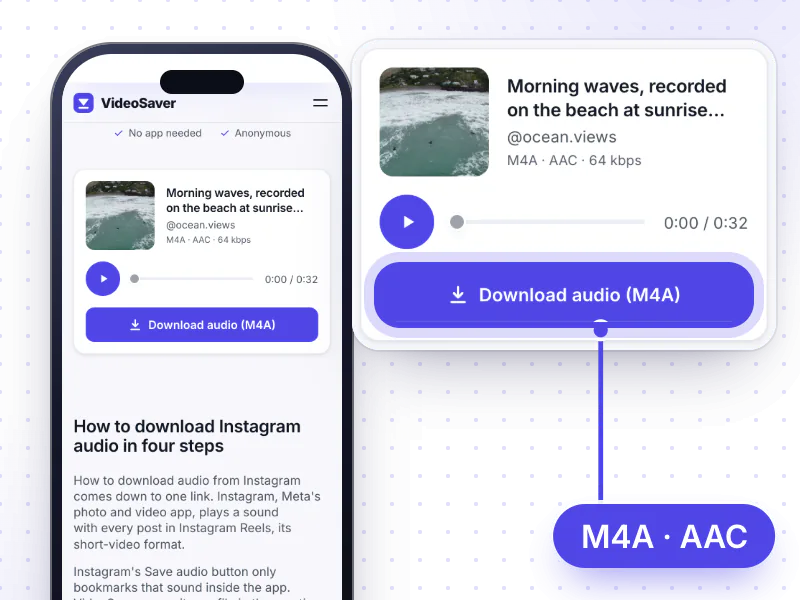
Sometimes the sound matters more than the picture: a voiceover you want to reuse, or the audio of a clip you plan to rebuild in an editor. The VideoSaver Audio tool takes the sound of a public Reel or video post and saves it as an M4A file. M4A is an MPEG-4 audio file with Advanced Audio Coding (AAC), the codec Instagram uses for the sound inside its videos, and phones and computers play it as it is.
Paste the same link into the Instagram audio downloader to save the sound as an M4A file. A licensed song in that file still belongs to its artist and label, so keep it for personal listening.
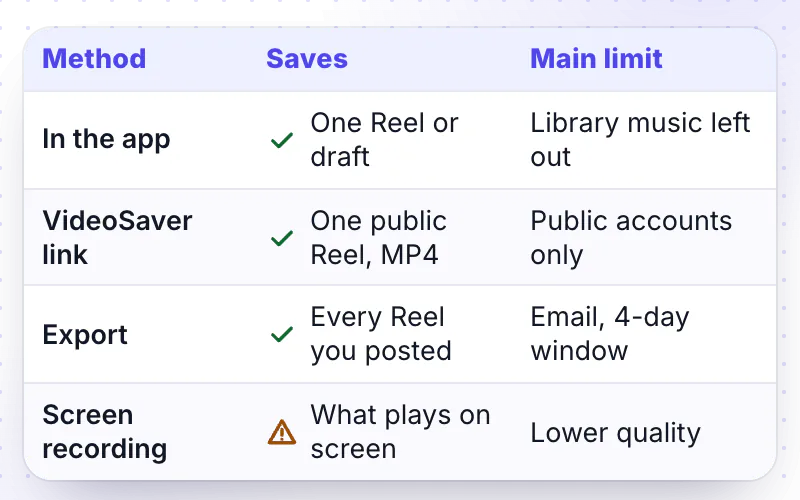
Each method keeps something different. This table lines them up by what you get and where each one stops.
| Method | What it saves | Sound | Works for | Main limit |
|---|---|---|---|---|
| Save in the Instagram app | One video or draft | Library music left out | Published Reels and drafts | Labels vary by app version |
| VideoSaver link | One public video as MP4 | Check the file | Public accounts | Not for drafts or private accounts |
| Export your information | Every post in your account | Check the export | Your whole account | Arrives by email, 4-day download window |
| Screen recording | Whatever plays on screen | Records the device sound | Anything you can play | Lower quality, interface in the frame |
Screen recording is the fallback when unpublished work has no working save option. Play the clip in full screen, start the phone's screen recorder and trim the edges afterwards. Recordings lose quality because they capture the display, so use this only when the other three methods fail.
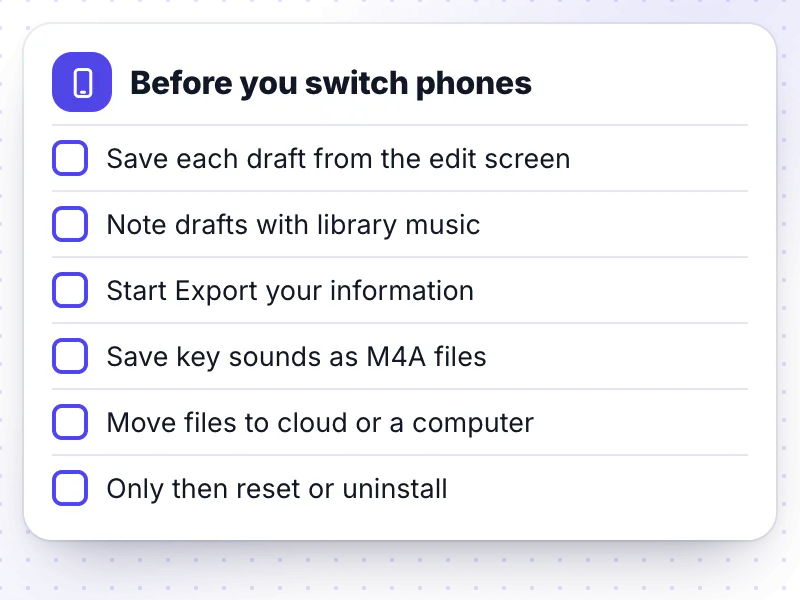
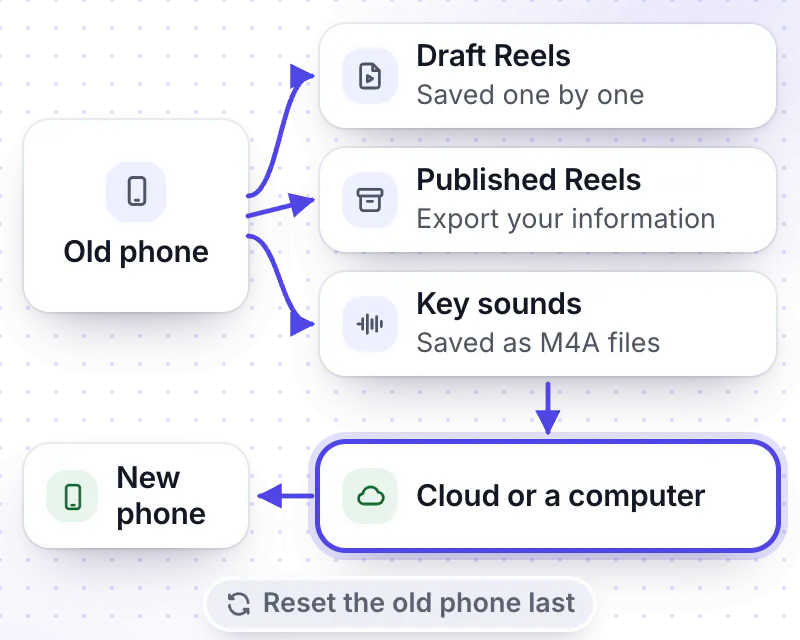
Run this list on the old phone, before you reset it, trade it in or uninstall Instagram.
- Download Instagram Reel draft files one by one from the edit screen and confirm each one plays.
- Note which ones use music from the Instagram music library, because those copies save without the song.
- Start Export your information in Accounts Center for a full copy of your published Reels.
- Save the sound of key public videos as M4A files if you plan to reuse the audio.
- Move the saved reels to cloud storage or a computer, not just the old phone's gallery.
- Uninstall Instagram or reset the phone only after steps 1 to 5 are done.
Content repurposing is a common reason creators save their own Reels: sharing across platforms like YouTube Shorts or TikTok. Your footage and your original sound are yours to reuse. Music from the Instagram music library is licensed for use on Instagram, and Instagram's Help Center describes that licensed audio as copyrighted music and sound. Add a song again from the other platform's own library, or use royalty free music you hold the rights to, rather than carrying it over in the file.
A visible watermark can also look out of place on other platforms, which is another reason to start from a clean file. Someone else's video is a different case: posting it without permission can infringe copyright even with proper credit. Read how to repost a Reel with credit first, because credit and permission are not the same thing. This article explains how the features work and isn't legal advice.
If you only need one published video, how to download your own Instagram reel comes down to the save in the app or a public link in VideoSaver. Unpublished work needs the old phone, and the full archive needs Export your information.
Frequently asked questions
Short answers to the questions readers ask most about this topic.
Can I download my own Reel with the music?
Not always from the app. Instagram says downloading your reel won't save music you added from the Instagram music library, so the in-app copy can play without the song. Original sound, like your voice, stays. To keep the sound of a public Reel as a separate file, save it as an M4A with the VideoSaver Audio tool.
Where are my Instagram Reel drafts stored?
Instagram Reel drafts are stored on the phone where you made them, not in your account. Instagram says you can't open a draft from another device, even after you log in, and that uninstalling the app deletes drafts. Save every draft you want to keep to your gallery before you reset or replace the phone.
Can VideoSaver download my Reel drafts?
No. VideoSaver downloads public Reels from their link, and a draft has no link because it was never published. Open the draft in the Instagram app and save it from the edit screen. If the save option is missing, publish the Reel to your account first, or record the screen as a last resort.
How to save my Instagram Reel to camera roll if Download is missing?
Check both menus first: some app versions put the save option under Share, others under the three-dot menu. If neither shows it, copy the Reel link and paste it into the VideoSaver Reels downloader, which works for Reels on a public account. For a private account, use Export your information in Accounts Center.
Does Export your information include all my Reels?
Export your information builds a copy of the content and activity of the profile you select, and you can choose the type of information, dates, format and media quality. Instagram emails you when it's ready, and the file stays in Available downloads for four days. Open the export and check your Reels before you rely on it.
Does my own downloaded Reel have a watermark?
Sources disagree. Press coverage of Instagram's download feature says downloaded Reels carry an Instagram watermark, the username and an audio credit, while some creator guides say your own saved Reel comes out clean. Instagram's pages don't settle it. Check the corners of your saved file. VideoSaver doesn't add a watermark of its own.
Sources
Facts about Instagram features in this article come from these pages.
- Instagram: Reels feature page (drafts, saving and music) about.instagram.com
- Instagram Help Center: Save and edit drafts of your reel on Instagram help.instagram.com
- Instagram Help Center: Who can see and share your reels on Instagram help.instagram.com
- Instagram Help Center: Review and export a copy of your Instagram information help.instagram.com
- Instagram Help Center: What audio you can use in your reel on Instagram help.instagram.com
- BGR: How to stop people from downloading your Instagram Reels bgr.com