How to Repost a Reel on Instagram the Right Way (With Credit and Permission)
Instagram's Repost button shares a public Reel with your followers and keeps the creator credited. Posting a copy of someone else's Reel as your own needs their written permission first.
Short answer
To repost a Reel on Instagram, open a public Reel and tap the repost icon. Instagram credits it to the original poster, keeps it in a separate Reposts tab on your profile and recommends it to your followers. Sharing to your story is the second built-in route. Posting someone else's video file as your own Reel needs the creator's written permission first.
This guide shows how to repost a Reel on Instagram four ways, what each way shows the creator and your followers, and where sharing turns into copying. It also gives you a request message and a credit line you can copy. This isn't legal advice: the article describes Instagram's published rules and the practice that keeps creators on your side.
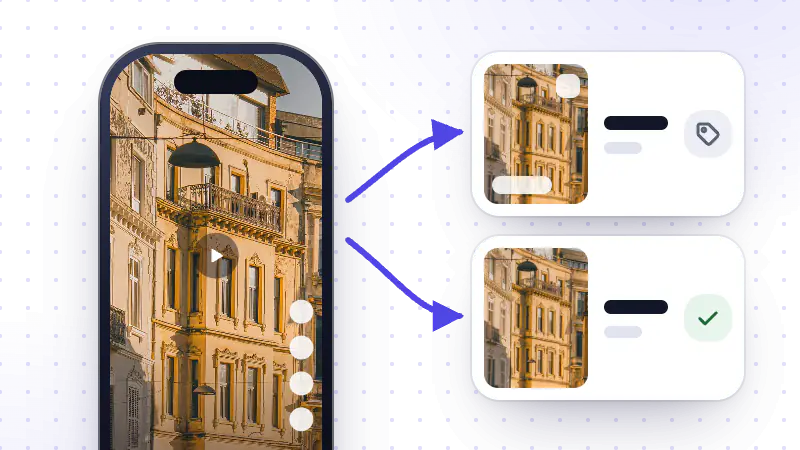
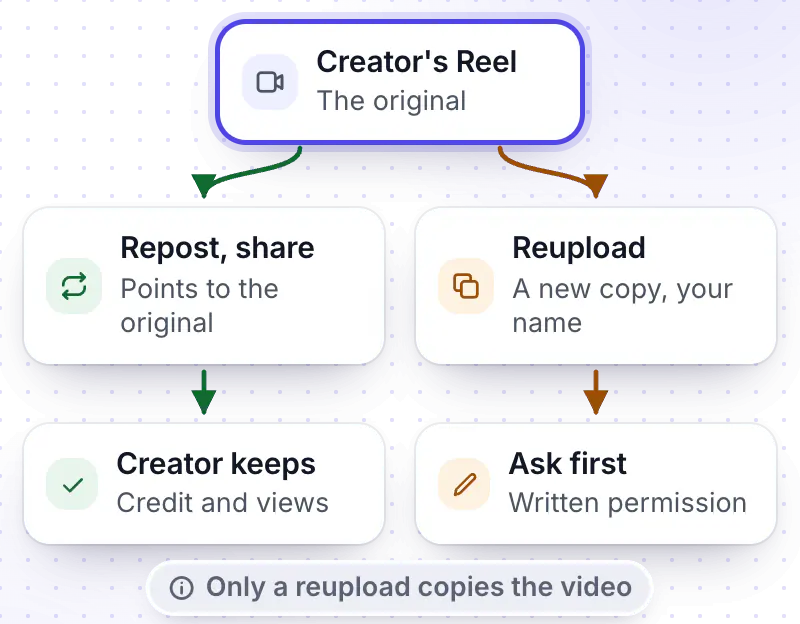
The four routes differ in who stays credited as the author. The built-in options attach the creator's name to the Reel automatically. A reupload removes that link unless you add it back by hand, and a credit line alone still doesn't give you the right to publish someone's work.
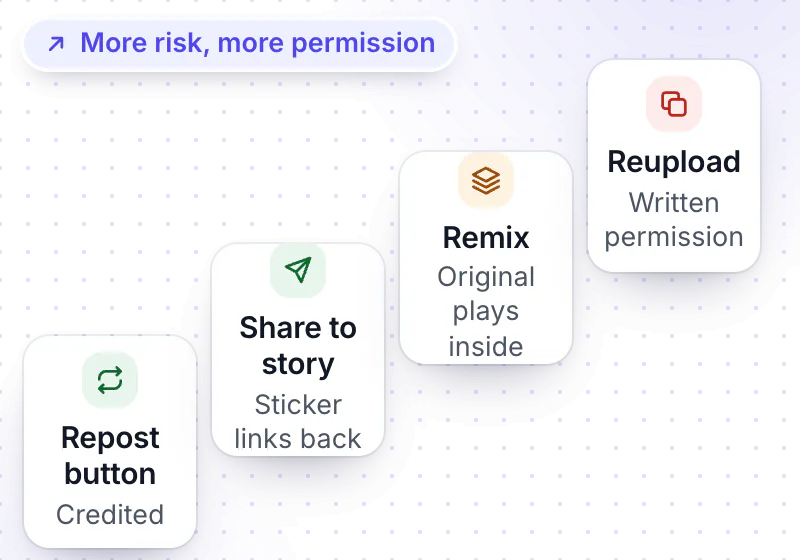
| Way | Credit to the creator | Permission needed | Where it appears | Risk |
|---|---|---|---|---|
| Repost button | Automatic, credited to the original poster | No, if the creator allows reposts | Your Reposts tab and your followers' feeds | Lowest |
| Share to story | Automatic, the sticker opens the original Reel | No, if the creator allows resharing to stories | Your story while it is live | Low |
| Remix | Automatic, the original plays inside your Remix | No, if the creator allows reuse | Your profile, as your own Reel with your part added | Low to medium |
| Reupload the file | Only the caption you write | Yes, in writing | Your grid, as your own Reel | High without a written yes |
Most people only want their followers to see a Reel they like. The built-in button does exactly that with no file, no editing and no copyright question, so start there and move up the ladder only when the lower step can't do the job.
This button is the native Instagram feature for sharing a public Reel or feed post with your followers. Meta introduced reposts as a way to share favourite public reels and posts, and the Instagram Help Center describes the same flow. The fastest answer to how to repost a Reel on Instagram is this button:
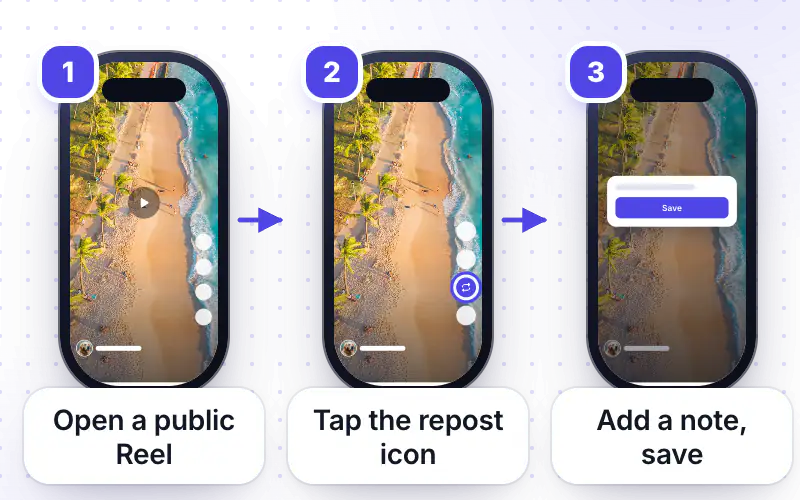
- Open the public Reel in the Instagram app.
- Tap the repost icon on the Reel.
- Type a note into the thought bubble that appears, if you want to add context, and tap save.
- Open your profile: the Reel now sits in your Reposts tab.
Note
Instagram allows reposts of public reels and feed posts only. A Reel from a private account has no repost option.
What happens when you repost a Reel on Instagram
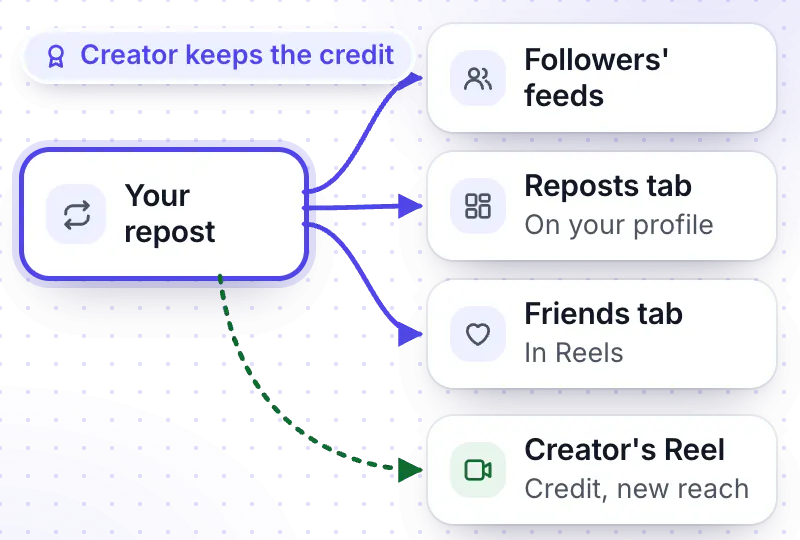
Meta's announcement describes five effects:
- The repost is credited to the original poster, so the creator's handle stays on the video.
- Instagram recommends reposts to your friends' and followers' feeds.
- Your reposts collect in a separate tab on your profile, apart from your own posts.
- The Friends tab in Reels can show the Reel among content your friends reposted.
- The Reel can reach your followers even when they don't follow the creator, which Meta presents as new reach for creators.
Neither Meta's announcement nor the Help Center text we could check says whether the creator receives a notification for each repost. Treat it as visible to the creator anyway: it sits on your profile under their name.
How to undo a repost
The Instagram Help Center says you remove a repost by tapping Repost again on the reel or post you reposted. Third-party guides also describe a bulk option under Your activity, then Reposts, where you select several reposts and delete them together. Menu names change between app versions, so look for Reposts inside Your activity if the path on your phone differs.
Why the Repost button is missing
A missing option usually has one of three causes, and only the last one is on your side. Instagram's help page on reposting says creators decide whether others can repost their content, and the Help Center page on reuse describes the Sharing and reuse settings where creators turn reuse off.
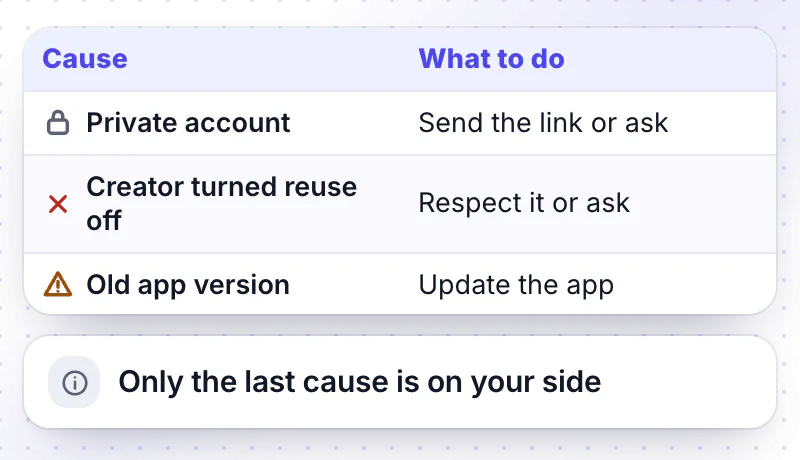
| Cause | What it means | What to do |
|---|---|---|
| The account is private | Only public Reels can be reposted | Send the link in a message or ask the creator |
| The creator limited reposts or reuse | Their Sharing and reuse settings block it | Respect the choice or ask the creator |
| Your app is out of date | An older version may lack the feature | Update the Instagram app and check again |
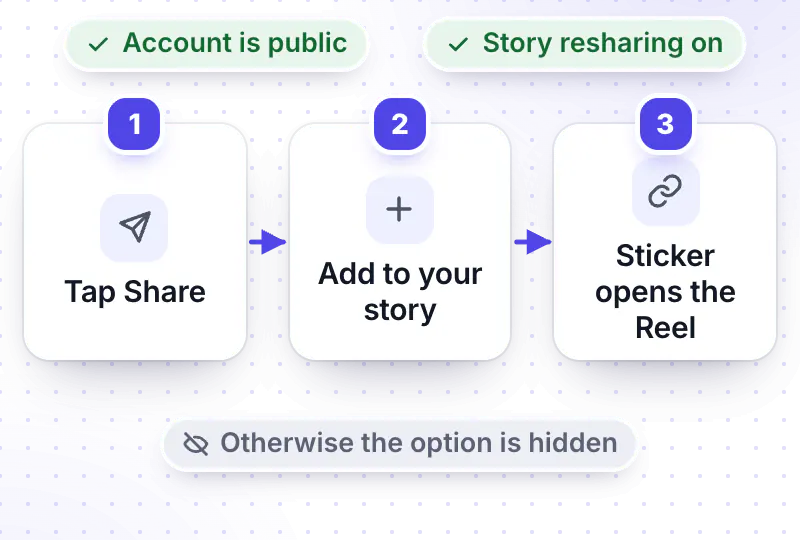
A reshare to your story puts the Reel in front of your followers while the story is live, with a sticker that opens the original. The same steps answer how to repost a video on Instagram story when the video is a feed post rather than a Reel:
- Open the Reel and tap Share, the paper plane icon.
- Choose the option to add the Reel to your story.
- Move or resize the Reel card, add text or stickers and post the story.
The Instagram Help Center allows this only when the creator's account is public and the creator allows resharing of their posts. A creator turns it off under Sharing and reuse, in the setting for posts and reels to stories.
Tip
Tag the creator in your story text as well. The sticker already links to the Reel, and the tag puts their handle where people read first.
Remix places your own video next to or after someone else's public Reel, so the original plays inside your post with its author attached. The Instagram Help Center treats remix as a form of reuse that creators can allow or turn off for their whole account or for a single reel. Turning reuse off later doesn't remove remixes that already exist.
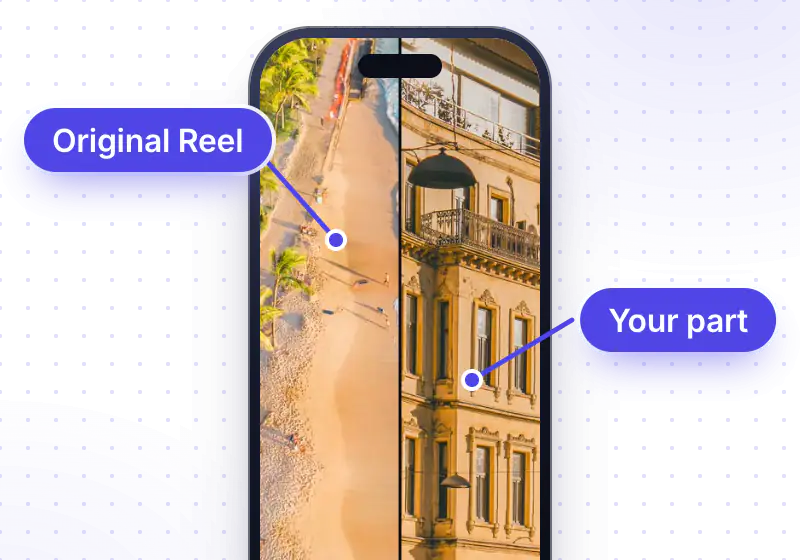
Remix fits when you have something to add for your audience: a reaction, a tutorial step or a counterpoint. Instagram's Original content guidelines describe this kind of material edit as the line between a new piece of content and a copy, so a Remix also keeps your own account eligible for recommendations.
Downloading a Reel and publishing it from your account is the only route that copies the video itself. The built-in routes share a pointer to the creator's Reel. A reupload creates a new post with your name as the publisher, and several popular repost guides still describe that step without a word about asking the creator.
Credit is not permission
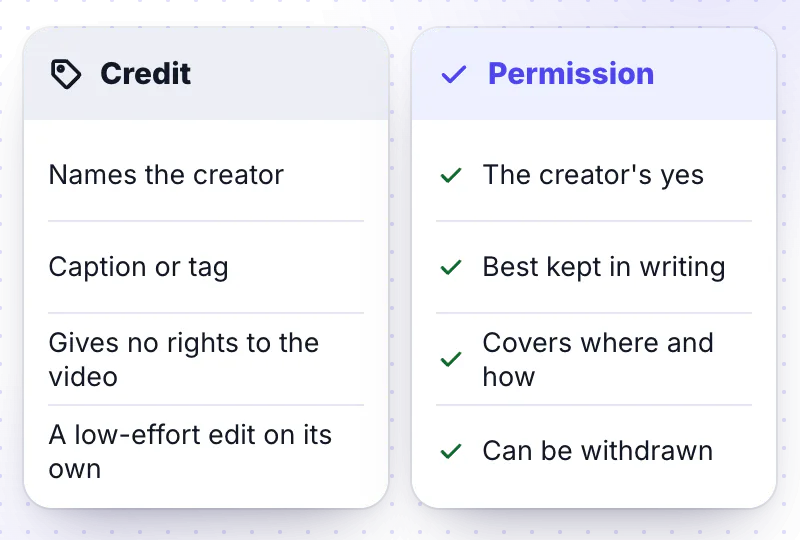
The Instagram Help Center is direct on this point: your use of someone else's content may still infringe their copyright even if you give credit to the copyright owner. The same help page lists other things that don't make a reupload lawful, such as a disclaimer, not making money from the post and finding the video online.
Instagram names three routes that can make reuse acceptable: permission, the public domain and exceptions to copyright such as fair use. Fair use is judged case by case, and Instagram notes that commercial uses are less likely to count as fair use. Instagram also says it can't get the creator's consent for you and recommends getting it in writing. Accounts that repeatedly post content infringing someone else's intellectual property may be disabled under Instagram's repeat infringer policy.
Reach is the second cost. Instagram's Original content guidelines treat a Reel you didn't film and didn't materially edit as unoriginal. Just crediting the original creator counts as a low-effort edit, alongside borders, watermarks and speed changes. Unoriginal posts may be left out of recommendations to people who don't follow you. The same guidelines recommend reposting or sharing to stories instead, so the original creator keeps both credit and reach.
If someone posts your own Reel without asking, report it through Instagram's copyright form. Our DMCA page explains how VideoSaver handles copyright notices.
Ask for permission: a DM template
A useful request names the exact Reel, where your copy will appear, whether money is involved and how you will credit the creator. A vague "can I share this?" gets a vague yes that won't help you if the creator objects later.
Hi @handle, I love your Reel about [topic] ([link]). May I post the video on my account @youraccount as a Reel, with the caption "Video: @handle, reposted with permission"? The post is [not sponsored / part of a paid campaign for brand]. I'll keep your video unedited and remove it whenever you ask. Could you reply "Yes, you may repost" so I have your answer in writing?
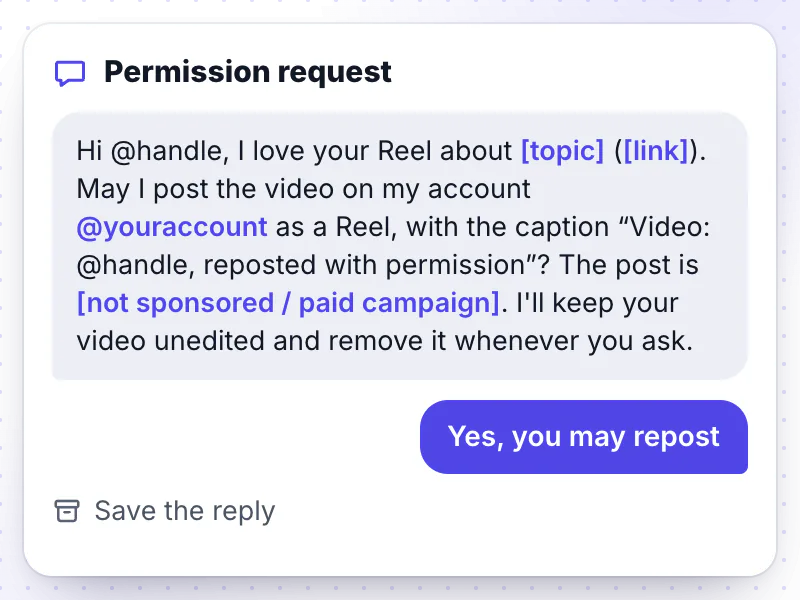
Keep the reply. A screenshot of the conversation is your record if the post is ever questioned. Brands that collect user-generated content need the same written yes, because a customer tagging the brand doesn't by itself give permission to reuse the video in ads.
How to give photo credit on Instagram
Put the creator's @handle in the first line of the caption, tag them on the video and state that you have permission. The same credit line works for photos, carousels and Reels:
Video: @handle, reposted with permission. [Your one-line comment.]
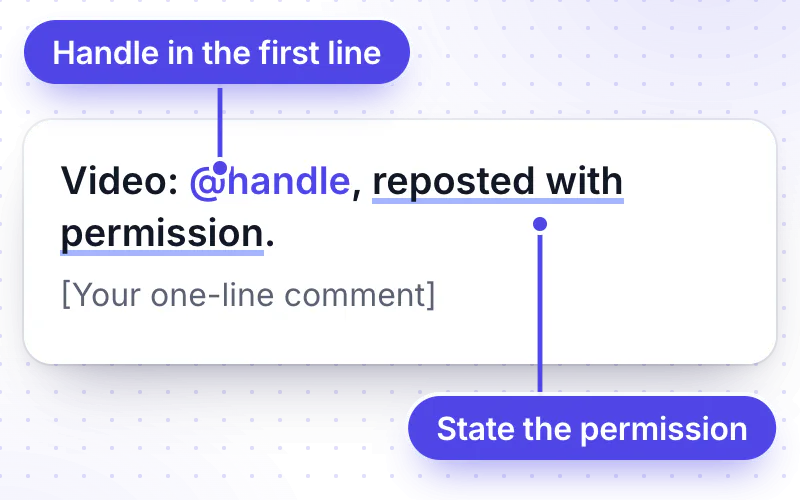
A handle in the first line stays visible when the feed shortens a long caption. A credit hidden in hashtags or at the end of a long caption is easy to miss, and the creator notices that too.
Save the file after the creator says yes
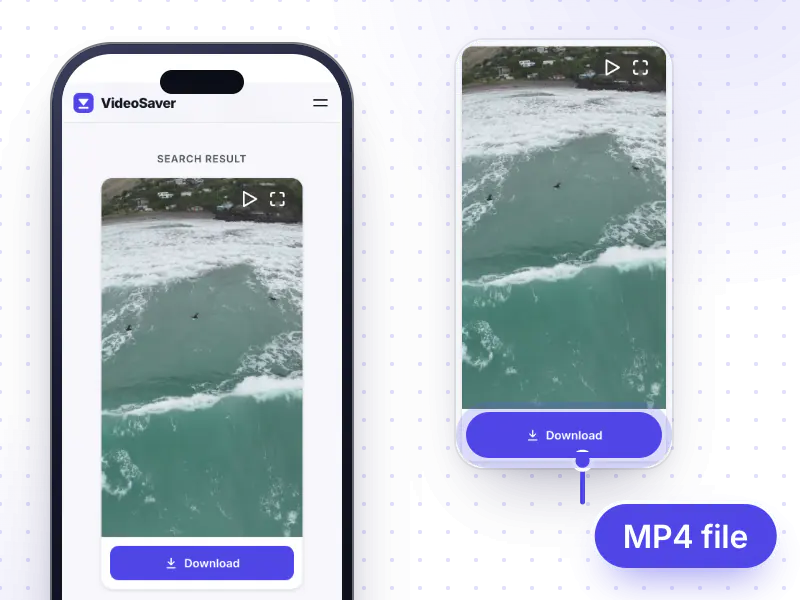
The Repost and Share features never give you a file, so a reupload starts with the original video. The Instagram Reels downloader from VideoSaver turns the link of a public Reel into an MP4 file on your phone or computer. The file keeps the quality Instagram serves for that Reel, VideoSaver adds no watermark of its own, and the tool never asks for an Instagram login. The creator gets no notification from VideoSaver, which is one more reason to ask them yourself first.
Keep the creator's own watermark or on-screen handle in the video. Removing an author's mark from someone else's Reel breaks the credit you just promised. For where the watermark on saved Reels comes from, read why saved Instagram videos carry a watermark.
Your own Reel needs nobody's sign-off. The built-in button and story sharing treat your own public Reel like any other public Reel. To post an old Reel again as a new post, you need its original file: from your phone's gallery, from the Instagram app or from the public Reel link. How to download your own Instagram Reels compares those routes, including drafts that never left your phone.
The Instagram Help Center and Meta's announcement don't describe a list of everyone who reposted a Reel, so there is no single official answer. Reports from users disagree. Some guides describe a list of reposting accounts in the three dots menu of a Reel, and others say that option never appears for them. Check your own Reel, and treat a missing option as normal.
What the official pages do confirm is the visible part: each one is credited to you as the original poster and sits in the reposting account's Reposts tab. Story shares are easier to spot when the person tags you, because a tag usually shows up in your mentions. For the related question about views, see who can see the viewers of a Reel.
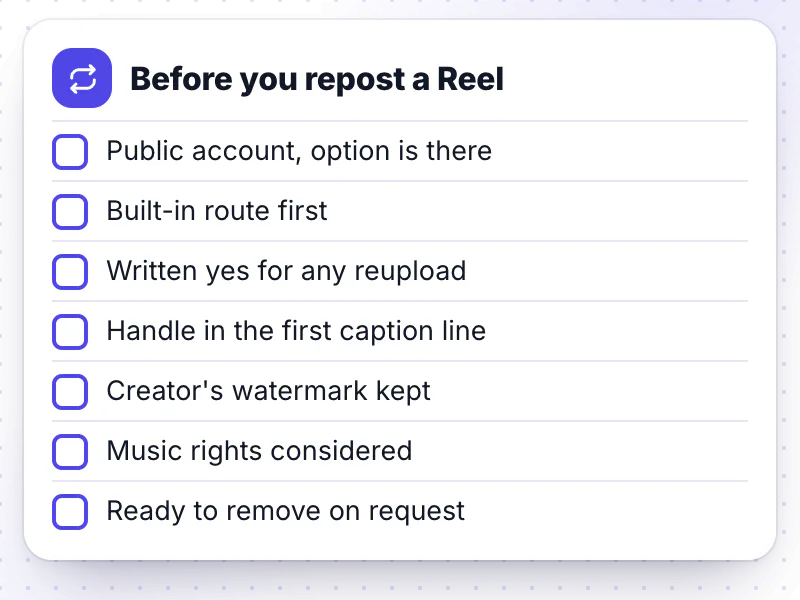
- The Reel comes from a public account, and the Repost or Share option is there.
- The built-in Repost or story share comes first, unless you truly need your own copy.
- Any reupload rests on the creator's yes in writing, with the place and purpose named.
- The caption opens with the creator's @handle and the words "reposted with permission".
- The creator's watermark and on-screen handle stay in the video.
- The music has an owner too: songs belong to their artists and labels, which is why trending audio is safer to add through Instagram's own audio library than to copy from a saved file.
- You are ready to remove the post the moment the creator asks.
Frequently asked questions
Short answers to the questions readers ask most about this topic.
How do you repost a Reel on Instagram?
Open the public Reel and tap the repost icon. You can type a short note into the thought bubble and save it. Instagram credits the repost to the original poster, adds it to the Reposts tab on your profile and may recommend it to your followers. Sharing the Reel to your story is the second built-in way.
How do I repost a Reel on Instagram if there's no Repost button?
Check the account first, because Instagram allows reposts of public Reels only. The creator may also have limited how others share their content. Updating the Instagram app helps when your version lacks the feature. If none of that applies, send the Reel in a message or ask the creator before you post a copy.
Does the creator know when you repost their Reel?
The repost carries the creator's name, because Instagram credits it to the original poster and shows it in your Reposts tab. Instagram's official pages don't say whether the creator gets a notification for each repost. Assume the creator can see it, since it sits on your public profile under their handle.
Can you repost a Reel from a private account?
No. Instagram lets you repost public reels and feed posts only, so a Reel from a private account shows no such option. Story sharing has the same limit, and VideoSaver also works with public content only. The fair route to a private Reel is to ask its creator to send you the video directly.
Is it legal to repost someone else's Reel?
The built-in Repost and story share follow Instagram's own rules, because the creator stays credited and controls the sharing settings. Posting a copy of the video as your own needs permission, and Instagram's copyright help says credit alone doesn't prevent infringement. This isn't legal advice, so ask a lawyer about commercial use.
Sources
Facts about Instagram features in this article come from these pages.
- New Instagram Features to Help You Connect (Meta Newsroom) about.fb.com
- Repost a reel or a post on Instagram (Instagram Help Center) help.instagram.com
- Share someone's post from feed to your Instagram story (Instagram Help Center) help.instagram.com
- Reuse of media on Instagram (Instagram Help Center) help.instagram.com
- Remix a video on Instagram (Instagram Help Center) help.instagram.com
- How to make sure content you post to Instagram or Threads doesn't violate copyright law (Instagram Help Center) help.instagram.com
- Learn more about copyright on Instagram and Threads (Instagram Help Center) help.instagram.com
- What are fair use and other exceptions to copyright? (Instagram Help Center) help.instagram.com
- Original content guidelines (Instagram for Creators) creators.instagram.com