Why Does Instagram Ruin Photo Quality? What Happens to Your Photos and Videos After Upload
Instagram shrinks every photo to at most 1080 pixels wide, crops shapes it doesn't support and serves rarely watched videos at lower quality. This guide shows each step and the export settings that keep your posts sharp.
Short answer
Instagram shrinks every photo wider than 1080 pixels down to 1080, crops shapes it doesn't support and shows people its own copy instead of your original file. Videos go through the same kind of processing, and the head of Instagram has confirmed that rarely watched videos are served at lower quality. Most of the loss happens on upload, so most of the fix happens in your export settings before you tap Share.
Instagram processes a photo or video in up to six steps, and each one can cost detail. The table shows what each step does and how much of it you control.
| Step | What Instagram does | What you notice | What you control |
|---|---|---|---|
| Resize | Scales photos wider than 1080 pixels down to 1080 | Softer hair, leaves and small text | Export at 1080 pixels wide yourself |
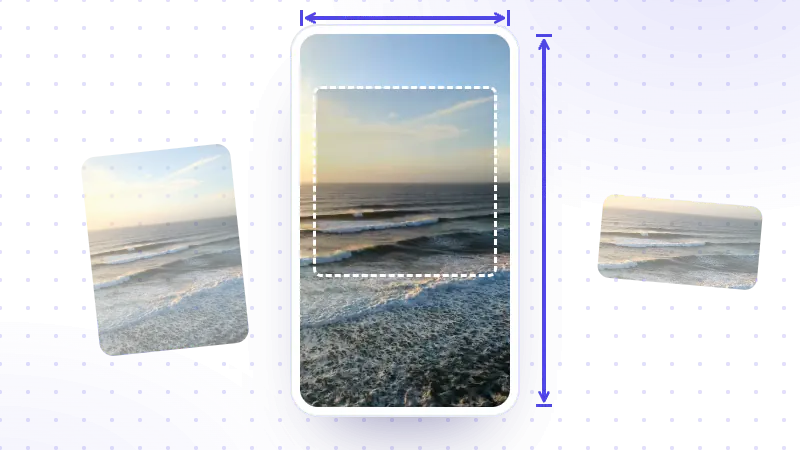
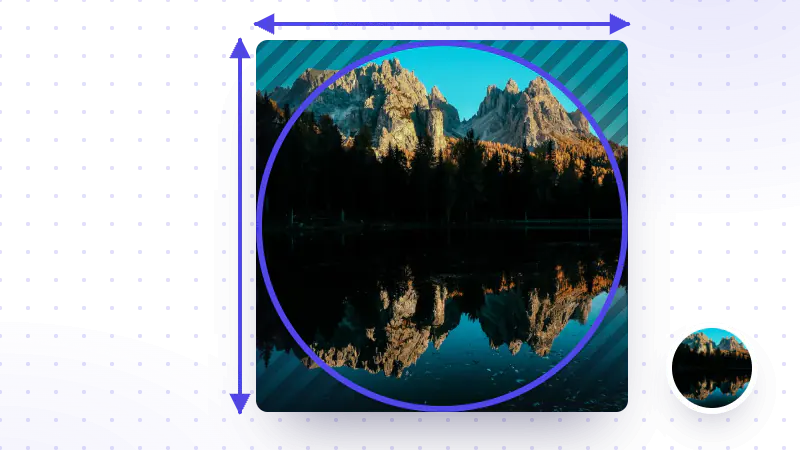
| Crop | Cuts photos outside the supported aspect ratios | Edges missing, a tighter frame | Crop to a supported shape before upload |
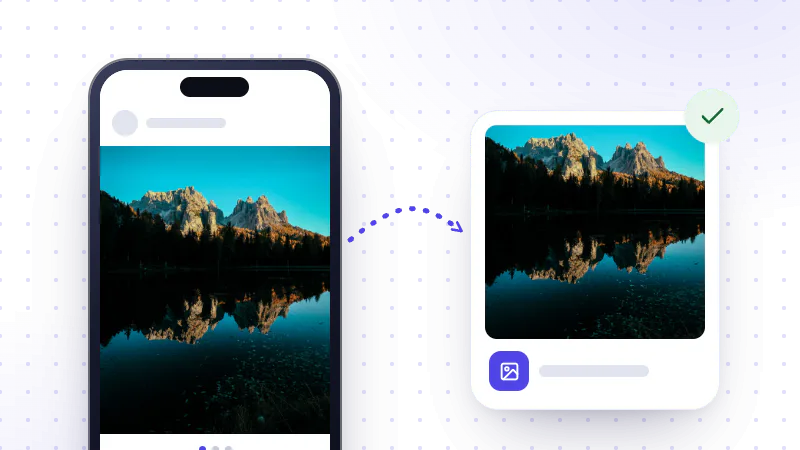
| New copy | Saves and serves its own file, not yours | Blocky skies, smudged texture, a smaller file | Start from a clean, high-quality export |
| Video versions | Encodes each video into several streaming versions | Blur on slow connections or at the start of playback | Upload a clean H.264 file |
| Popularity | Moves rarely watched videos to a lower-quality version | Old Reels and Stories look softer over time | Nothing directly |
| Upload setting | Favors mobile data over quality unless you switch it | A softer post from the same file | Turn on Upload at highest quality |
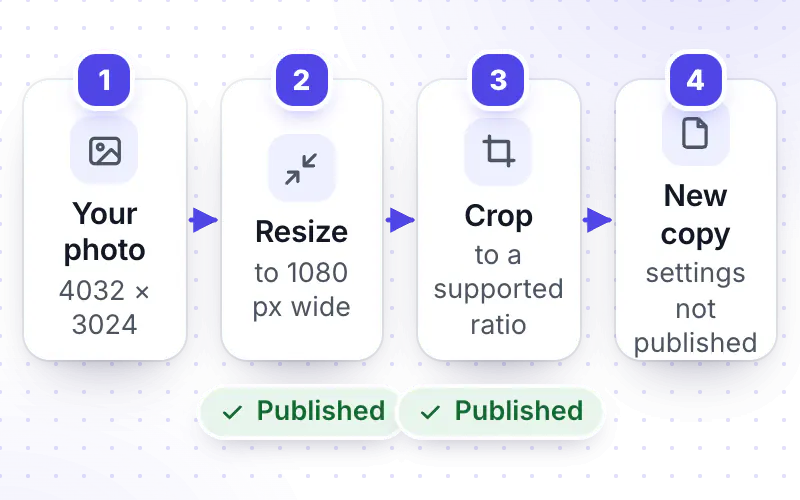
Instagram ruining photo quality is mostly a resize problem, and the resize follows a published rule. Samsung's support page describes the resize as a way to display photos well on many different devices, and Meta's engineers describe video processing as a trade-off between playback quality and computing resources. Neither company says the loss is accidental.
The photo quality you see in the feed is set by width, shape and compression, in that order.
Width: from 320 to 1080 pixels
Instagram Help Center says a photo between 320 and 1080 pixels wide keeps its original resolution when its aspect ratio fits the supported range. A wider photo is scaled down to 1080 pixels, and a photo narrower than 320 pixels is enlarged. Phone cameras shoot far wider than 1080 pixels, so almost every phone photo gets resized.
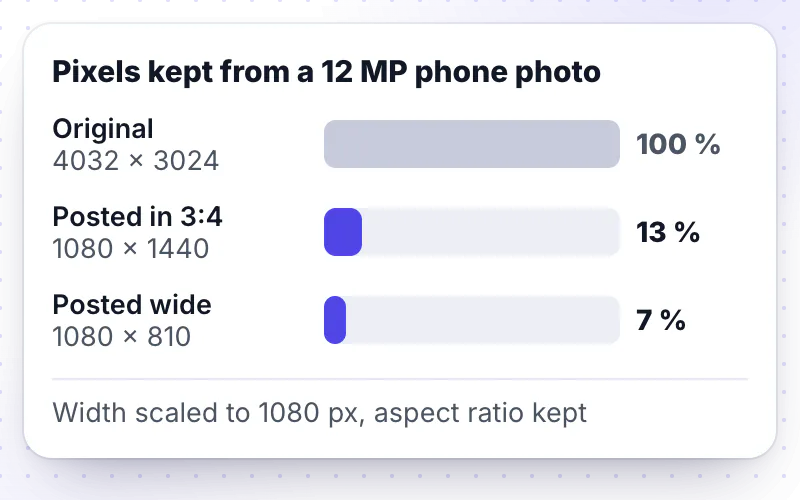
The arithmetic shows how much detail goes. A 12-megapixel phone photo measures 4032 × 3024 pixels. Posted horizontally, it becomes 1080 × 810 pixels, about 0.87 megapixels, which is roughly 7% of the original pixel count. Posted vertically in 3:4, it becomes 1080 × 1440 pixels, about 1.56 megapixels or 13% of the original. The detail in the missing pixels is gone from the posted version, and no setting brings it back.
The quality loss is not equal for every picture. Photos with fine detail across the whole frame suffer most: high resolution shots of trees, grass, hair, fabric, city skylines and group photos where each face is small. Graphics with small text lose legibility, because thin letters turn into soft gray strokes. Photos with large flat areas, such as a product on a plain background, keep most of their visible photo quality after the same resize.
Shape: the supported aspect ratios
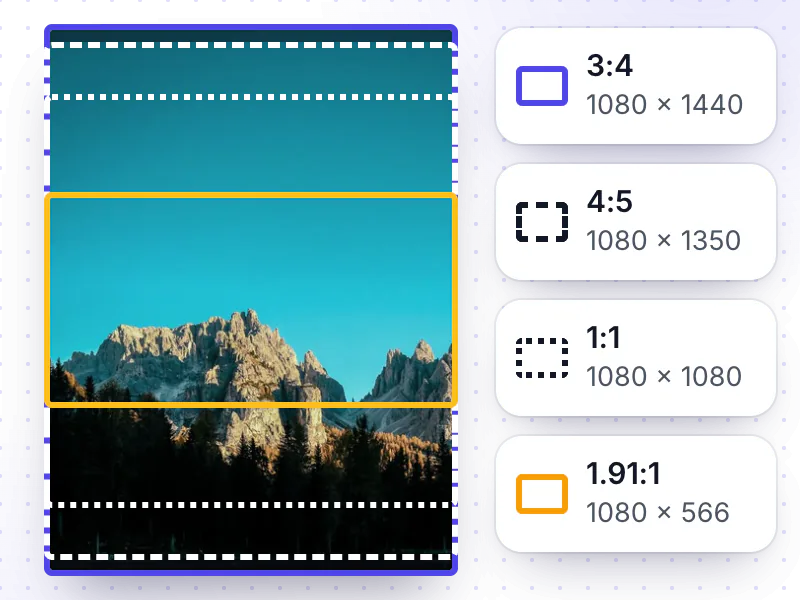
Instagram Help Center lists aspect ratios from 1.91:1 for horizontal photos to 4:5 for vertical ones. Adam Mosseri, the head of Instagram, later announced on Threads that Instagram supports 3:4 photos, "the format that almost every phone camera defaults to," and that a 3:4 image now appears exactly as shot. The two sources disagree on the tallest shape: the announcement is newer, and the Help Center text may not reflect it yet. A photo outside the supported range is cropped, which changes your frame.
| Shape | Aspect ratio | Size at 1080 pixels wide | Source |
|---|---|---|---|
| Square | 1:1 | 1080 × 1080 | Samsung Support |
| Vertical | 4:5 | 1080 × 1350 | Instagram Help Center, Samsung Support |
| Phone camera vertical | 3:4 | 1080 × 1440 | Adam Mosseri (ratio), our arithmetic (pixels) |
| Horizontal | 1.91:1 | 1080 × 566 | Instagram Help Center, Samsung Support |
| Tall, for Stories and Reels | 9:16 | 1080 × 1920 | Samsung Support |
For Reel covers and safe zones, see the full guide to Instagram Reel size. Profile photos follow different rules, covered in Instagram profile picture size.
Compression: Instagram keeps its own copy
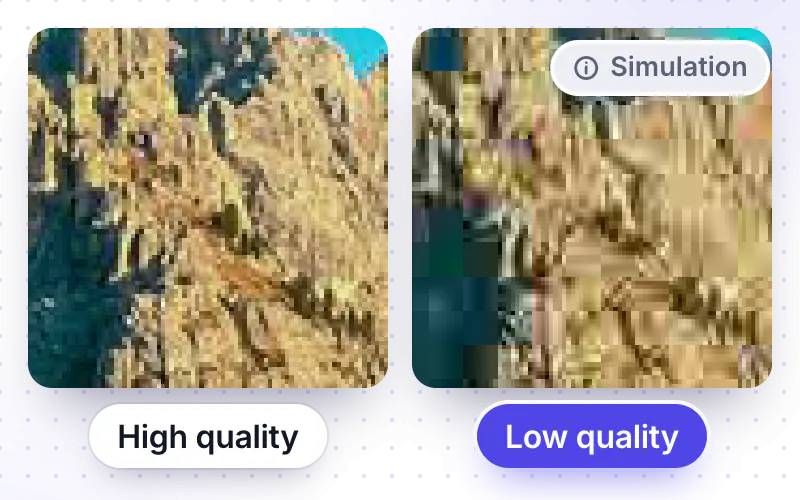
A resized photo is a new image file, so the photo people see on Instagram is never the file you uploaded. Instagram doesn't publish the JPEG quality or other compression settings it uses for that copy. Compression damage shows up first where an image has fine detail or smooth gradients: hair, foliage, small text, night skies and sunsets. A photo that was already compressed before upload, such as a screenshot or a picture sent through a chat app, loses detail twice.
Samsung's support page says a width of exactly 1080 pixels prevents automatic compression. Instagram itself makes no such promise. An exact 1080-pixel export removes the resize step, which is the part you control, while the new copy is made either way.
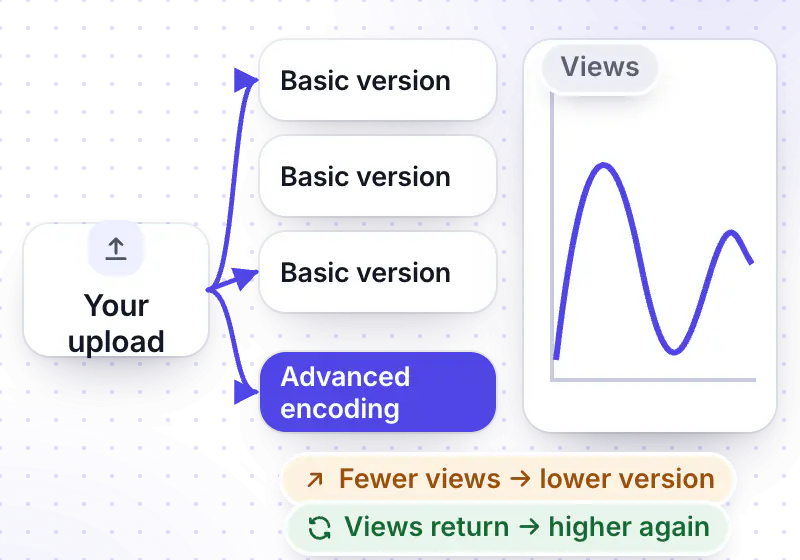
Video quality on Instagram follows the same logic as photos, with one more variable: popularity. Instagram encodes every video into several versions and picks one for each viewer based on the device and the connection. Meta's engineering team wrote that Instagram generates basic adaptive bit rate (ABR) encodings for every uploaded video and separate advanced encodings that use newer compression technologies for higher-quality playback. In the same post, Meta reported that more than 80 percent of its processing resources went to the basic, minimum-functionality versions, while advanced encodings covered only 15 percent of total watch time. Those figures describe the system when the post was written, not necessarily today.
Fewer views, lower video quality
Adam Mosseri said in an AMA that videos which aren't watched for a long time move to a lower-quality version, because most views come soon after posting. If an older video gets many views again, Instagram will "re-render the higher quality video," he said. On Threads, he added that Instagram biases to higher quality "for creators who drive more views" and that the system is "a sliding scale" rather than a single threshold. This explains why old Stories in Highlights and older Reels can look softer than on the day they were posted.
What one public Reel looked like in our check
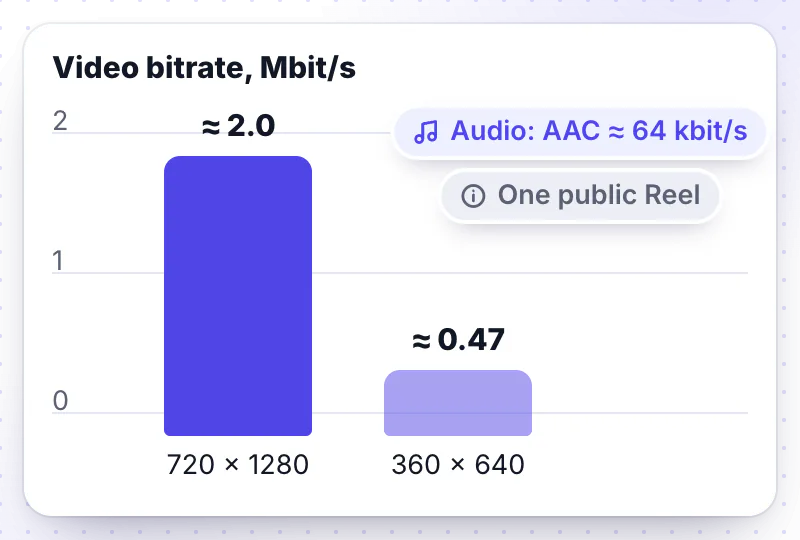
We inspected the stream data Instagram returned for one public Reel, 8.4 seconds long, while testing VideoSaver. The manifest listed two video versions: 720 × 1280 at about 2.0 Mbit/s and 360 × 640 at about 0.47 Mbit/s, both H.264, plus a separate AAC audio track at about 64 kbit/s. Whatever resolution the creator uploaded, 720p was the best version Instagram offered for that Reel at that moment. One Reel is an observation, not a rule: the versions depend on the upload, the account and the views.
Instagram video quality also depends on the viewer's side. Adaptive streaming plays a lower version on a slow connection, so the same Reel can look sharp on Wi-Fi and soft on mobile data. Instagram compressing video is only part of the story when a clip looks bad on one phone and fine on another.
Stories: how to upload high-quality video to Instagram Story
Stories use the tall 9:16 frame, 1080 × 1920 pixels in Samsung's list. For a sharp Story, export the video at that size, finish edits in your video editor before posting, and post over Wi-Fi with high-quality uploads turned on. The question that led to Mosseri's AMA answer was about blurry old Stories, so a Story saved to Highlights can still look softer later as its views drop.
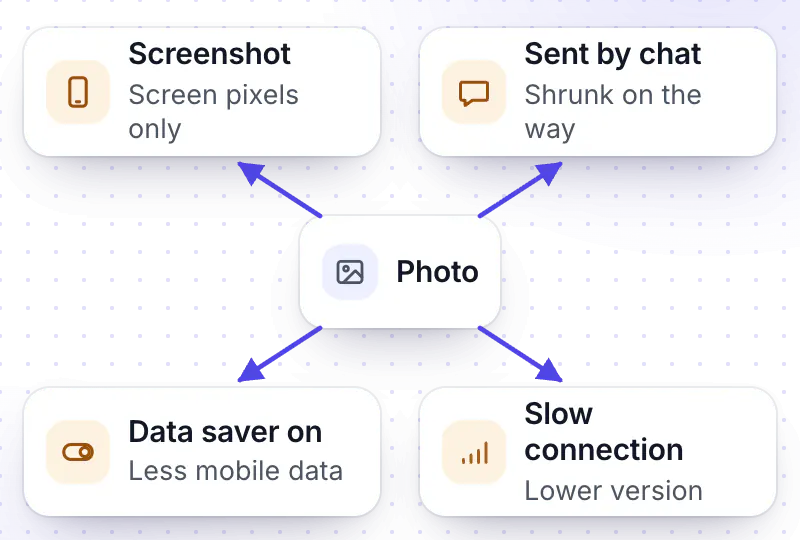
Not every loss comes from Instagram. Four common ones happen on your side, before uploading or while the file travels, and each one lowers image quality before Instagram processes it:
- Screenshots. Samsung's support page warns that screenshots of high-resolution images lose quality. A screenshot records the pixels of your screen, not the pixels of the photo.
- Chat apps and email. Some messaging apps shrink photos by default to send them faster. A photo you forward to yourself to post from another phone often arrives as a smaller file.
- Data-saving settings. With Use less mobile data turned on, the Instagram app favors data usage over quality while uploading.
- Slow connections. Viewers on weak connections get a lower streaming version of a video, even when the best version exists.
You can't switch off Instagram's processing, but you can hand it a file that needs as little change as possible.
Turn on Upload at highest quality
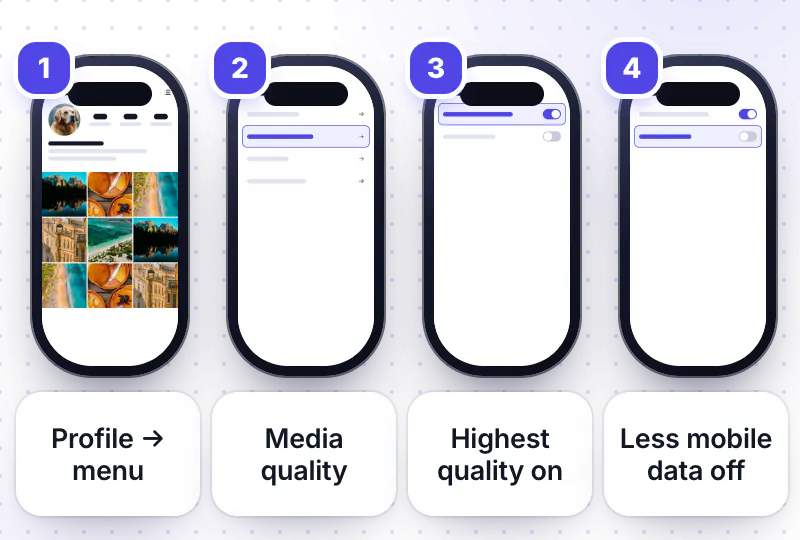
The switch sits in the app's media settings:
- Open your profile and tap the menu (three lines) in the top right corner.
- Open Media quality. Some app versions call the section Data usage and media quality.
- Turn on Upload at highest quality.
- Turn off Use less mobile data.
Menu names change between app versions, so search Settings for "quality" if a step looks different. Both settings make uploads use more mobile data, which makes Wi-Fi the better moment to post.
Export photos at 1080 pixels wide
An export that already matches Instagram's limits leaves the app nothing to resize or crop:
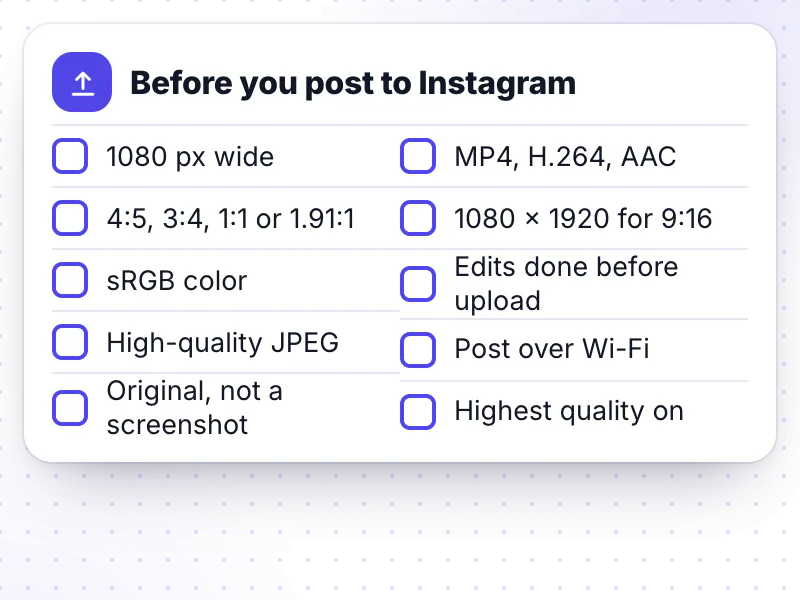
- Set the width to exactly 1080 pixels and keep a supported ratio: 4:5, 3:4, 1:1 or 1.91:1.
- Export in sRGB, the standard color space of the web. A wider color space such as Adobe RGB can shift colors when the file is converted.
- Save as a high-quality JPEG, so the file starts with as few compression artifacts as possible.
- Sharpen lightly after resizing, not before, because downscaling softens edges.
- Move the file to your phone by cable, AirDrop or a cloud drive, not through a chat app.
- Keep the full-size original from your photo editing app as the master copy. A low resolution export can't be scaled back up later without visible loss.
Export videos for the frame they play in
Export Reels and Stories at 1080 × 1920 for the 9:16 frame. H.264 video with AAC audio in an MP4 file is the combination Instagram itself served in our check, and every phone and editor supports it. Finish trimming, text and color in your editor, then upload the final file over Wi-Fi. Keep the frame rate your camera recorded: converting it adds one more encoding pass before Instagram adds its own. The file format matters less than the export quality, so a clean MP4 from a good source beats a heavily compressed file in any container.
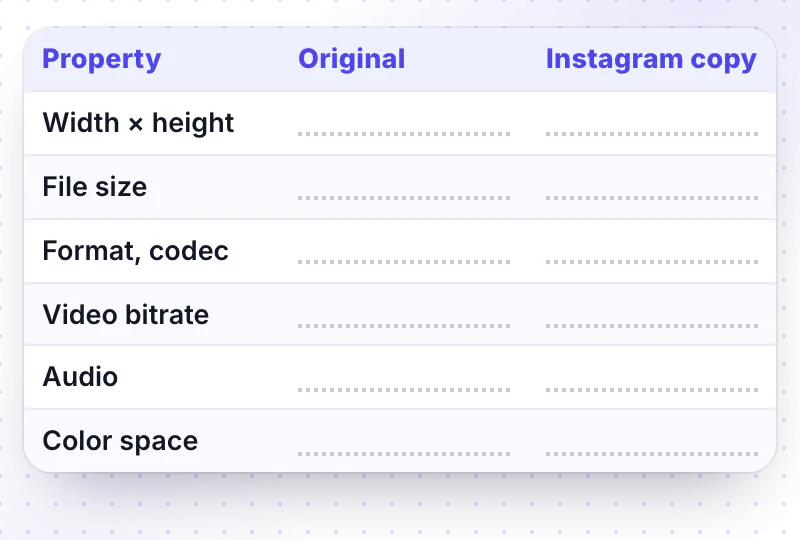
The only reliable way to see the loss on your own posts is to compare the original with the copy Instagram serves:
- Post a test photo or Reel from a public account. VideoSaver reads public posts only.
- Copy the post link and paste it into the Instagram Photo Downloader or the Instagram Reels Downloader. VideoSaver saves the copy Instagram serves, with no login and no watermark of its own.
- Open both files side by side. On a Mac, use Get Info in Finder or the Inspector in Preview. On Windows, open Properties and then Details.
- For exact numbers, run
exiftool photo.jpgfor a photo orffprobe -hide_banner reel.mp4for a video. Note width, height, file size, codec and bitrate. - Zoom both photos to 200 percent on the same area: sky, hair or small text show the difference first.
Read the numbers in this order. A width of 1080 pixels on a wider original means Instagram resized the photo. A file several times smaller than your export at the same pixel size means Instagram saved a new, more compressed copy. A video served at 720 × 1280 after you uploaded 1080 × 1920 means viewers get a lower version than your file. Run the same check again after the post's views drop: a lower bitrate on the second check is the popularity effect Mosseri described, measured on your own content.
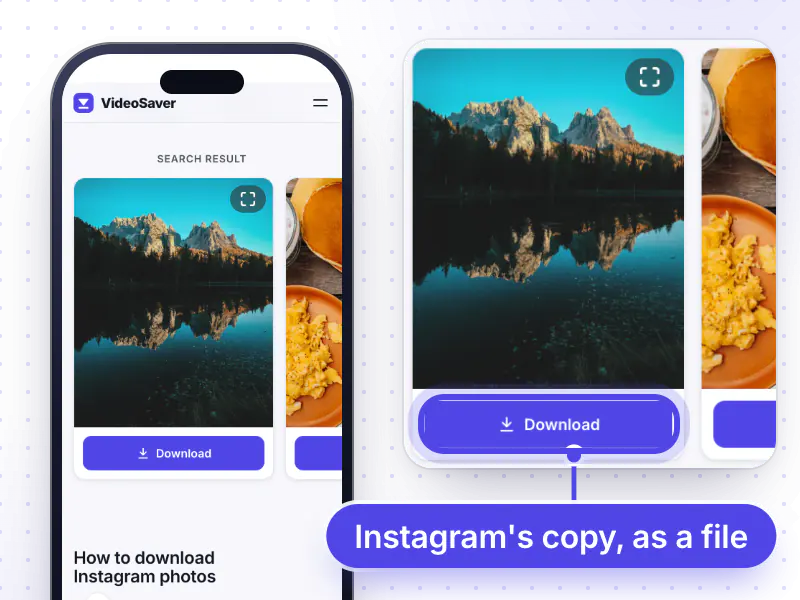
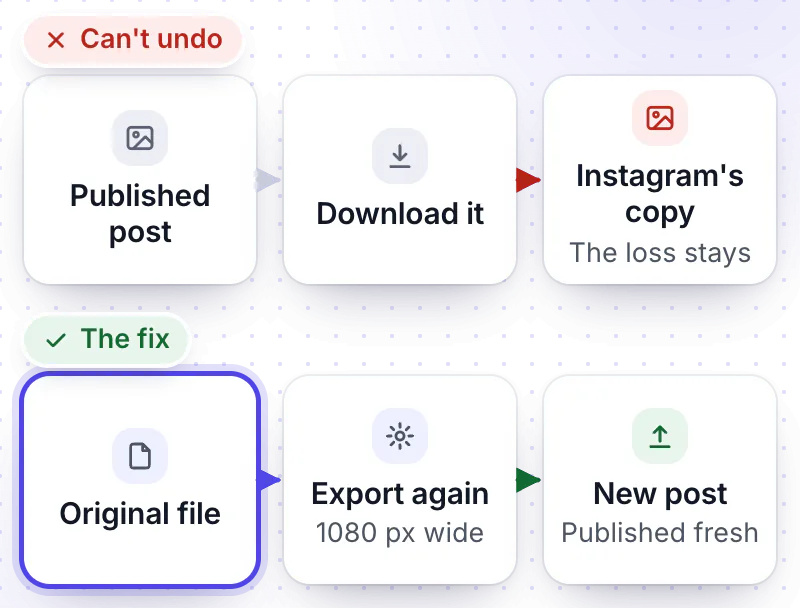
You can't undo the loss on a published post. Downloading the post gives you Instagram's copy, the version viewers see, not your original. The fix is to export again from the original file with the settings above and publish the new version. If you only want to keep a post you like, our guide on how to save photos from Instagram covers each method and its limits.
Video works the same way. If you lost the source file of your own Reel, the copy Instagram serves is the best version you can get back, and the guide to download your own Instagram Reels shows how to save it, drafts included.
Frequently asked questions
Short answers to the questions readers ask most about this topic.
Does Instagram compress every photo?
Instagram changes every photo wider than 1080 pixels, because its Help Center says wider photos are scaled down to 1080. The posted version is always Instagram's own copy, not your file. Instagram doesn't publish its compression settings, so the only way to see the exact loss is to compare your original with a downloaded copy.
Why is Instagram ruining my photo quality even at 1080 pixels?
A 1080-pixel export skips the resize, but Instagram still saves its own copy, and the photo can lose detail elsewhere. Check three things: the aspect ratio fits a supported shape, the file is an original export rather than a screenshot or chat copy, and Upload at highest quality is turned on.
Does Upload at highest quality stop compression?
No. The setting makes the app favor quality over mobile data during upload, but the 1080-pixel limit and Instagram's own copy still apply. It is worth turning on because it removes one extra loss. Turning off Use less mobile data works in the same direction and costs more data per post.
Why do my old Reels and Stories look blurry now?
Adam Mosseri, the head of Instagram, said Instagram moves videos that are rarely watched to a lower-quality version, because most views come soon after posting. If an older video gets many views again, Instagram re-renders it at higher quality. Your file didn't change, only the version Instagram chooses to serve.
Does downloading a post restore the original quality?
No. Any downloader, VideoSaver included, saves the copy Instagram serves for a public post, not the file you uploaded. VideoSaver doesn't compress it further or add a watermark, so you get exactly what viewers see. To restore full quality, export again from your original and post the new file.
Sources
Facts about Instagram features in this article come from these pages.
- Instagram Help Center: Image resolution of photos you share on Instagram help.instagram.com
- 9to5Mac: Instagram now supports 3:4 photos (Adam Mosseri on Threads) 9to5mac.com
- Engadget: Mosseri confirms Instagram reduces video quality for posts that aren't raking in views engadget.com
- Meta Engineering: Reducing Instagram's basic video compute time by 94 percent engineering.fb.com
- Samsung Support: Why is Instagram reducing my photo quality? samsung.com
- Guiding Tech: How to turn on high quality uploads in Instagram guidingtech.com