How to Save a Photo From Instagram: Posts, Carousels and Your Own Pictures
A bookmark keeps an Instagram photo inside the app, and a screenshot copies your screen. This guide shows which route gives you the actual photo file, how to save every slide of a carousel and what you may do with the picture afterwards.
Short answer
To save a photo from Instagram as a real file, copy the post link and paste it into a link-based downloader, or switch on Save original photos for the pictures you post yourself. A bookmark keeps the post inside the Instagram app, and a screenshot copies your screen instead of the photo. This guide compares every route, covers carousels and computers, and ends with what you may do with a saved photo.
Instagram offers no download button for other people's photos, so each method below is a workaround with its own trade-off. Two of the five routes produce the photo file itself. The other three give you a bookmark, a picture of your screen or an archive of your own account.
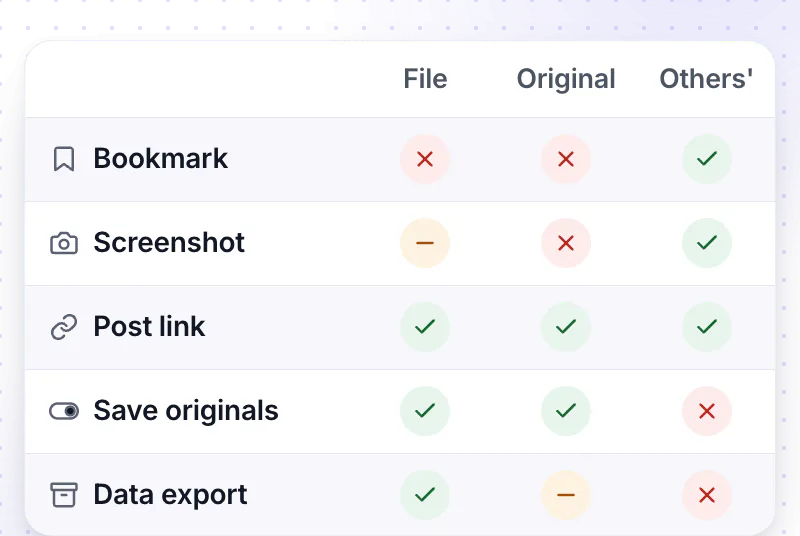
Most people who search how to save photo from Instagram posts want the file in their photo library, not a bookmark in the app. The right route depends on what you want to do with the picture next:
- Find the post again later. A bookmark is enough, and it keeps the caption and comments one tap away.
- Keep a picture for reference. A screen grab works for a recipe step or a quote card, where sharpness doesn't matter.
- Print, edit or set it as a wallpaper. Save the original file through the post link, because every crop and zoom of a capture costs detail.
- Back up your own posts. Use Save original photos for new posts and an export for old ones.
The answer to how to save an Instagram photo you don't own is therefore almost always the post link. The rest of this guide walks through each route in that order.
The Save button under a post adds it to a private section of your profile. For a Reel, the same option sits under Options, then Save. You open saved posts from your profile: Menu, then Saved, under How you use Instagram. Tap and hold Save to sort a post into a collection.
Instagram's Help Center states two privacy facts about bookmarks. Only you can see the posts you've saved. The author can't tell that you saved their post. Our guide on what Instagram tells people when you save or screenshot covers the other actions.
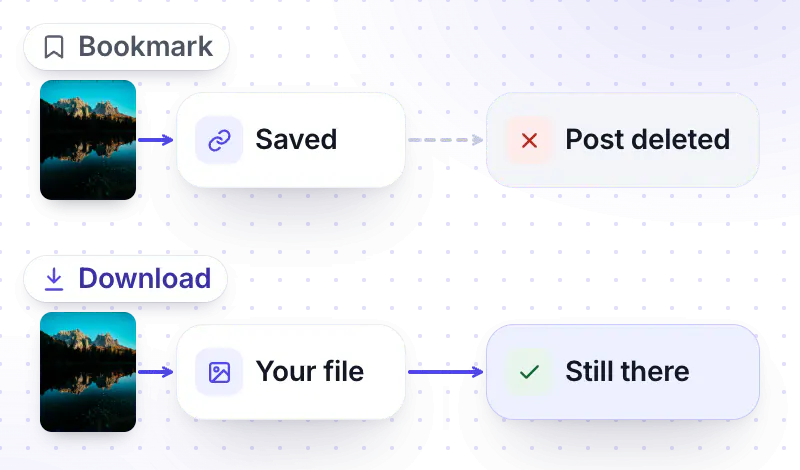
A bookmark is a pointer to the author's post, not a copy. When the author deletes the post or switches the account to private, your saved item stops opening.
Use a bookmark for a reading list and a download for anything you need to keep.
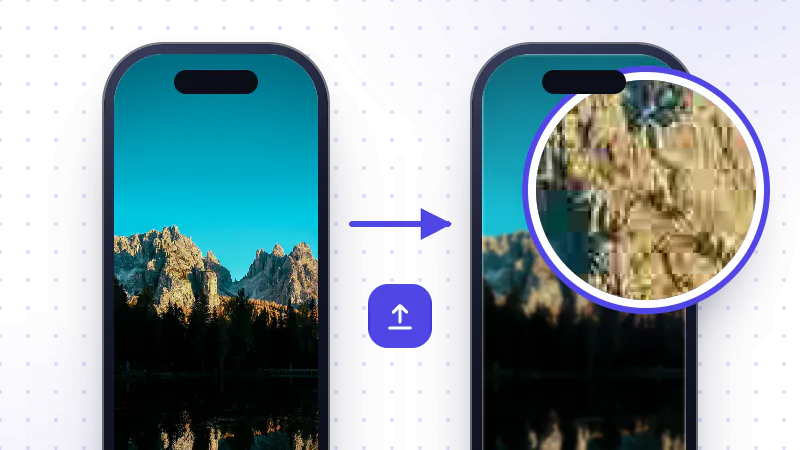
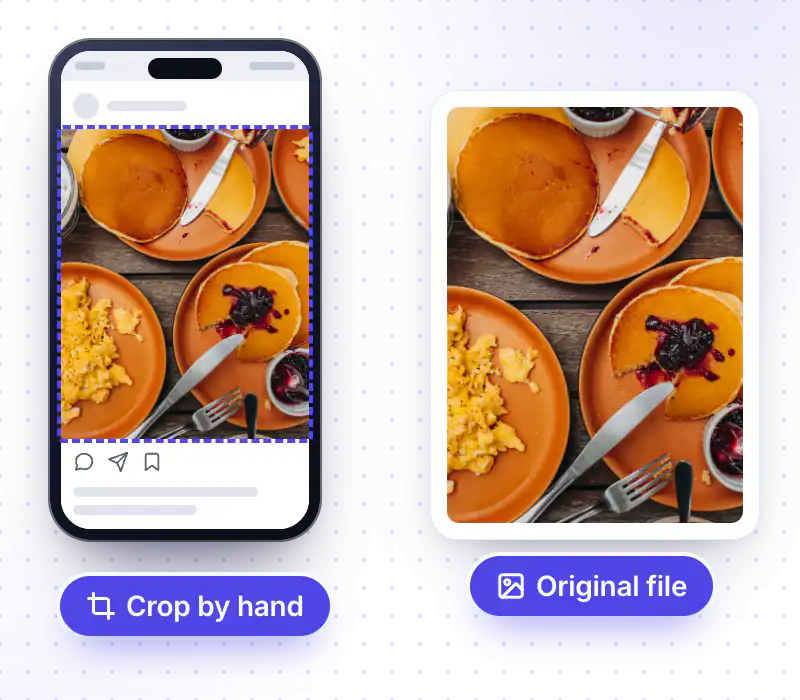
A screenshot is an image of everything on the display, so the photo arrives with the status bar, buttons and caption around it. You then crop by hand, and every crop removes pixels. A carousel needs one capture per slide, so you swipe, capture and crop up to 20 times. A zoomed-in photo turns into a stretched copy of a small area, so zoom adds no detail either.
The size of a screenshot depends on your screen, not on the photo. Instagram stores a photo at most 1080 pixels wide, so a capture from a sharper screen holds more pixels but no extra detail.
It is a re-drawn copy of the same picture, saved a second time.
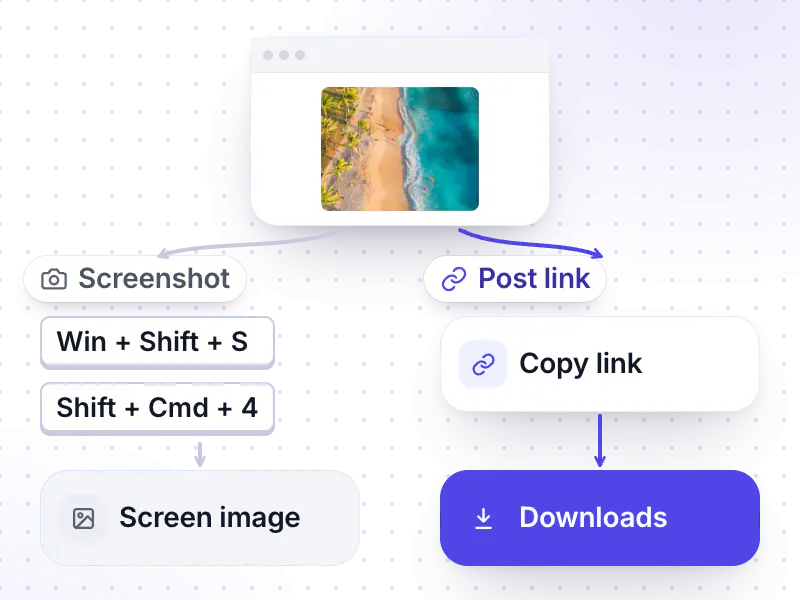
On a computer, two system shortcuts capture part of the screen. On Windows, press Windows logo key + Shift + S to open the Snipping Tool overlay. On a Mac, press Shift, Command and 4, then drag over the photo.
Note
A screenshot works for a quick reference, such as a recipe step or an outfit idea. For printing, editing or a wallpaper, save the original file instead.
A link-based downloader asks Instagram's servers for the same photo file your app displays and hands it to your browser as a download. VideoSaver does this for public posts without a login, without an app and without your Instagram account.
- Copy the post link. In the Instagram app, tap the share icon under the post and choose Copy link. On instagram.com, copy the address from the browser bar.
- Paste the link into VideoSaver. Open the Instagram photo downloader in any web browser, paste the link and start the search. VideoSaver can show a short check before the first search.
- Tap Download under each photo. The file goes to your browser's downloads. VideoSaver adds no watermark and does not compress or upscale the photo, so you get the resolution the author uploaded, as Instagram serves it.
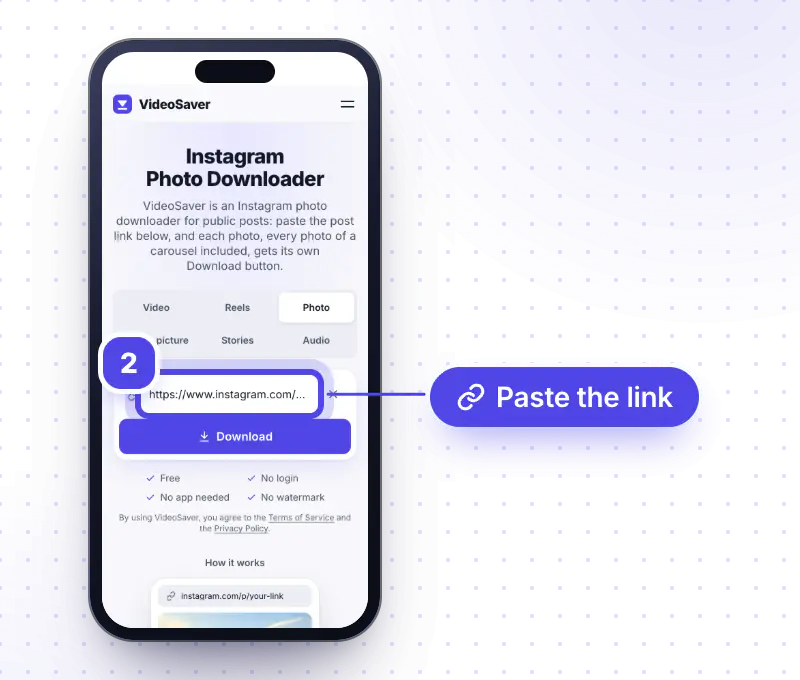
The result card does not show the photo's pixel size or file size before you save. Open the saved file's details to see its exact width and height. The author receives no notification, because the download never touches your Instagram account.
Saving every photo of a carousel
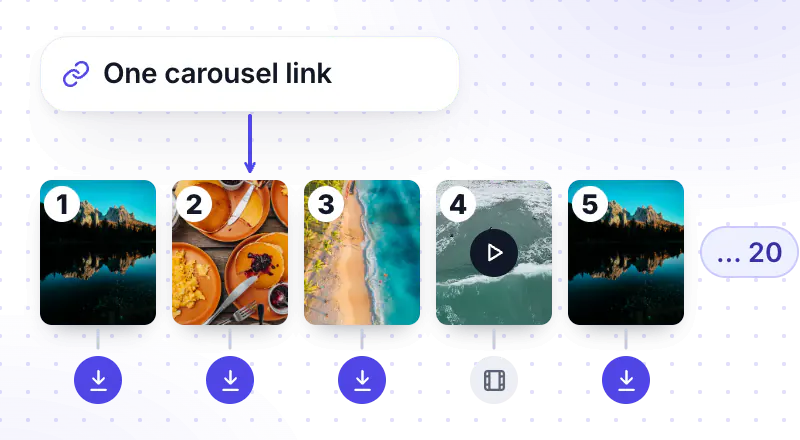
A carousel is one post with up to 20 photos and videos, according to Instagram's Help Center. All slides share one shape, square, vertical or horizontal, which the author picks for the whole post. Videos inside a carousel are not Reels and don't appear in the Reels tab.
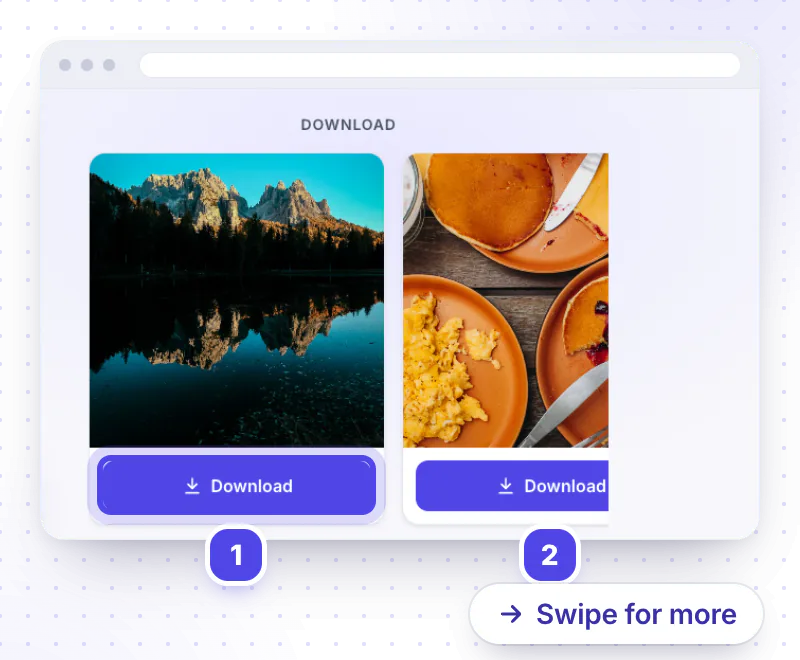
VideoSaver works as an Instagram carousel downloader without a separate mode. Paste the carousel link, and every photo slide appears with its own Download button. You save the whole post with one tap per photo, or only the slides you came for.
Instagram's help pages describe no way to download another person's photo on a computer, and the Save original photos switch exists only in the phone app. A right click on a post in the web browser doesn't give you a reliable Save image option either, so most third party guides fall back to the same two routes. On a PC or a Mac, you have the same two practical routes as on a phone.
The first route is a system capture shortcut, Windows logo key + Shift + S or Shift-Command-4, which grabs part of the screen. The second route is the post link: copy the address of the post on instagram.com, paste it into VideoSaver in any browser and click Download. The photo file lands in your Downloads folder, ready for an editor or a print shop.
Your own posts have an official route. Instagram's Save original photos switch writes every photo you post to your phone's photo library, including your filters and edits. On iPhone and Android, the path is Profile, Menu, Your app and media, Archiving and downloading, then Save original photos. Android users may see a short delay before photos appear in the phone's Instagram album.
The switch works only for photos you post after you turn it on. For older posts, request a copy of your information. Go to Settings, then Accounts Center or Meta Account, Your information and permissions, Export your information, Create export and Export to device. You choose the types of information, a date range, the format and the media quality.
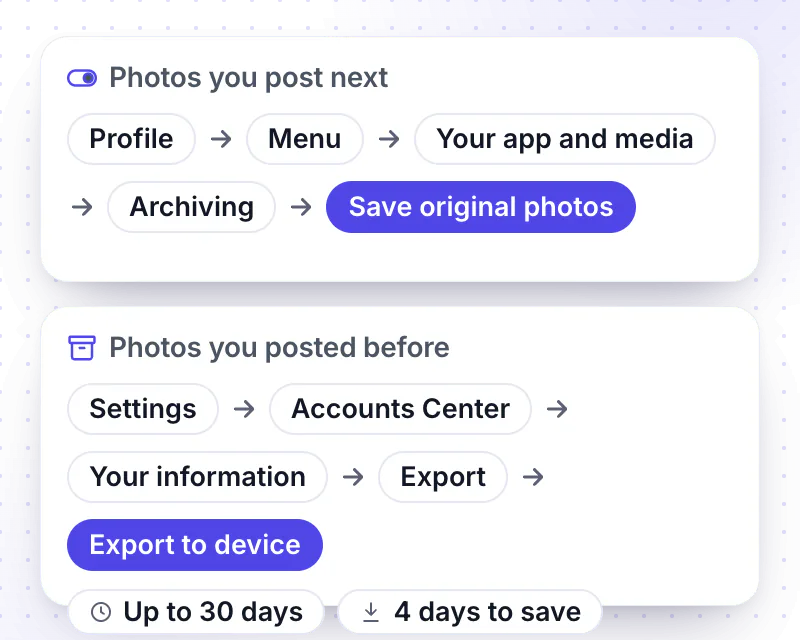
Instagram's Help Center warns that the export link can take up to 30 days to arrive by email. Once the export is ready, you have 4 days to download it.
Plan the export before you delete an account or clear old posts.
Profile pictures follow their own rules. To keep a public profile photo at full size, use the Instagram profile picture downloader, and see the Instagram profile picture size guide for the dimensions Instagram keeps.
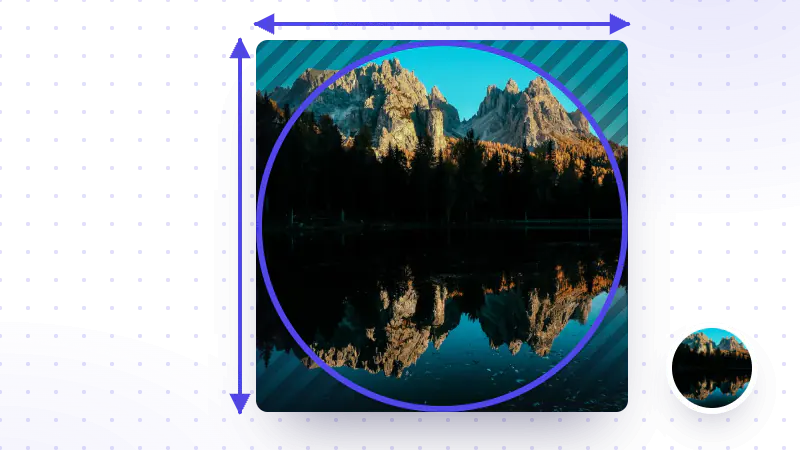
Instagram resizes every photo on upload, and that rule caps every saved copy. According to the Help Center, a photo between 320 and 1080 pixels wide keeps its resolution if its shape falls between 1.91:1 and 3:4, which means 1080 × 566 to 1080 × 1440 pixels. A wider photo is reduced to 1080 pixels, and a narrower one is enlarged to 320 pixels. A photo with an unsupported aspect ratio is cropped.
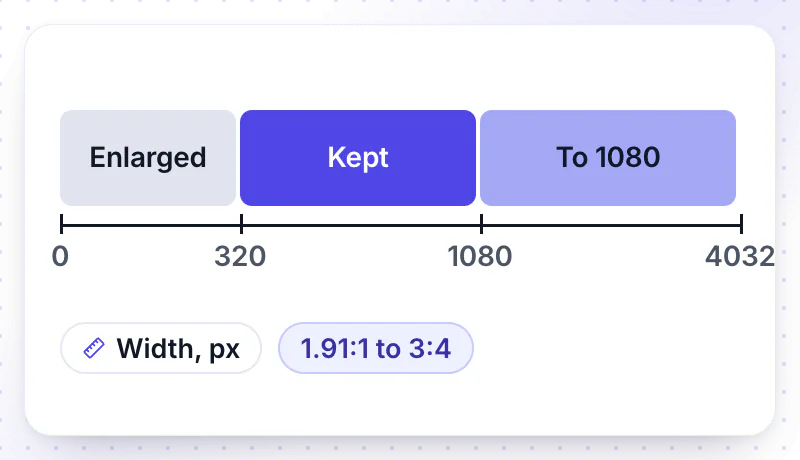
Many guides still quote 4:5 as the tallest allowed shape. The current Help Center text says 3:4, so a vertical photo can now keep up to 1440 pixels of height. Either way, the best file you can save from someone else's post is the copy Instagram stored, at most 1080 pixels wide.
A downloader returns that stored copy once, with no second encoding. A screen grab adds a second capture and a crop on top of it. The full story of what happens on upload is in why Instagram ruins photo quality.
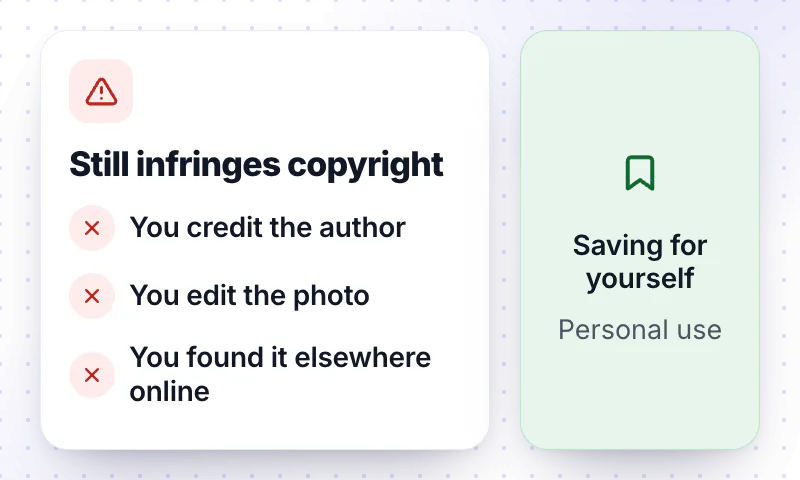
Saving a photo for yourself and posting it again are different acts.
A photo stays the author's work under copyright, even on a public account. Instagram's Help Center lists situations that still infringe copyright, and they include giving credit to the owner, modifying the photo and finding it elsewhere on the internet.
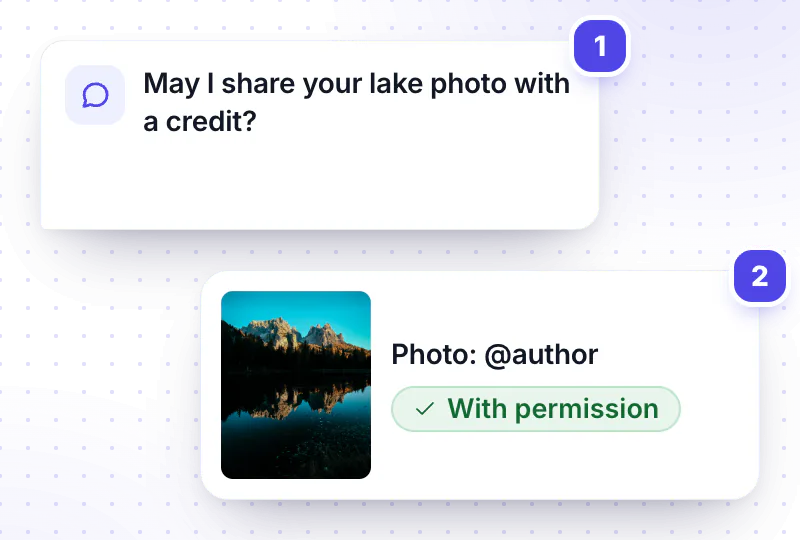
The safe routine has two steps. First, ask the author for permission. Instagram's Help Center calls written permission a good idea, and a direct message you can screenshot later serves as a record. Second, add a photo credit in the way the author agreed to, for example "Photo: @author, used with permission". Put the credit in the caption of your Instagram post, not only as a tag on the picture.
Warning
Credit is not permission. A tag or a "no copyright intended" line does not make a repost legal, and Instagram can remove the post or disable the account that shared it.
VideoSaver is built for public content and personal use, such as keeping a photo of a recipe, a trip idea or your own post. If you are an author and want your content removed from a page that uses it, see our DMCA page. For videos, the same steps are in our guide on saving Instagram Reels to your camera roll.
Frequently asked questions
Short answers to the questions readers ask most about this topic.
Can I save a photo from Instagram without the owner knowing?
Yes, for a bookmark: Instagram's Help Center says the author can't tell when you save their post, and the Saved section is visible only to you. A link-based downloader such as VideoSaver also works without your Instagram account, so the author gets no notification from the download.
Why does my saved Instagram photo look blurry?
A screenshot copies the screen, then cropping and zooming throw away more detail. Instagram also stores photos at most 1080 pixels wide, so no saved copy can be sharper than that version. Save the file through the post link to get the copy Instagram serves, without a second capture.
How do I save all photos from an Instagram carousel?
Copy the carousel link and paste it into VideoSaver's Instagram photo downloader. Every photo slide appears with its own Download button, so you save the whole post with one tap per photo, or only the slides you need. A carousel can hold up to 20 photos and videos.
Can I save photos from a private Instagram account?
No downloader can open a private account. Instagram shows a private account's posts only to its approved followers, and VideoSaver works with public posts only. If you follow the account, ask the author to send you the photo. Our guide on private accounts explains the scams that promise otherwise.
Where do downloaded Instagram photos go on my phone?
A photo saved through VideoSaver goes where your browser keeps downloads. On iPhone, Safari puts files in the Downloads folder of the Files app, and you can move a photo to Photos from there. On a computer the file lands in your Downloads folder.
Sources
Facts about Instagram features in this article come from these pages.
- Instagram Help Center: Save posts you see on Instagram help.instagram.com
- Instagram Help Center: Save Instagram photos to your device help.instagram.com
- Instagram Help Center: Share a post with multiple photos or videos on Instagram help.instagram.com
- Instagram Help Center: Image resolution of photos you share on Instagram help.instagram.com
- Instagram Help Center: Review and export a copy of your Instagram information help.instagram.com
- Instagram Help Center: How to make sure content you post doesn't violate copyright law help.instagram.com
- Instagram Help Center: Learn more about copyright on Instagram and Threads help.instagram.com
- Apple Support: How to take a screenshot on your Mac support.apple.com
- Microsoft Support: Use Snipping Tool to capture screenshots support.microsoft.com