Instagram Reel Size and Dimensions: Aspect Ratio, Cover Size and Safe Zones
Most creators export Reels at 1080x1920 pixels in 9:16, while Instagram itself only sets a 720-pixel minimum and a range of shapes. This guide separates official numbers from common practice and turns the safe zone into exact pixels.
Short answer
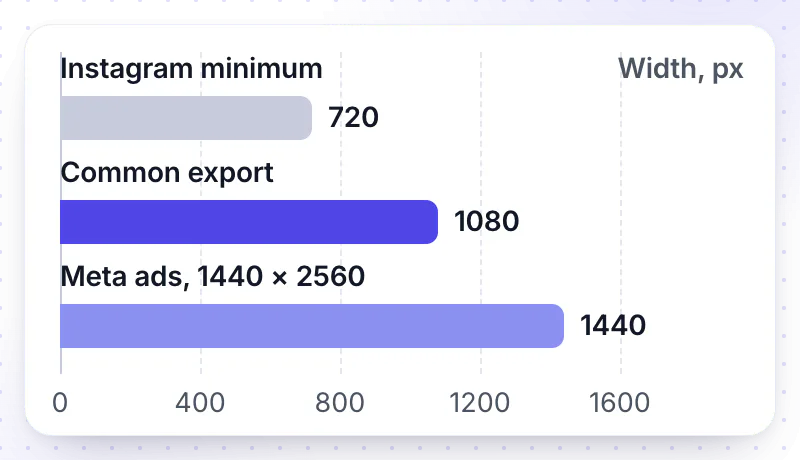
The Instagram Reel size most creators use is 1080x1920 pixels, a 9:16 vertical frame that fills a phone screen. Instagram's own Help Center sets only the limits around it: an aspect ratio between 1.91:1 and 9:16, at least 720 pixels and at least 30 frames per second. Meta's Ads Guide adds a larger 1440 by 2560 recommendation for ads and the only official safe zone, which this guide turns into exact pixels.
The table below lists every Instagram Reel size number with the place it comes from. Official limits come from Instagram's Help Center, recommendations for ads come from Meta's Ads Guide, and the 1080x1920 export is common practice that fits both.
| Spec | Value | Source |
|---|---|---|
| Aspect ratio | 1.91:1 to 9:16, with 9:16 filling the screen | Instagram Help Center |
| Minimum resolution | 720 pixels | Instagram Help Center |
| Minimum frame rate | 30 fps | Instagram Help Center |
| Common export size | 1080x1920 pixels | Creator practice |
| Reels ads, recommended | 1440 × 2560 pixels, H.264 video, AAC audio | Meta Ads Guide |
| Cover photo | 420 × 654 pixels, a 1:1.55 shape | Instagram Help Center |
| Safe zone | 14 % top, 35 % bottom, 6 % each side | Meta Ads Guide |
Instagram's Help Center never names 1080x1920 as the Reel size. It sets a range of shapes, a 720-pixel minimum and a 30 fps minimum, and leaves the exact export size to you. Most marketing guides then repeat 1080x1920, because it is the 9:16 frame at the 1080-pixel width Instagram already uses for photos.
The numbers don't contradict each other, but they answer different questions. The Help Center tells you what Instagram accepts. Meta's Ads Guide tells advertisers what looks best, and it recommends 1440 × 2560 pixels for Reels ads. The common export of 1080x1920 sits between the minimum and the ads recommendation and gives you a sharp, light file.
Instagram Reel aspect ratio
The Instagram Reel aspect ratio can be anything from 1.91:1, a wide horizontal frame, to 9:16, a tall vertical one. Only 9:16 fills a phone screen from top to bottom. A 4:5 or 3:4 video shows with empty space above and below, and a 1.91:1 video shrinks to a strip in the middle of the screen.
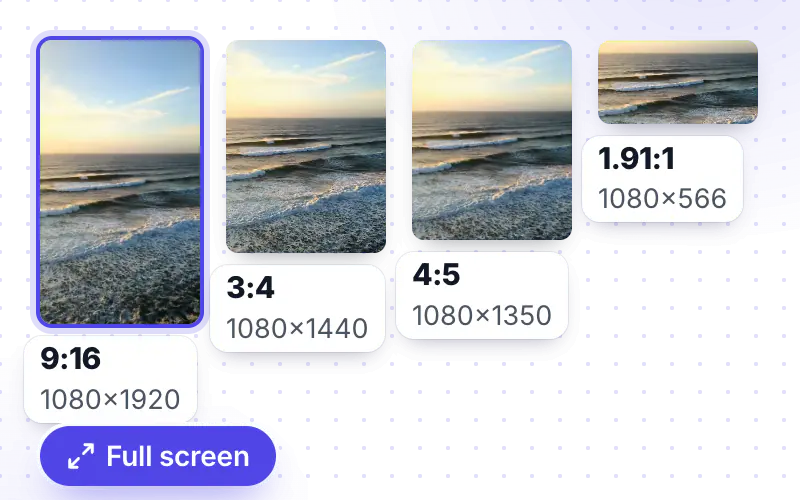
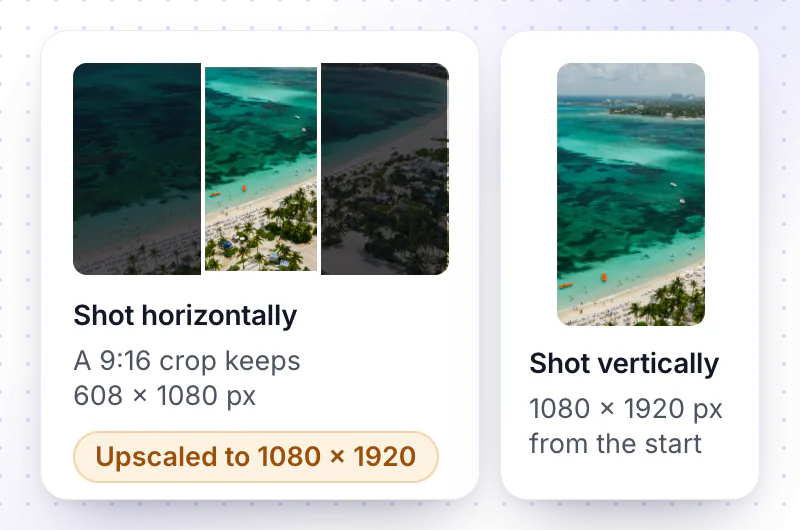
Shoot vertical video when the Reel is planned for Instagram first. Cropping a horizontal 16:9 recording to 9:16 keeps less than a third of the original width, so the subject has to sit in the centre of the frame.
Resolution and frame rate
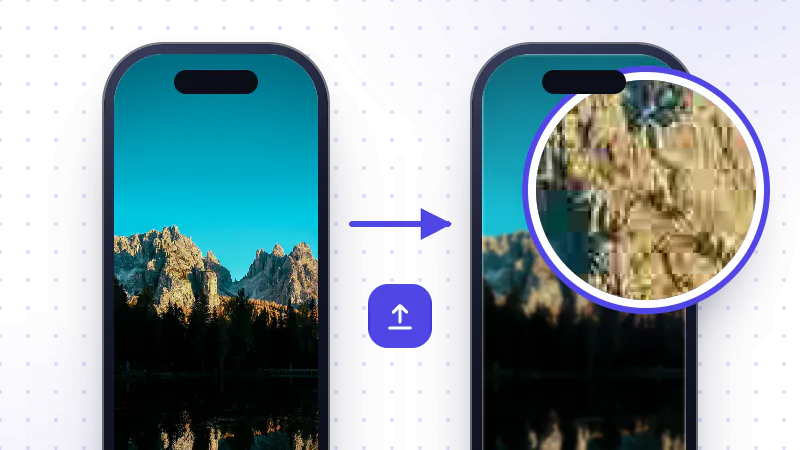
A Reel needs at least 720 pixels and 30 frames per second, according to the Help Center. Anything above that is your choice, and 1080 pixels wide is the usual target. A higher export doesn't always reach viewers at full size, because Instagram applies its own compression to every upload and serves lighter versions on slower connections. Our guide on why Instagram ruins photo and video quality explains that step.
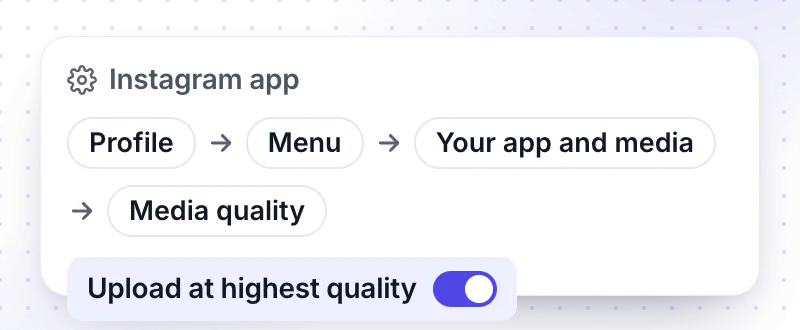
Instagram's Help Center describes one switch that helps. Turn on Upload at highest quality under Profile, Menu, Your app and media, Media quality. Uploads can take longer with the switch on, because the app sends the highest quality it can.
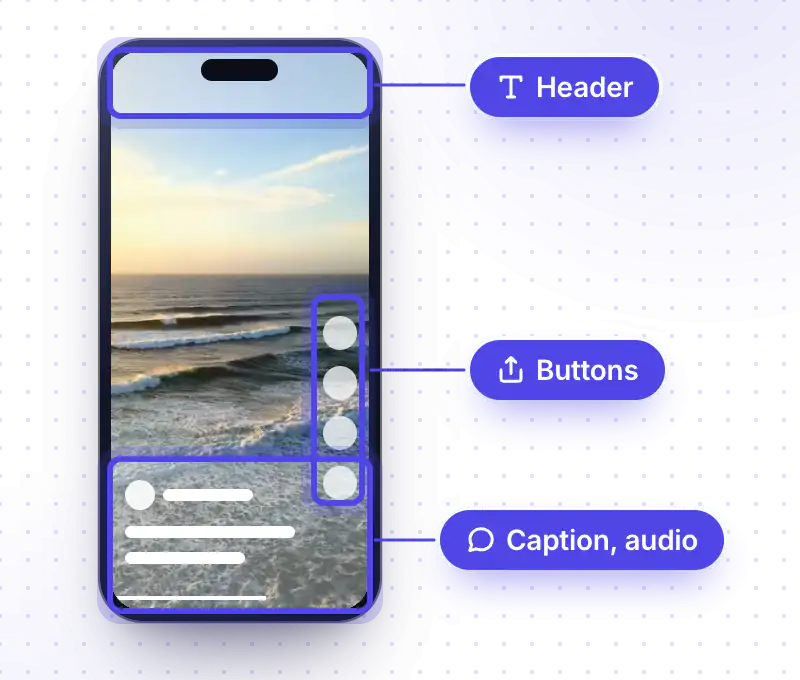
A full-screen Reel shares its frame with the interface. The account name, caption, audio line and buttons sit over the bottom and right side of the video, and the header sits over the top. A text overlay placed there is hard to read or cut off.
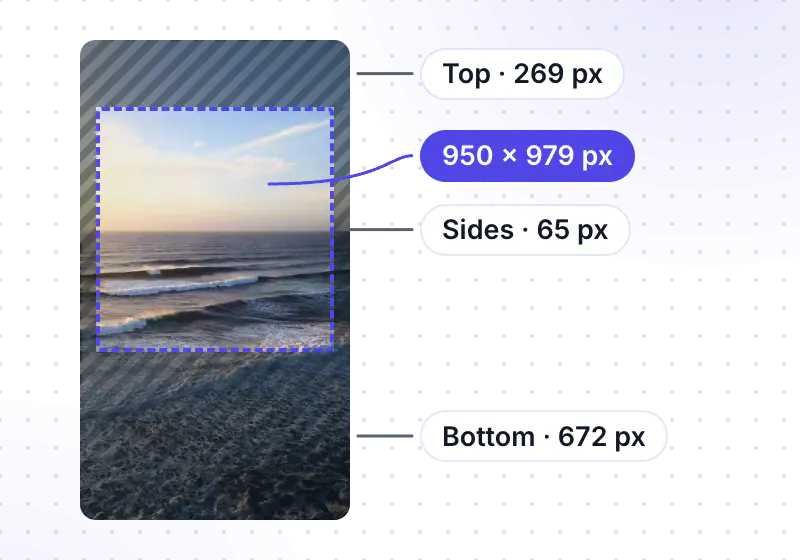
Meta's Ads Guide gives the only official numbers for this area. It recommends leaving at least 14 % of the top, 35 % of the bottom and 6 % of each side free of text, logos and other important elements. Meta gives two reasons: the profile icon and call-to-action buttons cover those areas, and screens taller than 9:16 crop the edges.
On a 1080x1920 frame, the Instagram Reel safe zone works out to these pixel values:
- Top margin: 14 % of 1,920 pixels, about 269 pixels.
- Bottom margin: 35 % of 1,920 pixels, 672 pixels.
- Side margins: 6 % of 1080 pixels, about 65 pixels on each side.
- Safe area left in the middle: 950 × 979 pixels, from 269 to 1,248 pixels down the frame.
Note
Meta writes the safe zone for ads. Instagram publishes no separate figure for organic Reels, where the caption block is often shorter. The ad margins are the stricter choice, so text inside them stays visible in both cases.
Faces matter as much as captions. Keep eyes and mouths above the bottom 35 % so the caption doesn't cover them, and keep important gestures away from the right-hand edge, where the buttons sit.
The cover and the thumbnail are the same image in Instagram's terms: the still that represents a Reel in the profile grid and in previews. Instagram's Help Center recommends a cover size of 420 × 654 pixels, a 1:1.55 shape. The same page notes that you can't edit the cover after the Reel is uploaded, so choose it before you post.
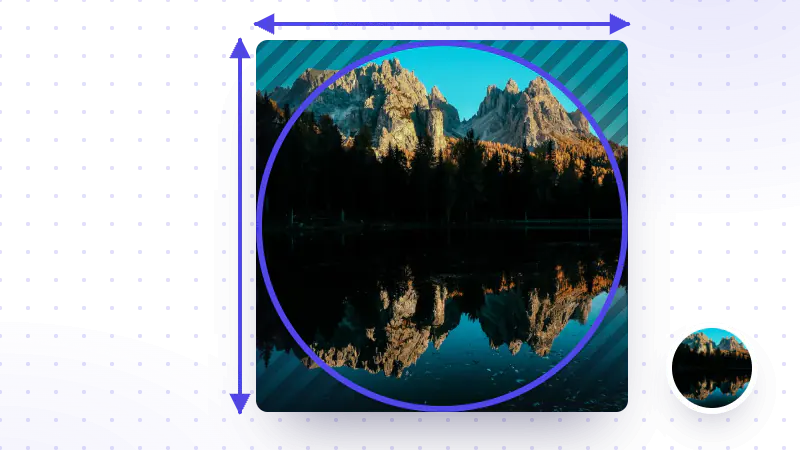
The recommended shape doesn't match the other two shapes your cover appears in. A cover opens full screen in 9:16, and the profile grid now shows tiles as 3:4 rectangles, a change Instagram's head Adam Mosseri announced when the grid moved away from squares. Design tools such as Kapwing describe the new grid as a centre crop to 3:4.
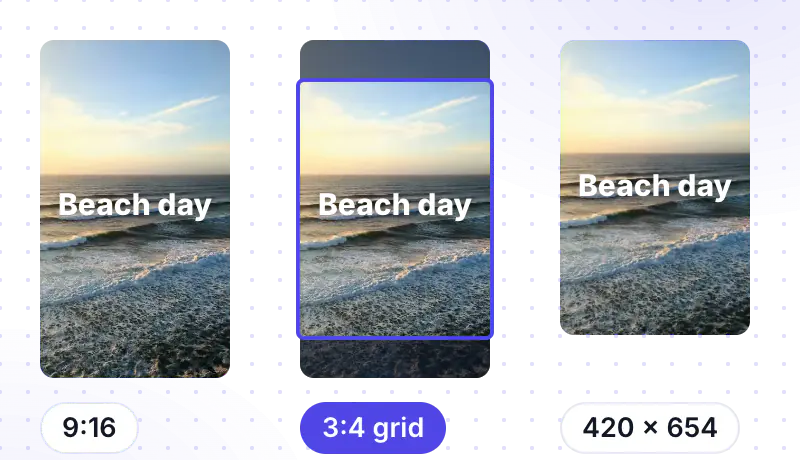
A 3:4 tile at 1080 pixels wide is 1440 pixels tall, so a 1080x1920 cover loses 240 pixels at the top and 240 at the bottom in the grid. The practical rule for the Instagram Reel cover size follows from that arithmetic. Design the cover at 1080x1920 and keep titles inside the central 1080 × 1440 area. That area survives the 3:4 grid crop and the 1:1.55 cover shape, which is wider than 9:16 and removes less height.
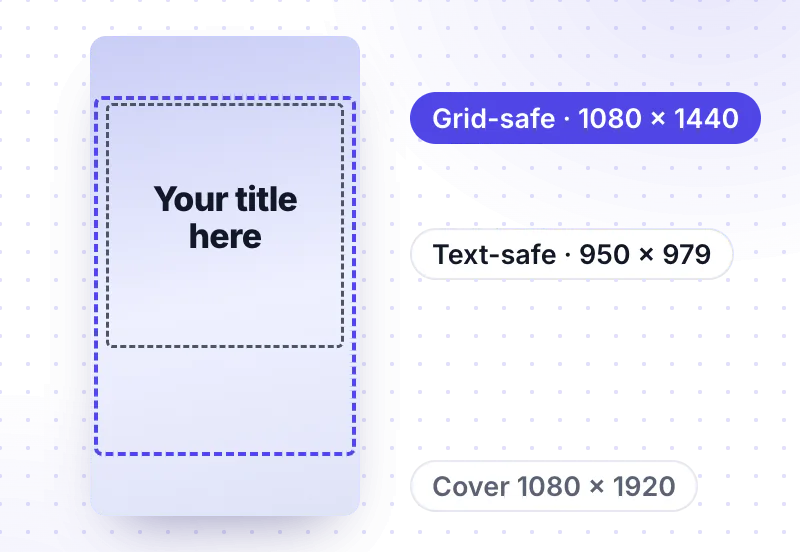
The same rule answers the Instagram Reel thumbnail size question. Some guides give a separate square thumbnail size, such as 1080 × 1080, but a square no longer matches the grid. Use the 9:16 cover with a centred title instead.
The right frame depends on where the video goes. A Reel follows the 1.91:1 to 9:16 range above. A video inside a carousel post is different: the Help Center says carousel videos are not Reels, and every slide of a carousel shares one orientation, square, vertical or horizontal.
Photos in feed posts follow their own limits, between 1.91:1 and 3:4 at up to 1080 pixels wide. When you mix photos and videos in one carousel, choose the shape that suits the photos, because the videos will be cropped to match. Instagram Stories have their own format and lifetime, explained in Instagram Reels vs Stories. For time limits, see how long Instagram Reels can be.
A downloaded Reel can't be larger than the best version Instagram stores for it. We checked the stream manifest of one public 8.4-second Reel through VideoSaver. Instagram offered two video versions, 720 × 1280 pixels at about 2.0 Mbit/s and 360 × 640 pixels at about 0.47 Mbit/s, with a separate AAC audio track at about 64 kbit/s.
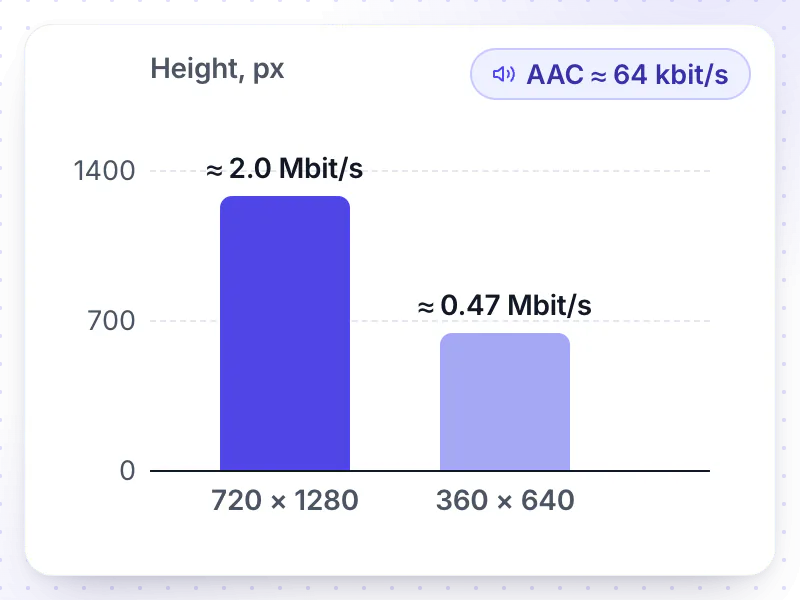
That one check doesn't set a rule for every Reel, and other uploads can offer different versions. It shows the principle: the Instagram video dimensions you get in a download match what Instagram serves, not what the creator exported. VideoSaver saves the best version on offer as an MP4 and does not upscale it, so a 720p Reel stays 720p.
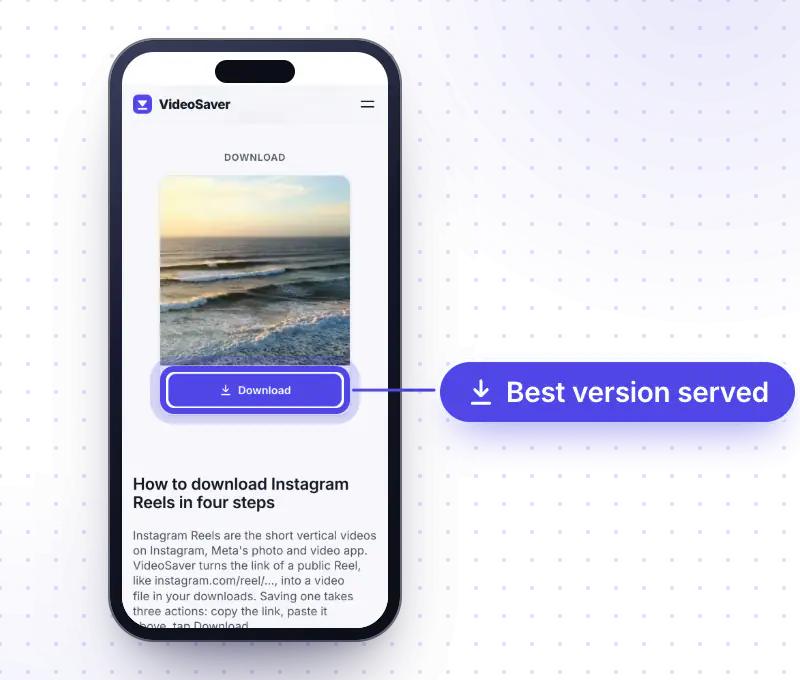
The Reels downloader works for public Reels without a login, and VideoSaver adds no watermark of its own. For regular video posts, use the Instagram video downloader with the post link.
These settings cover the Instagram Reel dimensions and the encoding in one pass. The codec lines come from Meta's Ads Guide for Reels ads, and they suit organic Reels just as well.
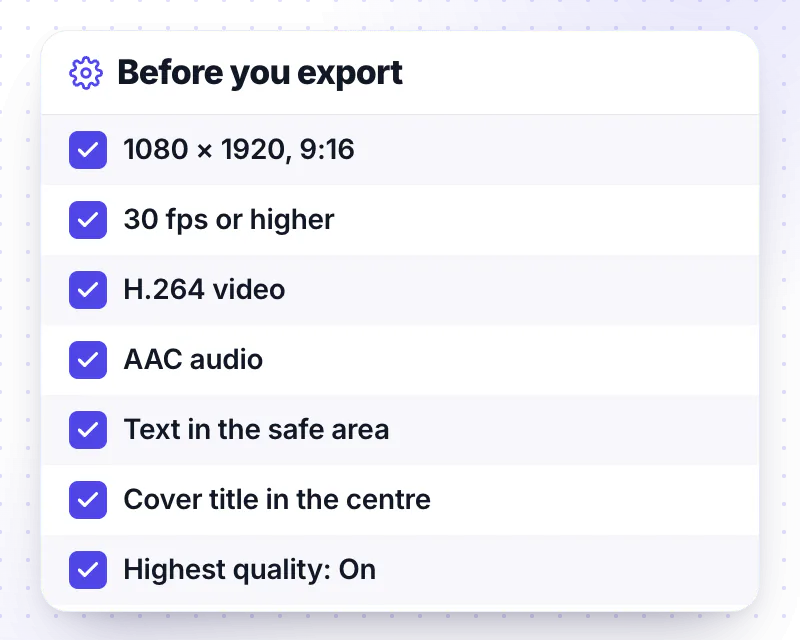
- Set the sequence or canvas to 1080x1920 pixels, 9:16.
- Keep the frame rate at 30 fps or higher, the Help Center minimum.
- Export H.264 video with AAC audio in an MP4 file.
- Check every caption and sticker against the safe zone template.
- Pick a cover with the title in the central 1080 × 1440 area.
- Turn on Upload at highest quality before you post.
Three mistakes cause most cropped or hard-to-read Reels, and each has a simple fix.
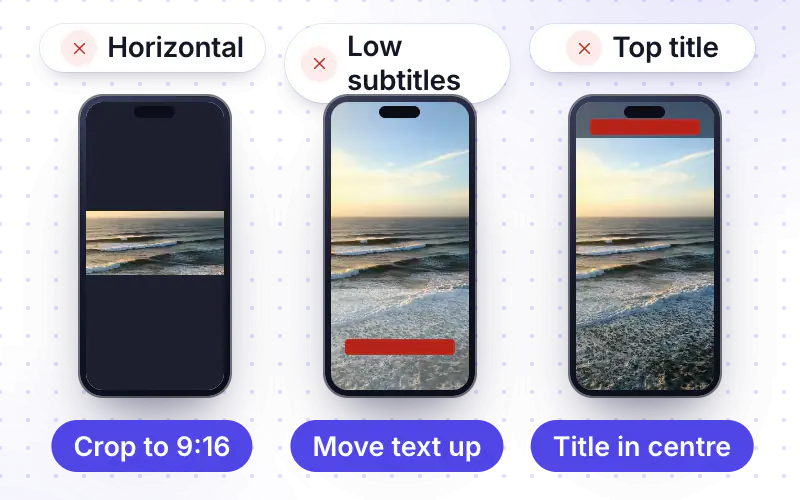
- A horizontal upload. A 16:9 video is allowed but plays small, with empty bands above and below. Reframe it to 9:16 in your editor.
- Text in the bottom 35 %. Subtitles placed low end up under the caption and audio line. Keep them above 1,248 pixels on a 1080x1920 frame.
- A title at the top of the cover. The 3:4 grid hides the top 240 pixels. Move the title into the centre of the frame.
Not every clip starts vertical. A webinar recording, a drone shot or a horizontal phone video needs one of three treatments before it works as a Reel, and each changes the frame size in a different way.
- Reframe and crop. Scale the video until it fills the 9:16 frame and move the crop over the subject, keyframe by keyframe if the subject moves. You keep a full-screen picture but lose about two thirds of a 16:9 frame.
- Fit with a background. Keep the whole horizontal picture in the middle and fill the bands above and below with a blurred, enlarged copy of the same video or a solid colour. Nothing is lost, but the video content takes up less of the screen.
- Split the frame. Stack two parts of the wide shot, such as a speaker and a slide, one above the other. This suits talks and tutorials, where two areas of the original matter.
Whichever method you pick, export the result at 1080x1920 rather than letting Instagram scale a smaller canvas up. Then check the text overlay against the safe zone template again, because reframing moves everything.
Your editor's export dialog shows the frame size before upload, and the file itself confirms it afterwards. On a Mac, select the file in Finder and open Get Info to see its dimensions. On Windows, open the file's Properties and the Details tab.
The posted version is a separate question, because Instagram creates its own copies. To see what Instagram actually serves, save your public Reel with the Reels downloader and open the file's details in the same way. If the saved copy is 720 pixels wide while you exported 1080, the reduction happened on Instagram's side, not in your export. Comparing the two numbers takes a minute and tells you whether to adjust your export settings or the upload quality switch.
A high quality export that still looks soft after posting usually points to the upload step. Turn on Upload at highest quality, avoid uploading over a weak mobile connection and post the original file rather than a copy sent through a messaging app. The Instagram Reel size you set in the editor is only the starting point of that chain.
Frequently asked questions
Short answers to the questions readers ask most about this topic.
What are the exact Instagram Reel dimensions?
Most Reels are made at 1080x1920 pixels, a 9:16 vertical frame that fills a phone screen. Instagram's Help Center sets the limits around it: a shape between 1.91:1 and 9:16, at least 720 pixels and at least 30 frames per second. Meta recommends 1440 by 2560 pixels for Reels ads.
What is the Instagram Reel cover size?
Instagram's Help Center recommends a cover of 420 × 654 pixels, a 1:1.55 shape. Because the profile grid shows covers as 3:4 tiles, design the cover at 1080x1920 and keep the title in the central 1080 × 1440 area. The Help Center also says you can't edit the cover after uploading.
Can I post a horizontal video as a Reel?
Yes. Instagram accepts Reels with an aspect ratio as wide as 1.91:1. A horizontal video doesn't fill a vertical screen, so viewers see it smaller, with empty space above and below. Crop or reframe to 9:16 when the subject should fill the screen.
What is the safe zone for Instagram Reels?
Meta's Ads Guide recommends keeping 14 percent at the top, 35 percent at the bottom and 6 percent on each side free of text and logos. On a 1080x1920 Reel that is 269 pixels at the top, 672 at the bottom and 65 on each side, which leaves a 950 × 979 pixel safe area.
Why does my Reel look blurry after upload?
The most common causes are an export below 1080 pixels wide, a frame rate under 30 fps and the Upload at highest quality switch left off. Instagram also re-encodes every upload. Export at 1080x1920 with H.264 video and AAC audio, and turn the switch on before posting.
Sources
Facts about Instagram features in this article come from these pages.
- Instagram Help Center: Reel size and aspect ratios on Instagram help.instagram.com
- Meta Ads Guide: Video ad specs on Instagram Reels facebook.com
- Instagram Help Center: Image resolution of photos you share on Instagram help.instagram.com
- Instagram Help Center: Share a post with multiple photos or videos on Instagram help.instagram.com
- Kapwing: Instagram's new grid layout, size and dimensions kapwing.com
- RouteNote: Instagram's new profile grid layout, from squares to rectangles routenote.com