How to Save Audio From Instagram Reels: In-App Save vs a Real Audio File
Instagram's Save audio keeps a bookmark inside the app, not a file on your phone. To get the sound of a public Reel as a file, save its audio track as an M4A.
Short answer
Instagram's Save audio button keeps a sound inside your Instagram account. It doesn't put a file on your phone. To get the sound of a public Reel as a real audio file, save its audio track with an audio downloader, which gives you an M4A file you can play offline or open in an editor.
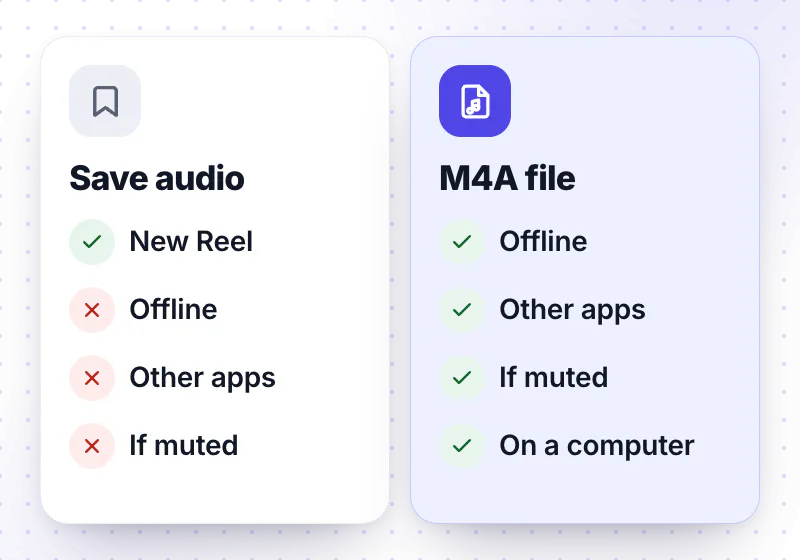
The two options solve different jobs. The in-app save is for making Reels with a sound later. A file is for everything outside Instagram: listening offline, editing in another app or keeping a reference that won't disappear.
| Your goal | In-app Save audio | Audio file |
|---|---|---|
| Use the sound in a new Reel | Yes, with Use audio | Not needed |
| Listen offline | No | Yes |
| Edit in another app | No | Yes |
| Keep it if the track gets muted | No | Yes, the saved file stays |
| Works on a computer | No | Yes |
For a creator who only wants to reuse a trending sound, the bookmark is enough. The guide to trending audio on Instagram shows how to find those sounds early.
Instagram's Help Center doesn't have a dedicated page for the Save audio button, so the steps below follow the walkthroughs published by TechRadar and Dexerto. Both describe the same flow on iPhone and Android:
- Open the Reel that plays the sound.
- Tap the audio name under the creator's name at the bottom of the screen.
- On the audio page, tap Save or the bookmark icon in the top-right corner.
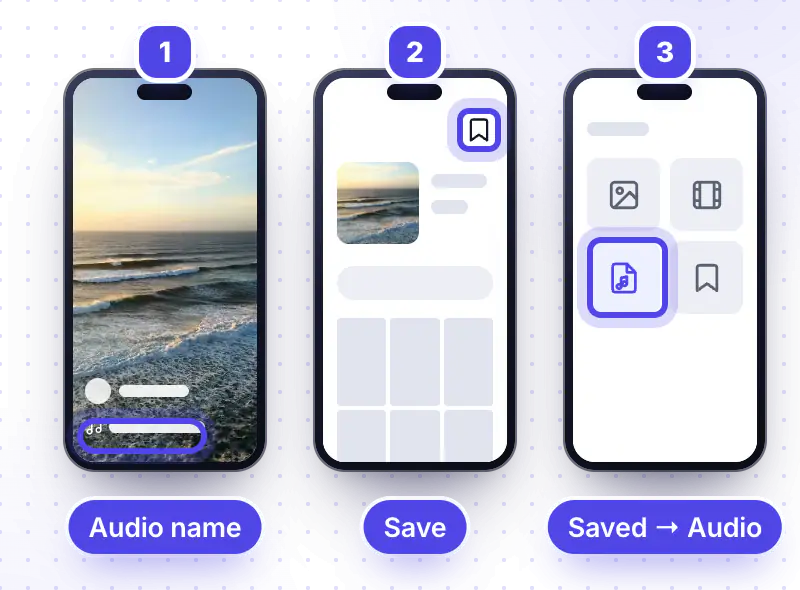
To find a saved sound later, go to your profile, open the menu in the top right, tap Saved and open the Audio folder. Tapping a sound there brings you back to its audio page, where Use audio starts a new Reel with it.
What the in-app save can't do
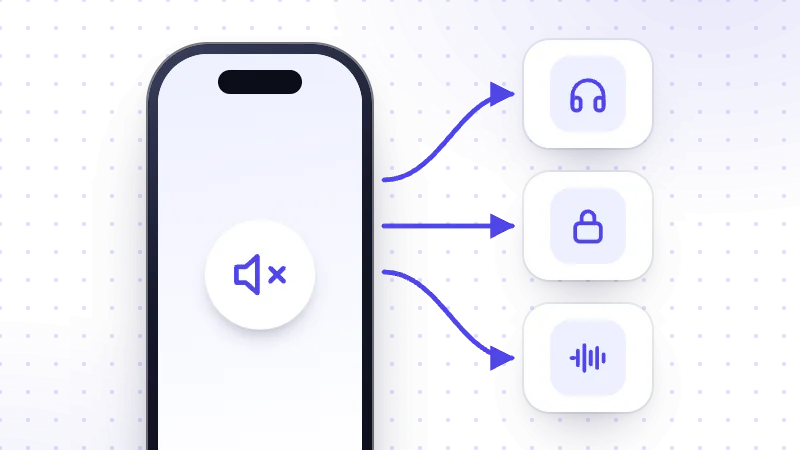
TechRadar points out two limits. The saved audio stays inside Instagram and doesn't download to your phone's storage, and Instagram on the web has no Save audio button. The sound also depends on its rights: Instagram's Help Center warns that licensed tracks can become muted when agreements with music rights holders change.
Original audio follows the creator's account settings. On a public account, anyone can record a Reel with that original audio. On a private account, no one can reuse it, so the Use audio route closes too.
Why the Save option is missing on a sound
A missing Save button usually has a plain cause. TechRadar's walkthrough starts with updating the Instagram app, since older versions place the audio page differently. A Reel from a private account keeps its original audio locked to followers. A sound whose rights holder muted it no longer has a playable audio page. In those cases the bookmark route ends, and only a file saved earlier keeps the sound.
A Reel downloaded through Instagram's own Download option often has no music. Instagram's Help Center explains the rule: when a Reel includes licensed audio or original audio from another creator, all the audio is removed from the download. Only Reels with the creator's own original audio download with their sound.
Instagram's rule is why people keep asking how to save Reels on Instagram with audio, or how to save Instagram Reel to camera roll with audio intact. The video file and its sound need separate tools when the Reel uses a song. The guide to saving Instagram Reels to your camera roll compares the video options, and the guide to Instagram audio that doesn't work covers silent Reels in more depth.
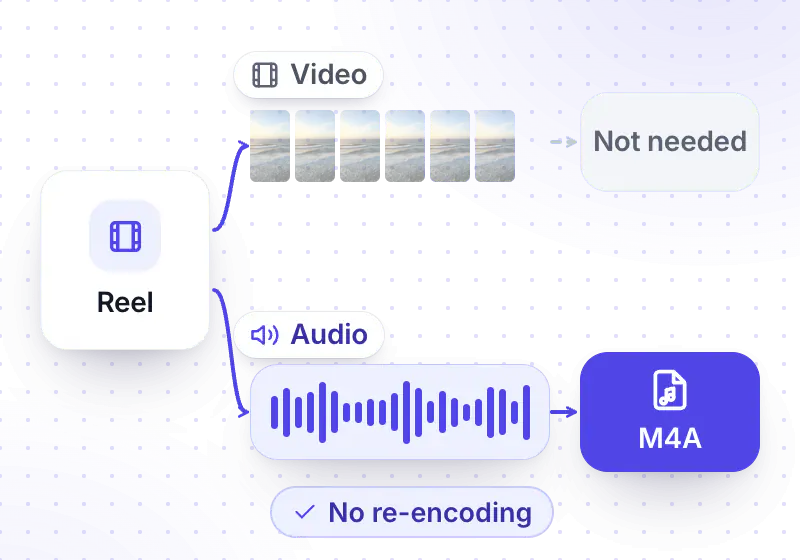
An Instagram Reel carries its picture and its sound as separate tracks. An audio downloader takes only the sound track and saves it as a file. VideoSaver does this for public Reels and video posts, and it hands over the track Instagram serves without re-encoding it.
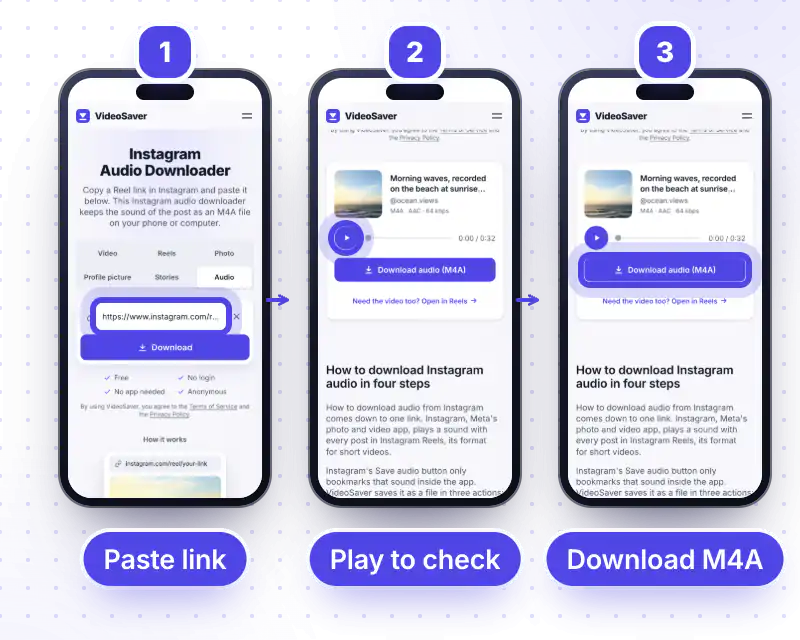
- In Instagram, open the Reel, tap Share and then Copy link.
- Open the Instagram audio downloader in your browser.
- Paste the link and press play on the result to check the sound.
- Tap Download audio to save the M4A file.
What you get in the file
The file is an M4A: an MPEG-4 audio file with AAC audio, the codec Instagram uses for sound in its videos. Its bitrate is whatever Instagram serves for that Reel, and no tool can make it better than the upload. On the VideoSaver test stand, one public Reel came with an HE-AAC track at about 64 kbps, 44.1 kHz, in stereo. Other Reels can differ.
What the sound of a Reel actually contains
A Reel's audio track is the final mix, not a clean copy of the song. Instagram's Help Center describes how creators build it: they pick the part of a song to play with a slider, record a voiceover, add sound effects and adjust the volume of each layer. The saved file carries that mix. A dance Reel may hold 15 seconds of a chorus, and a tutorial may hold the creator's voice over quiet background music.
That's why the file suits reference and practice better than music listening. For the full song, use the track name on the Reel's audio page to find it in a music service.
VideoSaver needs no Instagram login, and the creator gets no notification when you save a sound. The tool reads public accounts only, so Reels from a private account stay out of reach even when you follow it.
Save audio on a computer
Instagram on the web has no Save audio button, according to TechRadar, so the in-app route works only on a phone. A link-based tool doesn't care about the device. Copy the Reel's address from instagram.com on a desktop browser, paste it into the audio downloader and the M4A lands in the computer's Downloads folder, ready for a video editor or a music player.
Extract audio from a video you already saved
A Reel you already saved as a video file still holds its sound track, as long as the copy wasn't silenced on the way. Most video editors can export the sound of a clip as a separate audio file, which is a handy route for your own Reels. Instagram's own downloads of Reels with licensed music arrive without sound, so this route can't recover a song that Instagram removed.
Tip
Need the video as well? The same Reel link works in the Instagram Reels downloader, which saves the Reel as an MP4 file.
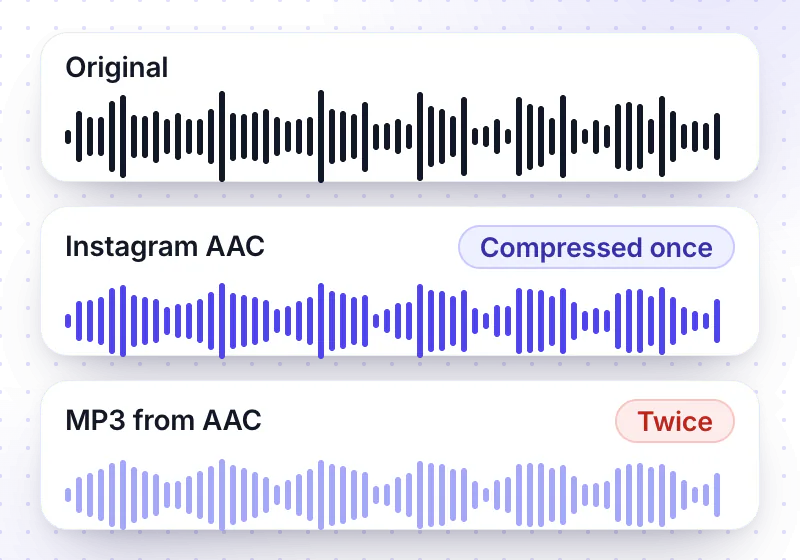
Many tools sell an Instagram MP3 at 320 kbps as the high-quality option. The number sounds impressive, but it can't add detail that the source never had. Instagram's track is already compressed AAC, and turning it into MP3 compresses it a second time.
Wikipedia's article on transcoding describes the mechanism: converting from a lossy format to another format loses quality, and the artifacts build up with each generation. A 320 kbps MP3 made from a 64 kbps AAC track is a bigger file with the same or slightly less detail. Wikipedia's article on Advanced Audio Coding adds that AAC generally sounds better than MP3 at the same bitrate.
M4A or MP3: which format to keep
The original M4A is the better file to keep. Convert to MP3 only when an old device or app refuses M4A, and keep the original next to the copy. A converter run once from the M4A loses little. Running it again on an MP3 made earlier stacks a second round of loss, which is the generation loss the transcoding article describes.
| Point | M4A (AAC) | MP3 |
|---|---|---|
| Codec Instagram uses | Yes | No |
| Made from the Reel without conversion | Yes | No, needs a conversion |
| Plays on Android | Yes, AAC and HE-AAC in .m4a | Yes |
| Plays on iPhone | Yes, AAC and HE-AAC | Yes |
| Quality at the same bitrate | Generally higher | Generally lower |
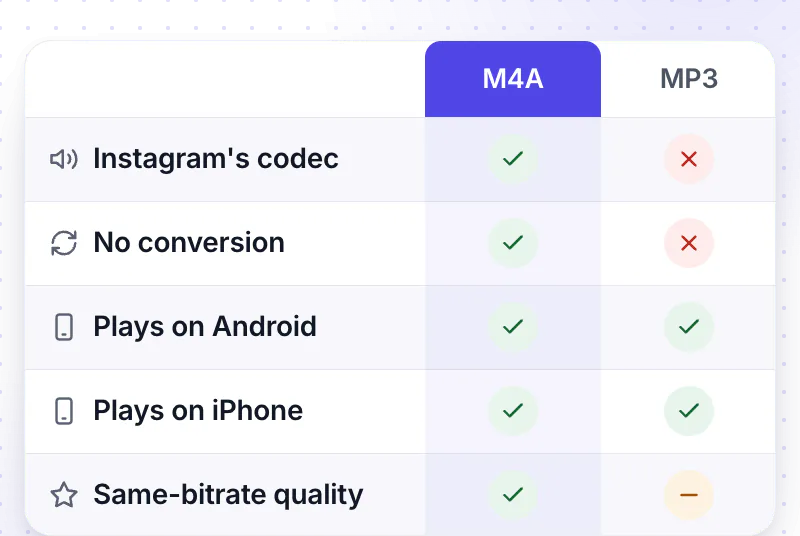
Android's developer documentation lists AAC LC and HE-AAC playback in .m4a files on all supported versions, and Apple's iPhone specifications list AAC and HE-AAC among supported audio formats. So a request like Instagram Reel to MP3 is usually about convenience, and an M4A file meets it on both platforms.
Note
If a song is what you're after, check whether the Reel uses the full track or a short clip. The guide on finding the song from an Instagram Reel helps you get the full version from a music service.
A saved sound is still someone's work. Licensed tracks belong to their artists and labels, and original audio belongs to the creator who recorded it. Instagram's copyright guidance is direct: a post can infringe copyright even when you bought the song, recorded it yourself, gave credit or didn't intend to profit.
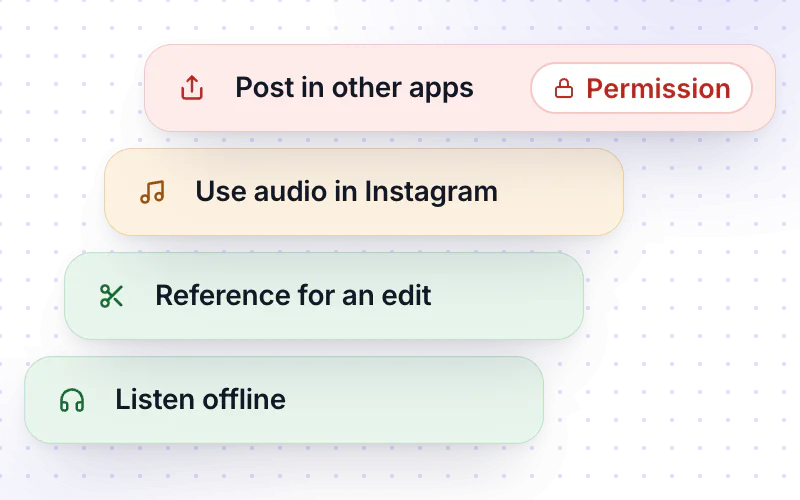
Personal listening and private reference stay low-risk. For a new Reel, the Use audio button is the licensed route, because Instagram attaches the attribution for you. Posting a downloaded track in other apps or videos needs the rights holder's permission first.
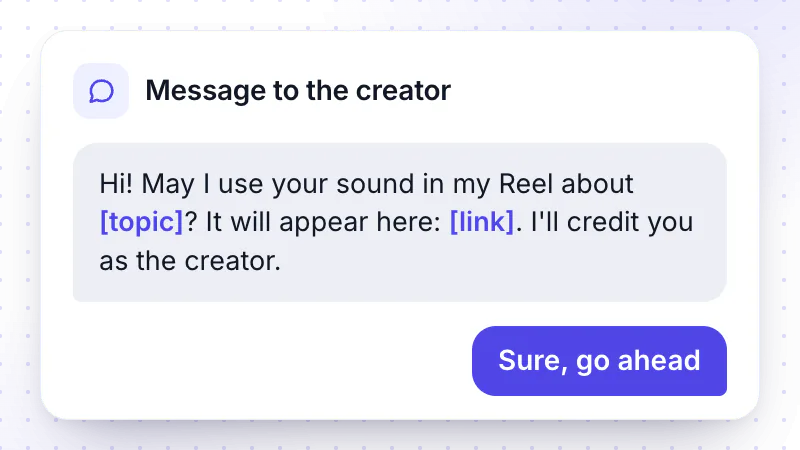
Original audio from a creator follows the same logic. A voice clip, a joke or a sound the creator recorded belongs to them, even when it trends across thousands of Reels. A short message asking to use the sound, with a link to where it will appear, settles the question faster than any guess about fair use.
Frequently asked questions
Short answers to the questions readers ask most about this topic.
Where do I find saved audio on Instagram?
Saved sounds sit in your Instagram account, not on your phone. Go to your profile, open the menu in the top right, tap Saved and open the Audio folder. Tap a sound to reach its audio page, where Use audio starts a new Reel with it. The folder lists your most recent saves first.
Does Save audio download the song to my phone?
No. Save audio adds a bookmark to your Instagram account, so the sound stays inside the app and works only while the track is available there. To keep the sound as a file on your phone or computer, save the Reel's audio track with an audio downloader.
Can I convert an Instagram Reel to MP3?
You can, but it doesn't improve the sound. Instagram stores Reel audio as AAC, and turning it into MP3, even at 320 kbps, is a second lossy compression. The file gets larger without gaining detail. Keep the M4A unless an old device or app accepts only MP3.
Why can't I save the audio from some Reels?
Three common reasons: the account is private, the Reel has no sound of its own, or the rights holder muted the track. Instagram's Help Center notes that licensed tracks can become muted when music agreements change. A photo post with no video has no audio track to save either.
Is it legal to download music from Instagram Reels?
Keeping a sound for personal listening differs from publishing it. The song belongs to its artist and label, and Instagram's Help Center says a post can infringe copyright even if you bought the song or gave credit. Use the in-app Use audio feature for new Reels, and ask the rights holder before posting elsewhere.
Sources
Facts about Instagram features in this article come from these pages.
- Instagram Help Center: What audio you can use in your reel on Instagram help.instagram.com
- Instagram Help Center: Add your own audio or someone else's original audio in your Instagram reel help.instagram.com
- Instagram Help Center: Who can see and share your reels on Instagram help.instagram.com
- Instagram Help Center: How to make sure content you post doesn't violate copyright law help.instagram.com
- TechRadar: How to save and share music from Instagram Reels techradar.com
- Dexerto: How to save a sound on Instagram dexerto.com
- Android Developers: Supported media formats developer.android.com
- Apple Support: iPhone 11 Pro technical specifications (audio playback formats) support.apple.com
- Wikipedia: Advanced Audio Coding en.wikipedia.org
- Wikipedia: Transcoding en.wikipedia.org